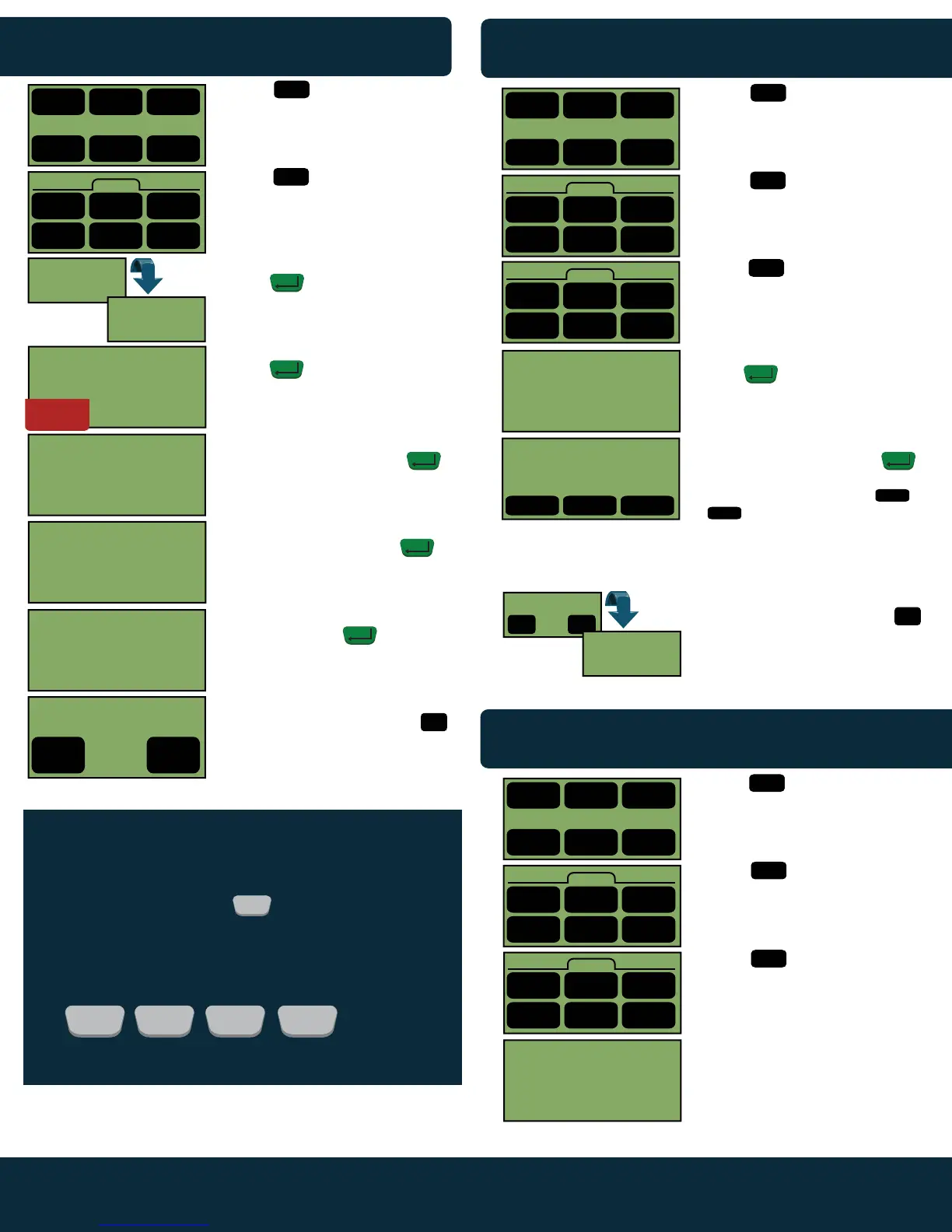
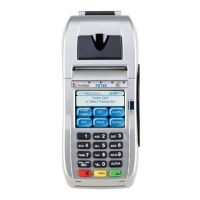
Touch .
Touch twice.
Touch .
Enter transaction number, then
press .
The terminal will now display the
selected transaction. Press
to void the transaction shown on
screen. Alternatively touch or
to cycle through other
transactions in the terminal. Once
you select the transaction, the
receipt will begin printing.
Tear off the merchant copy for the
customer to sign. Then touch
to print customer’s copy. Terminal
will return to the idle prompt.
Yes
No
PRINT
CUSTOMER RECEIPT?
4
5
Technical Support: 1-800-966-5520 - Option 3 Customer Service: 1-800-966-5520 - Option 4
www.electronicpayments.com
Screen Display Action
FORCED SALE
BATCH OUT/SETTLEMENT
Screen Display Action
VOIDING A SALE
Screen Display Action
1
Credit
1
Credit
ENTER TRANS # #
TO VOID
VOID
COMPLETE
(TRANS TYPE)
CLK
AMOUNT
(TRANS #)
XXXXXXXXXXXXXXXX
1.
2.
3.
4.
5.
6.
MM/DD/YYY HH:MM
1 2 3
Credit Debit EBT
4 5 6
Gift Check System
Credit
1 3
Sale
6
More>
5
Void
Force
4 5 6
<Back Tips More>
Yes
4
2
Refund
Credit
1 3
Reprint
4 5 6
<Back Void More>
2
View
Reports
Print
Reports
4 5 6
<Prev
4
<Prev
Void Next>
6
Next>
ENTER
ENTER
SERVER ID
1.
2.
3.
4.
5.
6.
7.
8.
Touch .
Press .
Enter credit card number, then
press .
Enter Server # if prompted, then
press .
*** Not Available on All Terminals***
Enter amount of sale (no need to
enter decimal). Then press .
Enter the tip amount (no need to
enter decimal).Then press .
Enter the six digit authorization
code, then press .
Merchant’s copy of the receipt will
begin printing once complete.
Tear off the merchant copy for the
customer to sign. Then press
to print customer’s copy. Terminal
will return to the idle prompt.
MM/DD/YYY HH:MM
1 2 3
Credit Debit EBT
4 5 6
Gift Check System
Credit
1 3
Sale
3
Force
Force
4 5 6
<Back Tips More>
CREDIT FORCE
SWIPE CARD
ENTER ACCOUNT #
XXXXXXXXXXXXXXXX
ENTER AUTH CODE
BASE AMT:
$X.XX
TIP AMOUNT
$0.00
(CARD TYPE) FORCED SALE
ENTER AMOUNT
$0.00
Yes
No
PRINT
CUSTOMER RECEIPT?
4
Yes
4
5
2
Refund
ENTER
ENTER
ENTER
ENTER
ENTER
1
Credit
1.
2.
3.
4.
Touch .
Touch .
Touch .
Terminal will dial out and
close the day’s transactions.
MM/DD/YYY HH:MM
1 2 3
Credit Debit EBT
4 5 6
Gift Check System
Credit
1 3
Sale
6
More>
3
Close
Force
4 5 6
<Back Tips More>
2
Refund
Credit
1 3
Auth Close
4 5 6
<Back Inquiry More>
2
Tabs
BATCH CLOSE OKAY
APPROVED ######
RESTAURANT
ONLY
HOW TO TYPE LETTERS
When entering an authorization code, you will need to
input letters as well as numbers. In order to do so,
we will need to press the key enough times to
correspond to the letter on the appropriate number
key.
For example:
Because the letter F is the 3rd character on the 3 key.
ALPHA ALPHA
ALPHA
ALPHA
3
DEF
, , ,
=
F


 To Next Page