3. If you can't set up after the reboot, remove all other Fitbit devices from your account
and from the list of connected Bluetooth devices on your computer.
4. If you still can't set up and a compatible phone or tablet isn't available, please contact
Customer Support so we can investigate.
Macs or Windows 8.1 Computers
1. Turn your Fitbit device off and back on using the instructions in How do I restart my
Fitbit device?
2. Try the setup process again:
1. Click the icon with the Fitbit logo (located near the date and time on your
computer).
2. Click Open Main Menu.
3. Click Set Up a New Fitbit Device.
4. If the setup process failed last time after you created a Fitbit account, click
Existing User. Otherwise click New Fitbit User.
5. Follow the on-screen instructions.
3. If you can't set up after the reboot, remove all other Fitbit devices from your account.
4. Try setting up your device again.
5. If you still can't set up and a compatible phone or tablet isn't available, please
contact Customer Support so we can investigate.
If your Fitbit device doesn’t show your heart rate, try these troubleshooting steps.
1. Make sure heart-rate tracking is turned on:
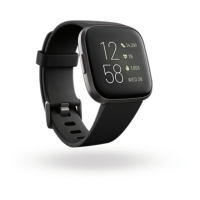
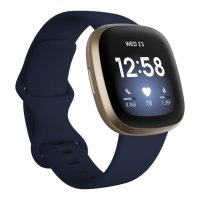
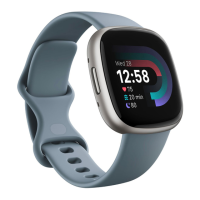
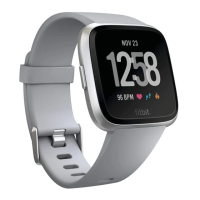
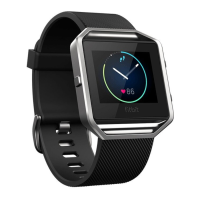
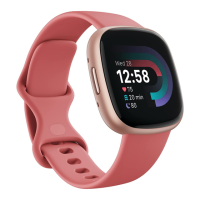
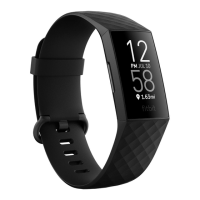
o Fitbit Blaze, Fitbit Charge 3, Fitbit Inspire HR, Fitbit Ionic, and Fitbit Versa
series—Confirm heart-rate tracking is enabled on your device.
o Fitbit Alta HR & Fitbit Charge 2—Confirm heart-rate tracking is set to Auto in
the Fitbit app on your phone.
On-Device
Open the Settings app , and find Heart Rate. Make sure it's set
to On.
Fitbit app
1. Tap the Today tab and tap your profile picture.
2. Tap your device image.
3. Tap Heart Rate and make sure it's set to Auto.
4. Sync your device.
2. Make sure your device is positioned correctly on your wrist:


 To Next Page