EasyManua.ls Logo

FLIR E50 - User Manual

FLIR E50
2 pages
Print Icon
To Next Page IconTo Next Page
Loading...
How to upgrade your FLIR E40 to E60 (Resolution hack)
Step-by-Step Guide:
1 Download Flir Tools or drivers from www.flir.com
2 Install FLIR Tools on to your computer (If this applies)
3 Turn on your Flir E30, E40 or E50 Camera
4 Connect your Flir camera to your computer using the USB-Cable, and let windows install the
needed drivers.
5 After windows has completed installing all drivers, disconnect your camera from the USB-Cable
6 Press navigation pad/button (2) with a push in the center The menu system bar will appear
7 From the menu system bar select push left on the navigation pad to toggle to Settings/Options
(11)
8 Press navigation pad/button (2) with a push down to enter “ Settings”
9 Press navigation pad/button (2) with a push down to scroll down to “ Device settings”
10 Press navigation pad/button (2) with a push right to enter “ Device settings menu
11 Press navigation pad/button (2) with a push down to scroll down to “ Camera Information”
12 Press navigation pad/button (2) with a push right to enter “ Camera Information menu”
Question and Answer IconNeed help?

Do you have a question about the FLIR E50 and is the answer not in the manual?

Overview

This document outlines a step-by-step guide for upgrading a FLIR E40 thermal camera to an E60, often referred to as a "resolution hack." The process involves a series of interactions with the camera's navigation pad and its connection to a computer.

Function Description

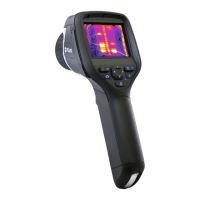
The primary function described is the modification of a FLIR E40 series camera to potentially enhance its capabilities, specifically by changing its operating mode to "RNDIS" via a hidden menu. While the document refers to this as a "resolution hack," the direct outcome described is the activation of a specific USB mode. This change in USB mode might be a prerequisite or a component of a larger process to achieve the desired resolution upgrade. The camera itself is a thermal imaging device, and this procedure aims to alter its internal software configuration to unlock or enable features typically found in higher-end models like the E60.

Usage Features

The guide details a precise sequence of user interactions with the FLIR camera and a computer.

  • Computer Connection and Driver Installation: The initial steps involve connecting the FLIR camera to a computer via a USB cable. This allows the computer to recognize the device and install necessary drivers, which are crucial for any subsequent software interactions or data transfer. The user is instructed to download "Flir Tools or drivers" from www.flir.com and install "FLIR Tools" if applicable. This suggests that Flir Tools is a proprietary software suite that facilitates communication and management of FLIR cameras.
  • Navigation Pad Interaction: The core of the upgrade process relies heavily on the camera's navigation pad/button. The instructions specify various types of presses:
    • Center Push: Used to activate the menu system bar and to enter "Settings." A prolonged 10-second push in the center is required to access a "Hidden menu," indicating a deliberate design choice by the manufacturer to make certain configurations less accessible to casual users.
    • Push Down: Used to scroll through menu options, such as navigating to "Device settings," "Camera Information," "RNDIS," and to "lock down the selected mode." This implies a vertical scrolling mechanism within the camera's user interface.
    • Push Right: Used to enter sub-menus, such as "Device settings menu," "Camera Information menu," and "USB Mode." This suggests a hierarchical menu structure where pushing right delves deeper into specific settings categories.
    • Push Left: Specifically mentioned for toggling to "Settings/Options" from the menu system bar. This indicates a horizontal navigation capability within the main menu bar.
  • Menu Navigation: The guide provides a detailed path through the camera's menu system:
    1. Activate the menu system bar.
    2. Navigate to "Settings/Options."
    3. Enter "Settings."
    4. Scroll to "Device settings."
    5. Enter "Device settings menu."
    6. Scroll to "Camera Information."
    7. Enter "Camera Information menu."
    8. Access the "Hidden menu" (requiring a 10-second center push).
    9. Enter "USB Mode."
    10. Scroll to "RNDIS."
    11. Lock down "RNDIS" as the selected mode.

This intricate sequence highlights the camera's on-device user interface, which allows for deep configuration changes without necessarily relying on external software for every step. The "Hidden menu" suggests advanced or developer-level settings that are not part of the standard user experience. The final step of "locking down" the RNDIS mode implies that this setting will persist after the procedure, potentially affecting how the camera interacts with computers in the future.

Maintenance Features

The document does not directly describe maintenance features in the traditional sense (e.g., cleaning, calibration). However, the procedure itself could be considered a form of "software maintenance" or "firmware modification" aimed at improving the device's performance or unlocking its full potential. By upgrading the camera's capabilities, the user is essentially performing an advanced form of maintenance that enhances the device's utility and extends its operational life by bringing it closer to the specifications of a higher-tier model. The reliance on "Flir Tools" for driver installation and potential software updates also points to a system where software-based maintenance and upgrades are integral to the camera's lifecycle. The careful steps outlined for menu navigation and mode selection emphasize the importance of precise interaction to avoid unintended configurations, which is a key aspect of maintaining the camera's correct functionality during such modifications.

FLIR E50 Specifications

General IconGeneral
Resolution240 x 180 pixels
Image StorageSD card
FocusManual
Image Frequency60 Hz
Accuracy±2°C or ±2% of reading
Digital Camera3.1 MP
Digital Zoom4x continuous
Measurement PresetsYes
Laser PointerYes
Battery Operating Time4 hours
Spectral Range7.5 – 13 µm
Operating Temperature Range-15°C to +50°C
Storage Temperature Range-40°C to +70°C
Thermal Sensitivity<0.05°C at 30°C
Field of View25° × 19°
Temperature Range-20°C to +650°C
Display3.5" LCD touchscreen
Image ModesThermal, MSX
Battery TypeLi-Ion battery
Weight0.825 kg

Related product manuals