28
Connecting Flite App to Fliteboard and the eFoil
1 Turn o Flite Controller.
2 Ensure Fliteboard has power and the lid is closed.
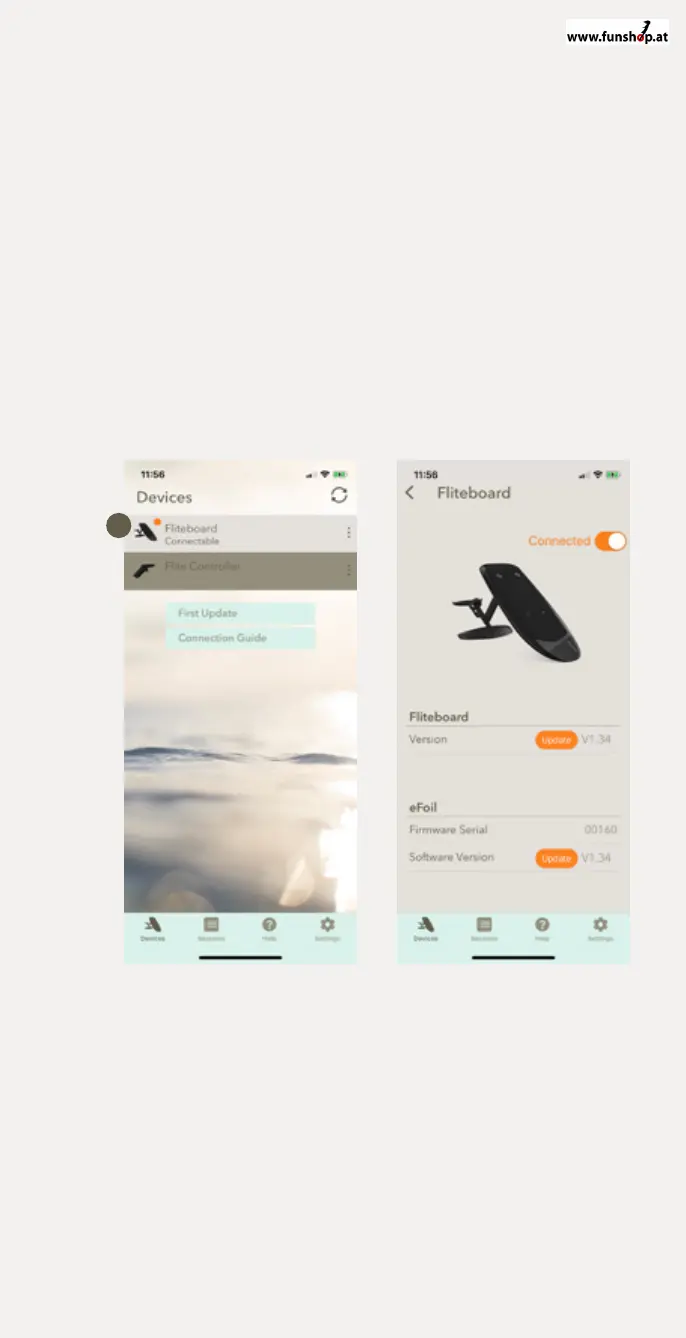
3 Select ‘Fliteboard’ from the ’Devices’ menu. When connected, the
board receiver LED will turn purple. When performing some updates
it will display green.
4 You will now be able to see software version of both the Fliteboard
and the eFoil.
5 Once connected you can perform ongoing updates and now sync
session rides under ’Sessions’
YOU WILL ONLY NEED TO USE FIRST UPDATE PROCESS ONCE. WHEN
NEW SOFTWARE UPDATES ARE AVAILABLE, YOU’LL SEE AN ORANGE
UPDATE ICON. WHEN UPDATING, DON’T USE THE PHONE FOR ANYTHING
ELSE SUCH AS CALLS, TEXTS OR OTHER APPS.
Devices
1 Fliteboard is turned on and
connectable. New updates are
denoted by the orange alert.
Devices / Fliteboard
Fliteboard is connected.
Updates are both required
and able to be performed
for both Fliteboard and eFoil.
1


 To Next Page