30
1
Capturing sessions
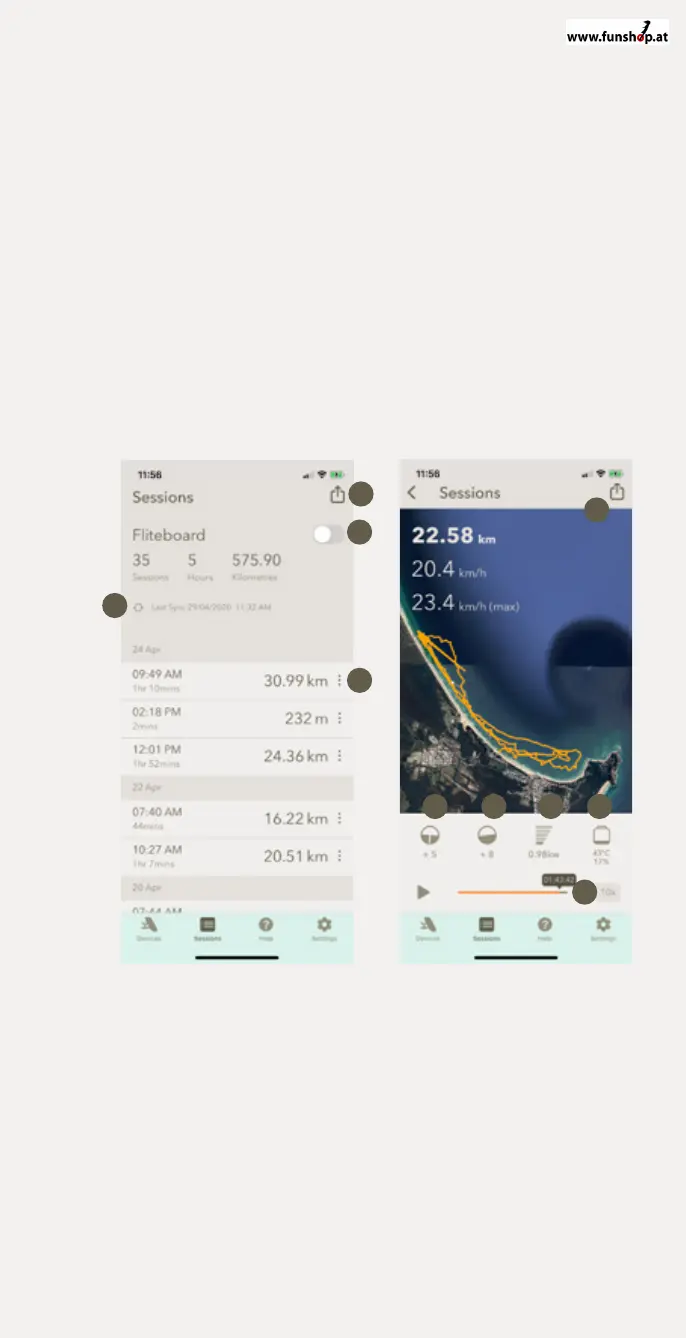
1 Once software is up-to-date, Fliteboard will automatically capture
sessions to its onboard computer.
2 Open Flite App. Click ‘Sessions’ and then double tap ‘Sync’ to view
and download any new sessions.
3 Clicking the share icon (top right) from the ‘Sessions’ screen will share
diagnostic data with Fliteboard support via email.
4 Clicking a ride in the Sessions list, will then take you to ride detail
screen. Here you can play back your ride in various speeds, over
an aerial map.
Sessions
1 Share diagnostics with support
2 Connect / disconnect
(when powered and in range)
3 Sync sessions
(when Fliteboard is connected)
4 Session ride
(swipe left to rename)
Sessions / Ride detail
5 Share ride
6 Ride roll angle
7 Ride pitch angle
8 Power consumption
9 Flitecell temperature
displayed in Celsius.
Flitecell charge remaining
10 Adjust ride playback speed
1
5
2
6 7 8 9
10
4
3


 To Next Page