9
FAQ - Software
1. Where can I get 3D designs from?
There are two possibilities to get a 3D model for printing:
• Create your own 3D model by using 3D modelling software eg. Solidworks, Meshmixer etc. and
save it as .stl file
• Download a 3D model online by searching .stl files (eg. www.thingiverse.com)
2. What is a g-code?
G-code is a control language for 3D printers. This tells the machine how to move to various points
at a desired speed, control the spindle speed, turn on and off various coolants and all sorts of other
process parameters to obtain a three dimensional object.
How do I generate a g-code?
There are a few slicing software programmes that you can use to turn a 3D model into a g-code.
We recommend Slic3r, but it is also possible to use Cura or Simplify3D. If you decide to use Slic3r,
follow the steps:
• Download the Slic3r for free (www.slic3r.org)
3. • Set Slic3r to expert mode by clicking File >> Preferences >> Expert mode
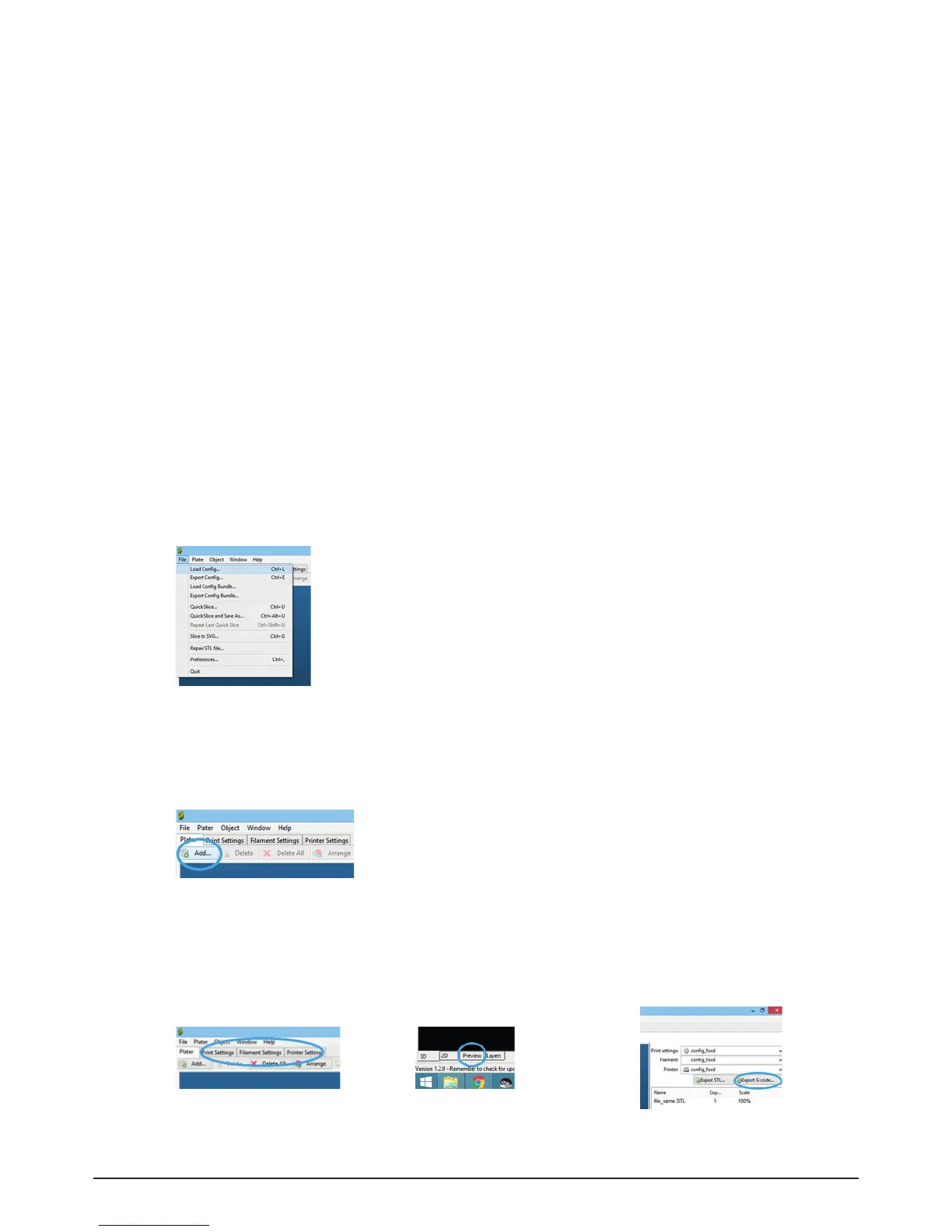
• Load the configuration file with proper printing parameters for
the Focus 3D printer (File >> Load config… >> select the configuration file which can be
downloaded from www.3dbyflow.com/support)
• Go the every Print/Filament/Printer settings tabs [img. S3.3] to select the config file in the
dropdown menu on the left and and save it by clicking the disk icon. The config is now saved.
• Open your .STL 3D model by clicking Add… button
• You can modify any parameters in Print/Filament/Printer settings tabs [img. S3.3-S3.5], as well
as see the preview of the printing process by clicking the Preview tab on the bottom of the
screen. If you’re ready, generate the g-code by clicking on Export G-code… on the right side of
the screen and save the file.
Image S3.1 - Slic3r Load Config...
Image S3.2 - Add a .STL model
Image S3.3 - Settings tabs Image S3.4 - Settings tabs Image S3.5 - Export G.code



 To Next Page
 Loading...