58 Running a Temperature Profile OVEN TRACKER XL2
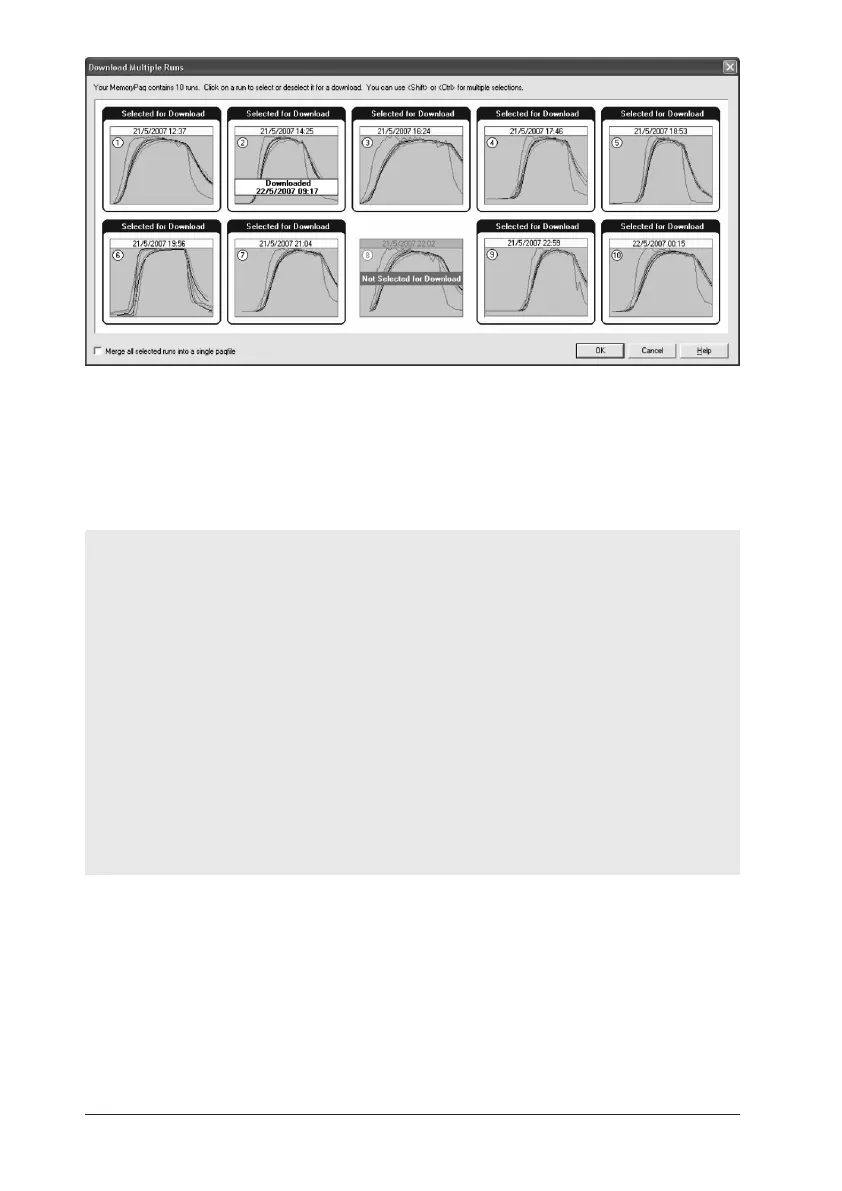
Downloading data from multiple profile runs stored in the XL2 logger (Oven
Tracker Professional only): here, all profiles except no. 8 are selected for download;
profile no. 2 has already been downloaded, but will now be downloaded again; the
profiles will not be merged.
4. Wait while the data is downloaded to the PC.
If you see the message
Logger stopped due to going over temperature
the data logger’s maximum-permitted internal temperature has been exceeded,
and it may have suffered damage. The reason for the excessive temperature –
which may be the result of process operational problems or the use of an
inappropriate thermal barrier – must be resolved before further profile runs take
place; contact Datapaq for advice.
A warning message will also be shown if the logger has stopped recording data due
to a low battery, and (if the warning is enabled, see below) when probes are
open circuit.
In all cases, data recorded up to the point of error will have been preserved.
For recommended actions to take in response to error messages, see p. 67.
To disable these alarms, select Tools > Options > Run Alarms.
5. In Oven Tracker Professional, the Select Process dialog then appears for
each profile, as it downloads, in order that you may choose a process file to
apply to the results; if the process file and its components have been given
names, these are shown when the process file is selected (in Oven Tracker
Basic, the selected process file will be applied to all the profiles which are
downloaded together). If multiple runs are being merged, a single selected
process file will be applied to the single merged paqfile created. Click ‘No
Process’ if you do not want to apply a process file. (A process file allows


 To Next Page