Section II – Configuring a SLIP Connection
Page 6 AB06064 · Issue/Rev. 0.0 (5/06)
PC Settings for SLIP Communications
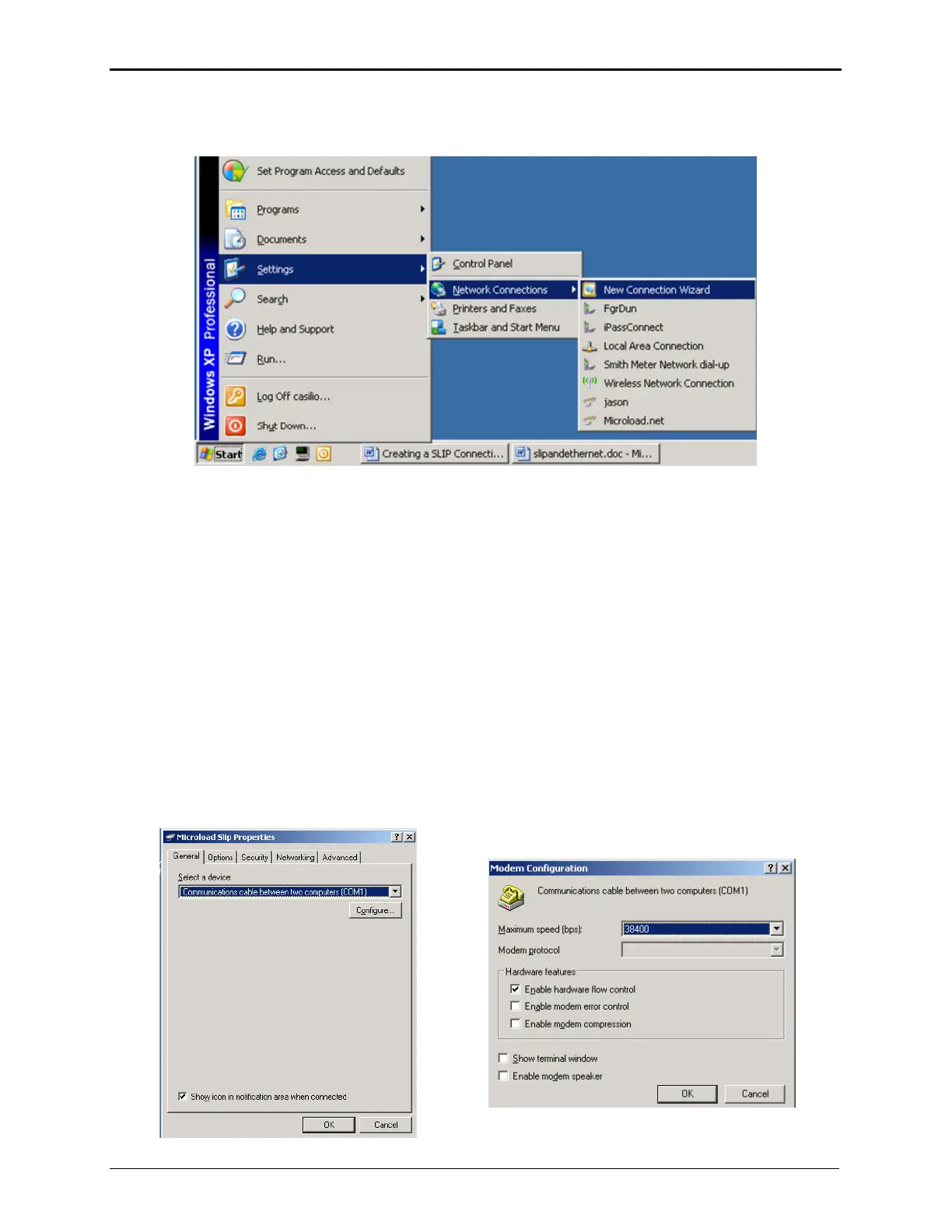
Click on Start > Settings > Network Connections > New Connection Wizard:
In the New Connection Wizard, perform the following steps:
o Select <Next> on the “Welcome to the New Connection Wizard” page)
o Select “Set up an Advanced Connection”, from the list then click <Next>
o Select “Connect directly with another computer”, then click <Next>
o Select “Guest”, then click <Next>
o In the text box, type in “microLoad via SLIP” or something identifiably unique
o Select “Communications cable between two computers (Com 1)” when the wizard
prompts for a device selected. Click <Next>
o Click on “Anyone’s Use” for connection availability. Click <Next>
o Click <Finish> on the Confirmation page of the Wizard
Upon completion, a new screen will pop up automatically with the title “Connect to microLoad via
SLIP”
Click <Properties>
o In the General tab, select “Communications cable between two computers (COM n)”.
Verify the selection corresponds to the desired port.
o Click on the <Configure> button located on the same screen (below the selected device).
Set the baud rate to 38400. In the hardware features verify that all boxes are unchecked.
Click <OK> to return to the Properties dialog.
►



 To Next Page