Section I – Connecting via Ethernet
AB06064 · Issue/Rev. 0.0 (5/06) Page 3
Configuring Windows 2000/XP for Ethernet Connection to microLoad.net
Requirements:
A Network Interface Card (NIC) installed in the PC and either:
o a CAT-5 ‘crossover’ cable;
or alternately
o two regular CAT-5 cables, and an Ethernet hub/switch/router such as those
manufactured by D-Link, LINKSYS, 3Com, et. al.
Your PC has a NIC interface if there is an Ethernet port (CAT-5 connector) present on the back of the
computer. Most modern PCs have the Ethernet hardware integrated on the motherboard. Typically these
ports are labeled with a network icon: If there is no Ethernet hardware in your PC you can add one –
they are relatively inexpensive and easy to install. Another option is to use a SLIP connection (see the
section later in the manual on SLIP).
There are two ways to connect the microLoad to your PC using Ethernet – either machine-to-machine,
using a crossover cable; or connecting both the PC and the microLoad to a multi-port network device
such as a hub, switch or router.
If using a crossover cable, plug one end of the cable into the Ethernet port on the PC. If using a hub,
connect the PC’s Ethernet port to one of the router’s ports using a standard cable.
At the microLoad.net, remove the cover and find the CAT-5 connector (CN8) on the back of the MNET
board (the main board, attached to the cover). Plug the other end of the crossover cable in here, or if
using a hub connect the second standard CAT-5 cable between the microLoad.net and another port on
the hub. The microLoad has two LEDs near CN8 – the green LED will light if the physical connection is
established properly. The yellow LED will blink when traffic appears on the network.
Note: If the system is currently on a network, be sure to record all values prior to changing the connection
settings so the network connection can be restored to the original state.
Configuring the PC’s settings for Ethernet communications with the microLoad.net:
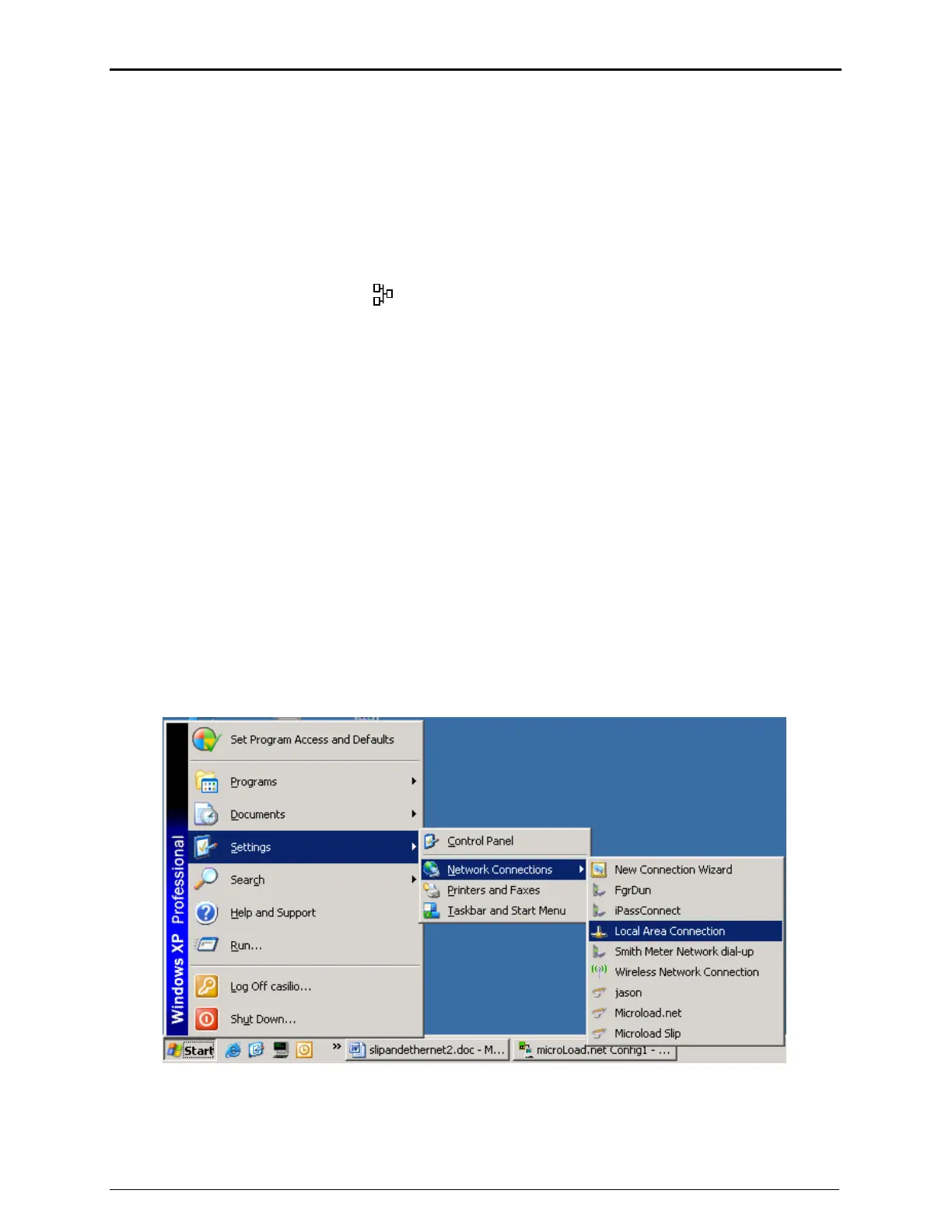
Click on Start Menu > Settings > Network Connections > Local Area Connection



 To Next Page