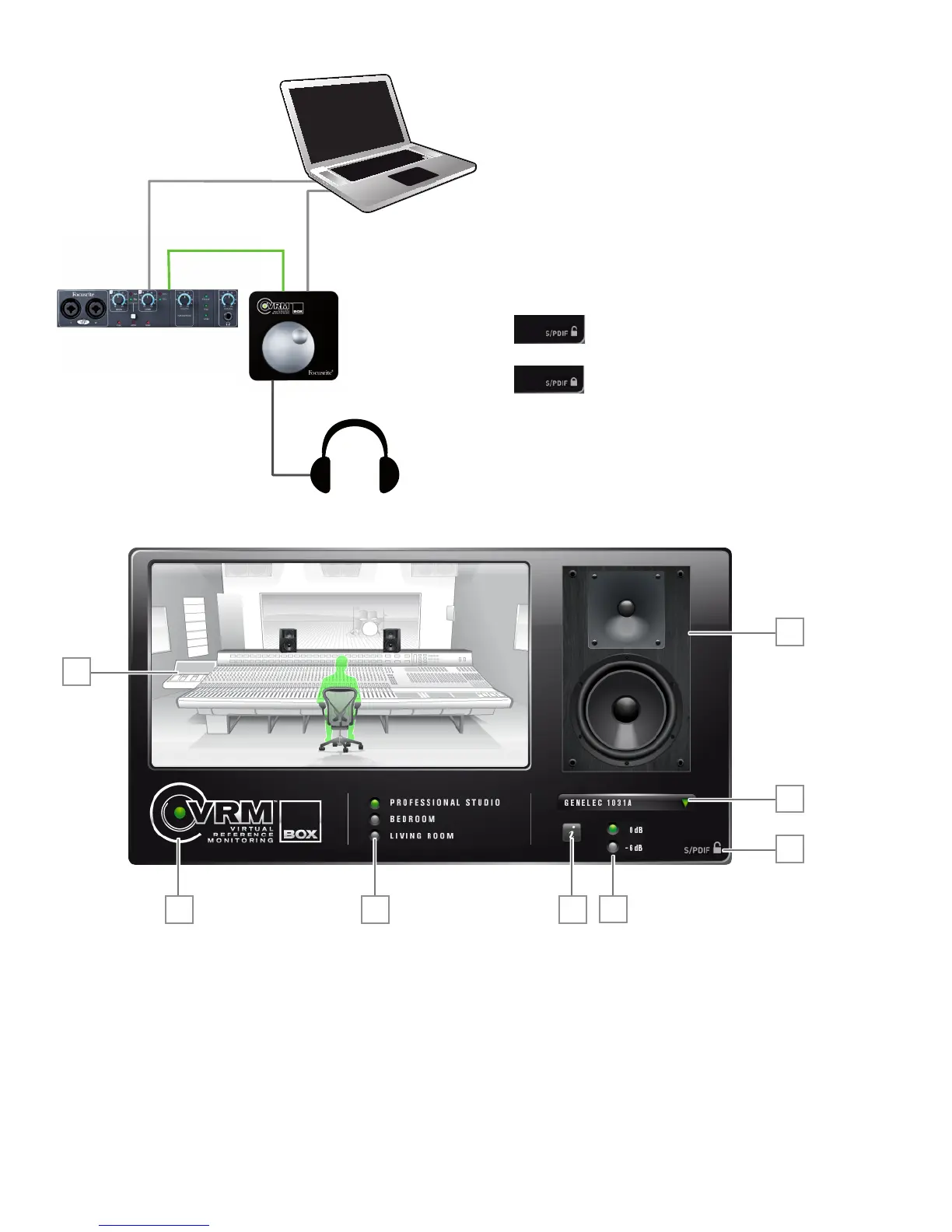
VRM Box in conjunction with another audio interface
1. UsingtheUSBcableprovided,connecttheVRMBoxtothe
USBportofyourcomputer
2. ConnecttheS/PDIFoutputonyouraudiointerfaceintothe
VRMBoxS/PDIFinput
3. Inyouraudiointerface’scontrolpanel,ensurethataudiois
senttotheS/PDIFoutputofyouraudiointerface
4. Withthevolumecontrolturneddown,connectyour
headphones to VRM Box
5. OpentheVRMsoftware,checktheiconinthebottomright
corneroftheVRMsoftwarethattheVRMBoxhas
lockedtotheS/PDIFsignal
S/PDIFisunlocked
S/PDIFislocked(VRMBoxissynchronisedto
theincomingS/PDIFsignal)
6. StartplayingaudiofromyourDAWsoftwareoranymedia
player
7. Turn up the volume control on the VRM Box until you have
therequiredlevelinyourheadphones
VRM Box control panel software
1. Currently selected monitor speaker
2. Monitor speaker selection drop down list:Clicktoselectthemonitorspeakers
3. S/PDIF input status:(seeaboveformoredetails)
4. VRM on / off:ClickthelogototurnVRMon/off.Whenon,thedotinVRMlogoandtheLEDonthehardwarewilllightgreen
5. Environment selection:Clicktochangethelisteningenvironment
6. Information button:Whenpressed,textinformationaboutthelisteningenvironment,monitorspeakers,andlisteningpositionisdisplayed
7. Input level buttons: Whenplayinglouderaudiomaterial(e.g.amasteredmp3),theadditionalprocessingfromVRMBoxmaycausetheoutputto
clip.Pressthe-6dBbuttontopreventthishappening.Conversely,whenplayingquieteraudiomaterial(e.g.anon-masteredrecordingsession),press
the0dBbuttontoachievemorelevelinyourheadphones
8. Environment display:Thisgivesagraphicalrepresentationofthelisteningenvironment,monitorspeakerplacementandlisteningposition
1
2
3
654
8
7


 To Next Page