U45W Blue Jay User Manual
19
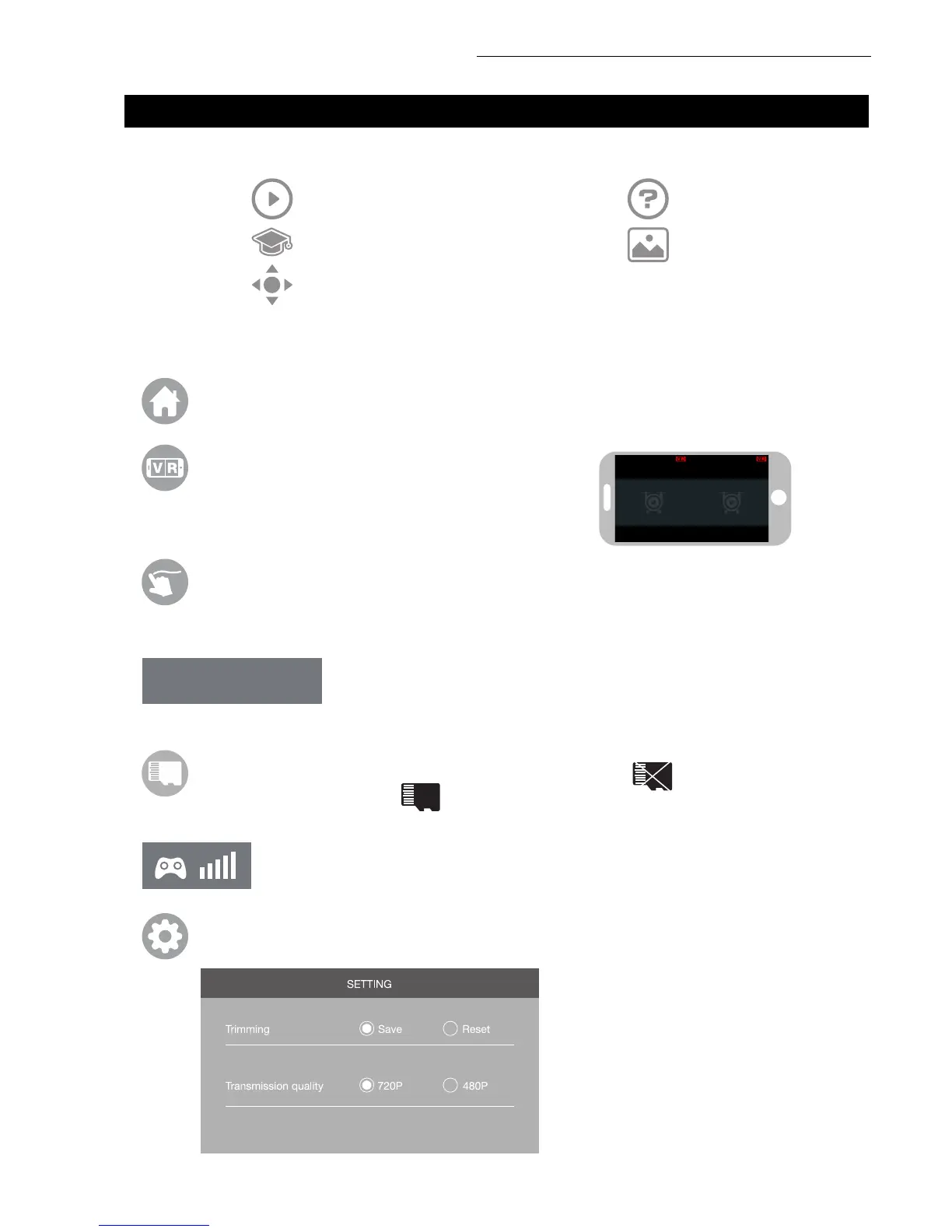
SD Card: If there is no SD Card in the drone, the icon shows as . If there is an SD Card in
the drone, the icon shows as .
3. KNOW YOUR APP ICONS
1. HOME PAGE ICONS
2. REMOTE CONTROL INTERFACE
Explore UDIRC Drone Help
Learn Drone Operation Media
Remote Control Interface
Home Page Icon: Click on the icon to go back to the home page.
Remote Control Signal: To show the drone’s Wi-Fi signal strength.
Setting: Click on this icon to set some parameters, and click again to exit.
Custom Route Mode: When you click on this icon, it will turn red. Draw a ight route in the
right screen. The drone will y the route. Click on the icon again to exit from Custom Route
Mode. The icon will turn white.
Emergency Stop: This icon is red by default. Click this icon and the
propellers will stop immediately, grounding the drone. Only use this
function in emergency situations.
Virtual Reality Mode: Click on the icon to enter VR
Mode to experience rst-person view (only available
when using with a VR headset). Click on the icon again
to exit VR Mode.
EMERGENCY
Click on “Save” to save trimming setting.
Choose “Reset” for factory reset.
Click on “720P” or “480P” to choose
real-time transmission resolution.


 To Next Page