(
HOW TO PAIR A BLUETOOTH-ENABLED MOBILE PHONE CONT.)
3
. Refer to the Bluetooth-enabled mobile phone user guide for
i
nstructions on how to initiate pairing from the phone. Once
SYNC has been discovered, enter the PIN displayed on the radio in
t
he phone. (Note: This number changes every time you pair a
d
evice, so you don’t need to write it down, just enter it into the
phone.) The radio displays CONNECTING while SYNC is
c
onnecting with the phone, and then displays CONNECTED when
the connection is made between SYNC and the phone.
4
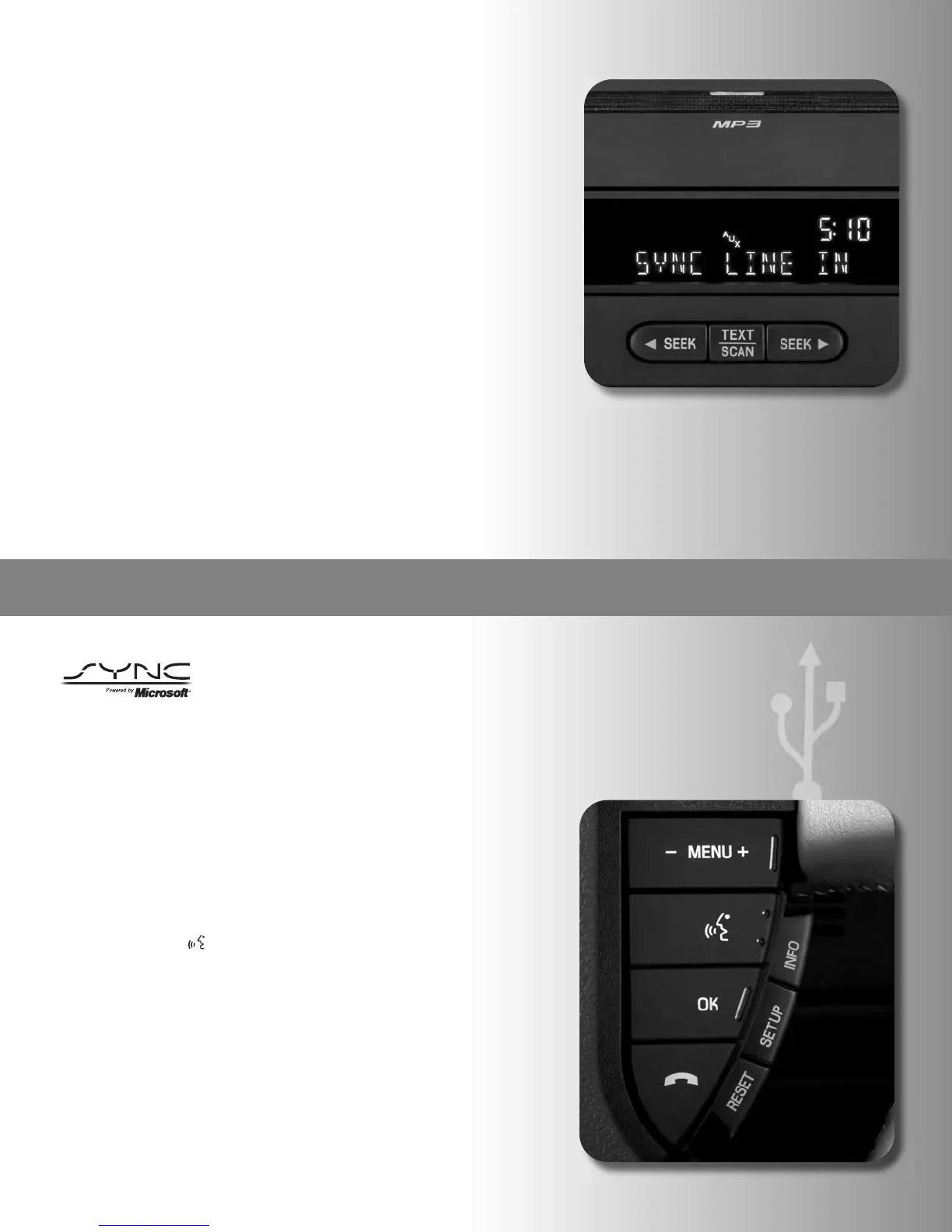
. The system will ask, SET PRIMARY? The primary phone is the
p
hone that SYNC searches for first whenever the system is
started. If this phone will be the primary phone, follow the
o
n-screen instructions to designate it as primary. You’ll use the
SEEK button to change options and confirm your choices with
Y
ES or NO, then press OK on the radio.
5. Then the system will ask whether or not you want to download
y
our phonebook contacts by displaying the message DOWN
L
OAD? Scroll by pressing the SEEK button to select YES or NO
and press OK on the radio.
6
. If you select YES, the system will display DOWNLOADING. Once
complete, the system will display DOWNLOADED.
7
. Keep in mind that the larger the phonebook contacts list, the
longer this first pairing will take, up to five minutes. Afterward,
S
YNC will update the contacts much more quickly as it needs to
add only what’s new.
Note: This is a phone-dependent feature.
SYNC Media Features
HOW TO USE VOICE COMMANDS WITH A USB DIGITAL
MEDIA PLAYER
Remember, you can always say, “Help” for more options.
1. Ensure that the vehicle and navigation system are on.
2. Plug the media player into the USB port and ensure that the
device is on. (Refer to your vehicle’s owner guide for exact USB
port location.)
3. Press VOICE or [ ]. SYNC will say, “Main menu” and the listening
icon will appear in the display.
4. Say, “User Device” to switch to SYNC. Depending on recent usage,
the system will say, “USB, please say a command”; it may also say,
“Line In” or “Bluetooth Audio” depending on the device most
recently connected. SYNC will begin indexing the music media
when the device is plugged into the USB port.
• SYNC will try to determine if you want to give it a command or
just play the music in the connected device
• If SYNC is expecting directions from you, SYNC will state,
“Please say a command” (If SYNC began playing content,
simply start the command sequence again and SYNC will now
know you want to give it directions)
• If the system was not already in USB mode, say “USB”
• The system will then say “USB. Please say a command”
21
4
SYNC without Navigation


 To Next Page