
 Need help?
Do you have a question about the FOREVER ForeVigo 2 SW-310 and is the answer not in the manual?
The Forever Forevigo 2 SW-310 Smartwatch is a versatile wearable device designed to integrate seamlessly with your daily life, offering a range of functions from fitness tracking to smart notifications. This user manual provides a comprehensive guide to its operation, ensuring you can maximize its potential.
The smartwatch features a touch interface for intuitive navigation, complemented by a function button for quick actions. On the back, you'll find a charging plate and a heart rate sensor. To charge the device, simply connect the USB cable's charging clip to the charging plate. A charging icon will appear on the interface once a successful connection is established, indicating that your smartwatch is powering up.
To unlock the full capabilities of your Forevigo 2 smartwatch, you'll need to install the "Forever Smart" app on your smartphone. This app is readily available on both Google Play Store and Apple App Store. Alternatively, you can scan the provided QR codes for direct installation, with separate codes for iOS and Android devices.
Connecting your smartwatch to your phone is a straightforward process. First, ensure Bluetooth is enabled on your smartphone. Then, open the "Forever Smart" app and navigate to the "Settings" menu to fill in any requested information. Tap "Connect device" within the settings, select the smartwatch icon, and choose your device name to establish the connection.
Should you need to disconnect your smartwatch from your mobile phone, the process is equally simple. Open the "Forever Smart" app on your smartphone, tap "Disconnect device" in the "Settings" menu, and confirm with "OK." For iPhone users, an additional step is required: after disconnecting in the app, go to your iPhone's Bluetooth settings, access your smartwatch's entry, and select the "Forget This Device" option to complete the unbinding.
The Forevigo 2 smartwatch offers several ways to interact with its interface. You can turn on the screen by simply raising your hand or by pressing the function button. To change the watch face, press and hold the current watch face interface, then slide left or right to browse through the available options. If the smartwatch is powered off, pressing and holding the function button will turn it on.
After powering on, the smartwatch displays the watch face interface. From here, you can navigate to various functions:
The function button provides a quick way to return to the watch face interface. To personalize your smartwatch, you can change the watch face by pressing and holding the current watch face for 3 seconds. This action allows you to slide left or right through different watch faces and select the one you prefer.
The smartwatch offers several convenient shortcut functions:
The Forevigo 2 smartwatch is equipped with a multi-sport mode, accessible by tapping its dedicated icon. It supports six distinct sports modes: walking, running, cycling, indoor running, hiking, and swimming. Select your desired sport mode to begin tracking your exercise data.
To conclude a sports activity, slide the interface to the right and tap the "√" icon to save your data. The smartwatch will then display your exercise summary. If connected to the "Forever Smart" app via Bluetooth, you can also review your exercise data in the app.
Important Note on Exercise Data: For data to be saved, exercise time must exceed 5 minutes, distance must be greater than 0.1km, and calories burned must be more than 1 Kcal. Data that does not meet these criteria will not be saved.
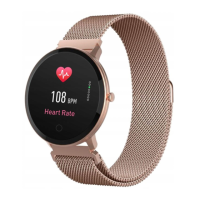
Tap the heart rate icon to initiate monitoring of your current heart rate. To exit the heart rate monitor, slide the interface to the right. If your smartwatch is connected to the "Forever Smart" app and "Healthy detection" is enabled in the app's advanced settings, your heart rate data will also be available in the app.
The smartwatch automatically monitors your sleep patterns between 9:30 p.m. and 11 a.m. The following day, it will display a sleep report detailing your total sleep time, as well as the duration of light and deep sleep. For more detailed sleep reports, connect your smartwatch to the "Forever Smart" app via Bluetooth.
You can set alarms and reminders within the "Forever Smart" app. When an alarm time is reached, the alarm icon will animate, and the smartwatch will vibrate to alert you.
To check your phone calls, SMS, QQ, WeChat, Whatsapp, Facebook, and Twitter notifications, simply slide the watch face from bottom to top. Messages will be automatically deleted once you tap on the interface.
When connected to the "Forever Smart" app via Bluetooth, your smartwatch will display the weather forecast. You have the option to manually set your city or allow the "Forever Smart" app to set it automatically.
To utilize the remote capture feature, enable "Shake and take photo" in the advanced settings of the "Forever Smart" app. Once activated, you can shake your hand three times to remotely take a photo using your smartphone's camera.
Tap the music icon to access the music playback control interface. From here, you can select the previous or next song, and play or pause music. To exit the music playback control, slide the interface from left to right.
The sedentary reminder feature helps you stay active. Go to "Advanced settings" under the "Settings" menu in the "Forever Smart" app to configure the time intervals (in minutes), start time, and end time for these reminders. Slide the interface to the right to exit.
TelForceOne S.A. declares that the product is compatible with the requirements and other relevant provisions of the 2014/53/UE directive. The full declaration of product conformity can be downloaded from their website: https://sklep.telforceone.pl/en-gb/.
 General
| Screen size | 1.3 inches |
|---|---|
| Resolution | 240 x 240 pixels |
| Bluetooth | Bluetooth 5.0 |
| Water resistance | IP67 |
| Battery Life | Up to 10 days |
| Compatibility | Android, iOS |
| Sensors | Heart Rate Monitor, Pedometer, Sleep Monitor |
| Display Type | TFT |



 To Next Page