EasyManua.ls Logo

Fostex 250 - Page 18

Fostex 250
28 pages
Print Icon
To Next Page IconTo Next Page
To Previous Page IconTo Previous Page
Loading...
recording
will
be
made.
The
meters
also
will
deflect
on
those
tracks
from
which
program
is
being
derived,
but
since
this
is
ahead
of
the
INPUT
FADERS,
such
meter
indications
are
not
particularly
useful.
4
.
Set
MONMIX
#3
to
scale
7
and
HEADPHONE
control
to
MON
MIX
position.
This
enables
you
to
monitor
the
active
record
buss,
and
avoids
confusion
from
other
signals
(no
other
record
buss
is
being
used).
5
.
Depress
the
RECORD
TRACK
button
for
the
track
onto
which
the
transfer
will
be
made
so
it
is
ready
for
recording
{track
#3
in
the
example).
6
.
If
you
are
simultaneously
adding
one
or
two
live
sources
during
the
transfer,
use
either
of
the
channels
whose
number
does
not
correspond
to
the
tracks
from
which
existing
program
is
being
derived.
(In
the
example,
since
the
program
is
taken
from
tracks
1
and
2,
use
channel
3
and/or
4
for
live
inputs).
To
add
a
live
vocal
overdub
via
input
channel
4,
for
example:
a)
Set
the
channel
4
INPUT
selector
switch
to
LINE/MIC.
b)
Set
the
channel
4
CHAN
BUSS
selector
switch
to
3-4
position,
and
the
PAN
Pot
fully
CCW
to
assign
the
mic
to
track
3.
c)
S
et
the
channel
4
input
FADER
one
index
higher
than
nominal
{#
8-
#
9),
and
with
sound
present
at
the
mic
(or
while
playing
the
instrument),
adjust
the
channel
4
TRIM
control
for
a
normal
indication
on
the
#3
VU
meter
(e.g.,
peaks
-
3
to
0).
(Later,
the
FADER
will
be
set
at
nominal,
reducing
the
contribution
of
a
given
channel
to
allow
for
the
additional
signal
from
the
transferred
track).
d)
S
et
MONMIX,
at
top
of
channel
4,
to
scale
7.
e)
Make
any
desired
EQ
adjustments
on
channel
4.
NOTE:
If
two
live
sources
are
being
added,
follow
steps
(a)
through
(e)
above
using
the
remaining
“free"
input,
channel
3
in
this
case.
The
only
"trick"
involved
in
using
the
same
channel
for
a
live
input
and
to
assign
the
record
track
is
the
headphone
monitoring;
set
channel
It3's
MONMIX
to
scale
7
when
first
adjusting
the
live
source
so
you
can
listen
to
the
input
to
the
recorder
and
thus
monitor
the
previously
recorded
program
and
the
live
sources.
7.
Press
the
PLAY
button,
and
adjust
the
input
FADERS
on
those
tracks
being
combined.
Balance
this
sound
with
any
live
inputs,
too.
NOTE:
The
VU
meter
corresponding
to
the
track
on
which
the
recording
is
being
made
(track
3)
should
show
normal
levels,
peaking
at
-3
to
0
VU.
If
not,
retain
the
relative
balance
by
adjusting
the
INPUT
FADERS
on
all
channels
contributing
to
the
recording
(pre-recorded
and
live).
Remember
that
the
MONMIX
control
has
no
effect
here,
and
the
HEADPHONE
control
affects
only
the
listening
volume,
not
the
recording
level.
8.
The
system
is
now
ready
for
the
actual
recording.
Press
ZERO
RETURN
(or
REWIND
then
STOP)
to
get
back
to
the
beginning
of
the
program.
9.
Simultaneously
press
PLAY
and
RECORD,
and
the
tracks
are
combined
onto
one.
(For
greater
convenience
when
adding
a
new
input,
press
PLAY
and
use
the
REMOTE
PUNCH
IN
foot
switch
to
initiate
recording;
be
sure
to
begin
recording
before
the
original
tracks
start.)
TO
PLAY
BACK
AND
EVALUATE
THE
TRACK
COMBINATION
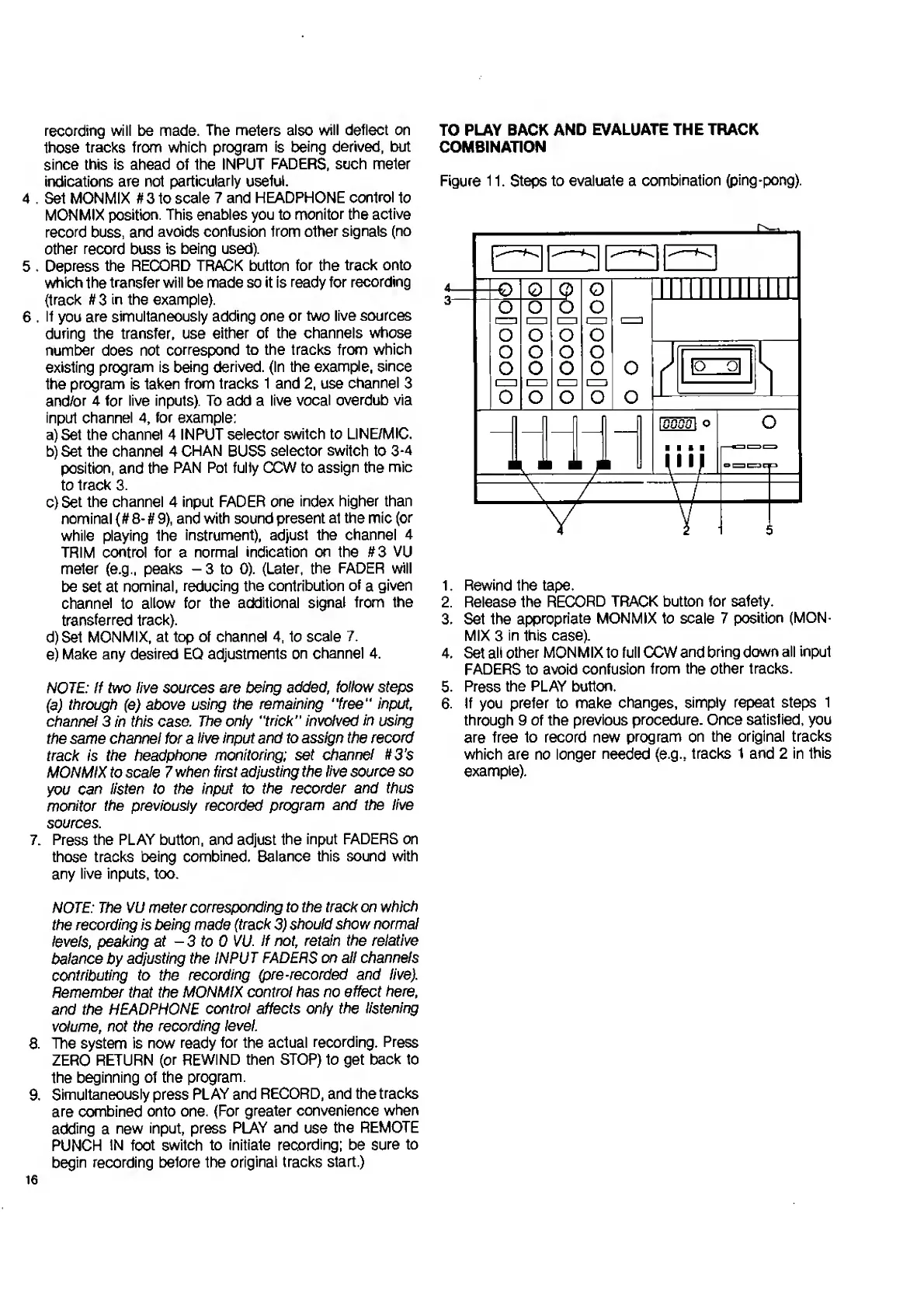
Figure
11.
Steps
to
evaluate
a
combination
(ping-pong).
1.
Rewind
the
tape.
2.
Release
the
RECORD
TRACK
button
for
safety.
3.
Set
the
appropriate
MON
MIX
to
scale
7
position
(MON-
MIX
3
in
this
case).
4.
Set
all
other
MONMIX
to
full
CCW
and
bring
down
all
input
FADERS
to
avoid
confusion
from
the
other
tracks.
5.
Press
the
PLAY
button.
6.
If
you
prefer
to
make
changes,
simply
repeat
steps
1
through
9
of
the
previous
procedure.
Once
satisfied,
you
are
free
to
record
new
program
on
the
original
tracks
which
are
no
longer
needed
(e
g.,
tracks
1
and
2
in
this
example).
16

Related product manuals