5
3. Open the Control Panel of your computer, then locate
and click “Bluetooth Devices”.
4. Click “Add” and then follow the instructions on the
computer to connect the device with the computer.
• Look for the device “Franklin Roadie”.
• In case a password is required, enter “0000”.
• You hear a low-pitched sound when the connection is
successful.
• The button stays lit when the Bluetooth connection is
established.
6. Battery Charging
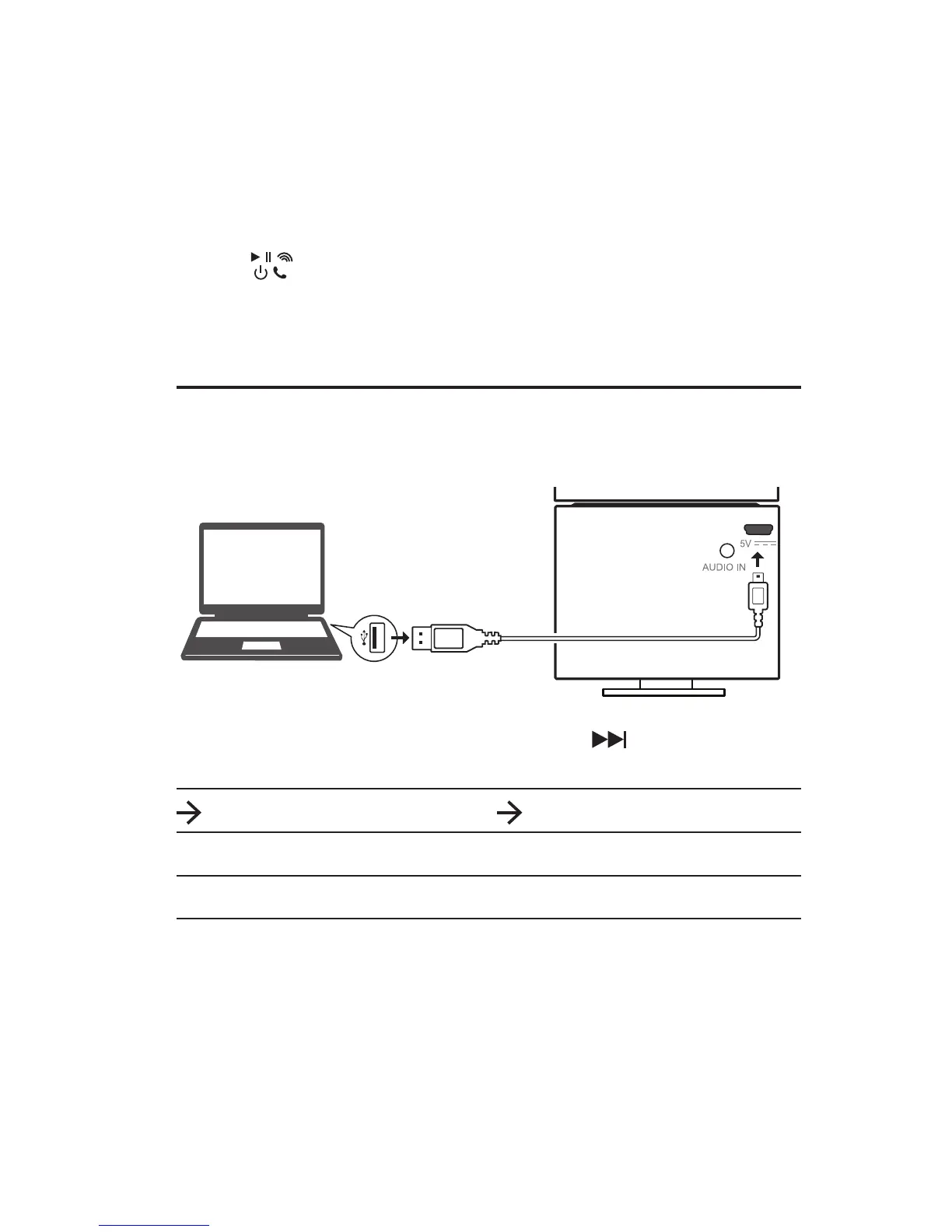
The device has a built-in rechargeable lithium-ion battery
which can be charged by connecting with the USB port* of your
computer.
Refer to the battery indicator (above the + button) for the
charging status.
Indicator Charging status
Blinking Charging in progress
Stays lit Charging completed
After charging, the device can be used without the power
connection. Charge the device again when you see the battery
indicator blinking quickly.
*The device can also be powered by a 5V AC adapter (not provided).
Note: Due to the used enclosure material, the device shall only be connected
to a USB Interface of version 2.0 or higher. The connection to the so-called
power USB is prohibited.
Computer
Power Cable


 To Next Page