17
GB
5
5.3.2 Opening the Secure&Compress folder
1. Open the Freecom Personal Media Suite and select the tab "Secure&Compress".
2. Click on "Open folder" in order to open the Secure&Compress folder.
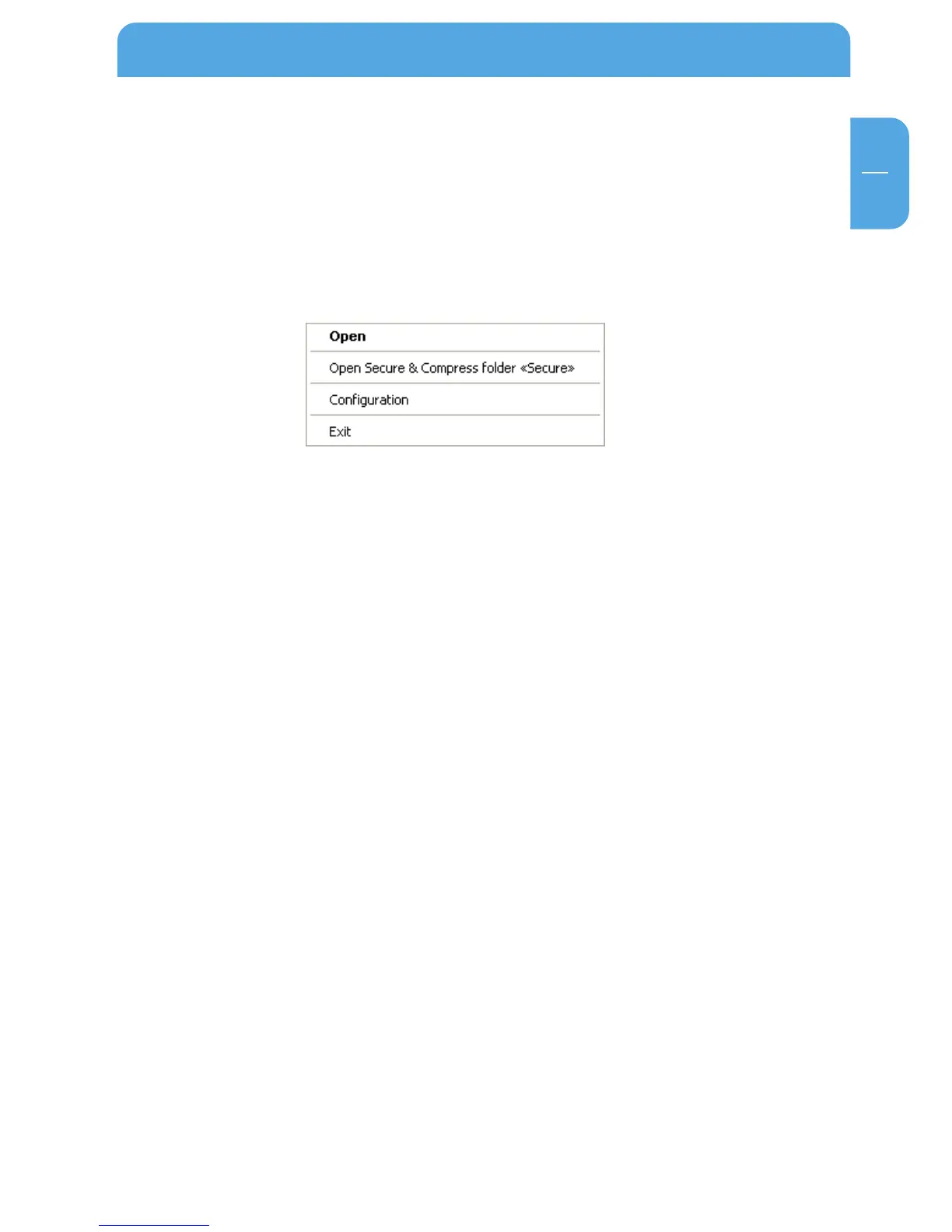
3. If the Freecom Personal Media Suite is already open and has started minimised in the
taskbar, you can also open the Secure&Compress folder with a right-click on the
taskbar symbol of the Freecom Personal Media Suite:
4. Of course you can also open the Secure&Compress folder over the Windows Explorer.
5.3.3 Encrypting files and folders
1. Open the Secure&Compress folder.
2. Pull the files or folders to be encrypted in the Secure&Compress folder using the
drag&drop function. Each file is now compressed and then encrypted.
3. The first time you will be requested to enter and confirm a password. Select "Save
password on this computer" if you do not want to be requested to enter a password
again.
4. Alternatively, you can also right-click on the files or folders and select the
Secure&Compress folder in the context menu under "Send to ...".
5.3.4 Decrypting files and folders
In order to decrypt files and folders which are in the Secure&Compress folder, please
proceed as follows:
1. Open the Secure&Compress folder.
2. Select the file(s) or folder(s) to be decrypted and pull them into the target folder (e.g.
with the Windows Explorer) using drag&drop.
3. Your files are now decrypted and decompressed. The encrypted original remains on
the Freecom Mobile Drive.
The User Interface of the Freecom Personal Media Suite



 To Next Page