QUANTUM
™
LX EVAPORATOR CONTROL PANEL
MAINTENANCE
090.610-M (MAY 2016)
Page 46
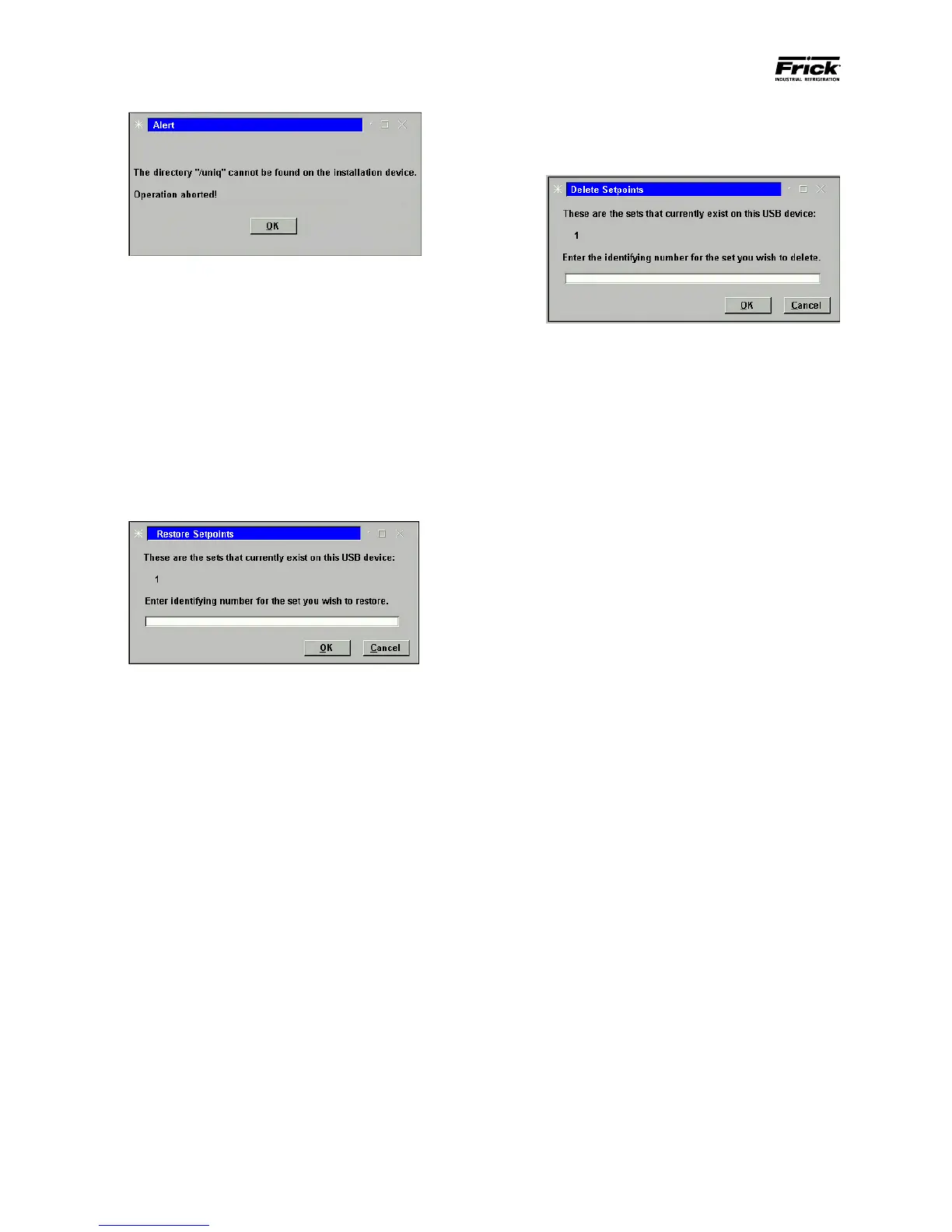
• If the above dialog box appears, you must
insert a valid software upgrade USB device.
3) Restore Setpoints – Use this option to re-load
previously saved setpoints and custom text to the
Quantum™.
• Ensure that all setpoint values have been
documented as a safety precaution. Install the
previously saved setpoint USB device into the
provided connection on the Quantum™.
• Press [3] to Restore Setpoints.
• The software program will read the USB
device, and the following dialog box will
appear:
• Any numerals that appear on the center line of
this box will represent units that have already
been saved (from 0 to 99). If no units have yet
been saved, the center line will be blank and
therefore there are no setpoints to restore.
• Enter a number on the keypad that
corresponds to the unit number that you wish
to restore, and then press [Enter].
• A progress bar will appear asking you to
Please Wait…
• After the le has been written or updated,
the dialog boxes will disappear, and you can
either exit, or continue with another function.
4) Delete Setpoints – Use this option to delete the
setpoints and custom text for a particular unit:
• Ensure that all setpoint values have been
documented as a safety precaution. Install the
previously saved setpoints USB device into
the provided connection on the Quantum™.
• Press the [4] button.
• The software program will read the USB
device, and the following dialog box will
appear:
• Any numerals that appear on the center line
of this box will represent units that have
already been saved (from 0 to 99). If no units
have yet been saved, the center line will be
blank, and therefore there are no setpoints to
delete.
• Enter a number on the keypad that
corresponds to the unit number that you wish
to delete, highlight the Ok button, and then
press [Enter]. You will be prompted with
a new dialog box which will ask you OK to
delete set number (0-99)?
• Highlight the Yes button, and press [Enter].
The dialog box will be updated with a new
message stating that Set number (0-99) has
been deleted!
• Press [Enter] to return to the Software
Maintenance menu.
5) Exit - Use this selection to leave this screen:
• While leaving the USB device plugged in,
press [5] to Exit.
• During the reboot of the Quantum™ LX, a
message will appear that says, “A System
Update le has been detected on the mounted
USB device. Do you wish to perform this
update?” Select [Yes], and a System Update
will be performed.
• At the conclusion of the System Update,
a message will appear that says, “The USB
device can now be removed and power should
be recycled.” Follow these instructions.
Setpoint Defaults When Performing A Quantum™ LX
Software Upgrade
The term software upgrade refers to the whole
procedure of Saving Setpoints, Full System Installs,
and Restoring Setpoints when on the Software
Maintenance screen. They get set to these default
values even after a Restore Setpoints is performed, so
the individual doing the upgrade must then set them
manually to what they need to be if they are critical to
the application.



 To Next Page