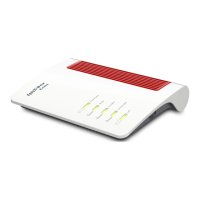
FRITZ!Box 3370 24
Connecting Computers Wirelessly over WLAN
3. Confirm your entries using the relevant button in the us-
er interface (for instance, “OK” or “Connect”).
Now your WLAN device and the FRITZ!Box are connected with
each other wirelessly.
If the WLAN Device Does Not Support WPA
If your WLAN device does not support WPA encryption, you
must convert the encryption set in the FRITZ!Box to WEP. For
this you must change the WLAN settings in the FRITZ!Box.
1. Connect the FRITZ!Box and the computer using the net-
work cable (yellow) (see the section Connecting Compu-
ters to the LAN Port on page 17).
2. Open the FRITZ!Box user interface (see the section
Opening the User Interface on page 26).
3. Select the “WLAN / Security” menu.
4. Open the “Encryption” page, then select WEP encryption
and enter a network key.
5. Click the “Apply” button.
A window is displayed with the WLAN security settings.
6. Make a note of the settings or print out the page.
7. Close the user interface and clear the connection be-
tween the FRITZ!Box and the computer. Remove the net-
work cable (yellow).
8. Configure your WLAN device with the security settings
entered in the FRITZ!Box.
SSID (name of the
WLAN radio network)
FRITZ!Box WLAN 3370
Encryption method WPA2 (AES-CCMP)
Encryption WPA2-PSK (AES)
WLAN key The key is printed on the sticker at-
tached to the bottom of the housing.
Network mode Infrastructure



 To Next Page