EasyManua.ls Logo

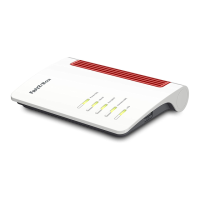
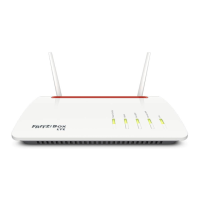
Fritz! FRITZ!Box 7570 - User Manual

Fritz! FRITZ!Box 7570
165 pages
Print Icon
To Next Page IconTo Next Page
Loading...
Installation,
configuration
and operation
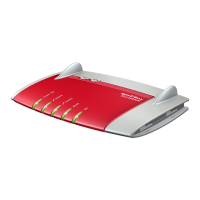
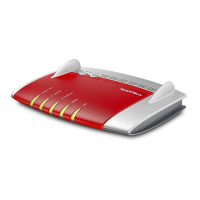
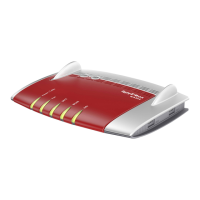
FRITZ!Box
Fon WLAN 7570 vDSL

Table of Contents

Questions and Answers

  • H
    hernandezrebeccaAug 18, 2025
    Why is my Fritz! Network Router user interface not opening or responding?
    • D
      Diane MosesAug 18, 2025
      This can happen due to inconsistencies within the FRITZ!Box. To resolve this, try restarting the FRITZ!Box. You can also remove the power cable from the socket, wait about five seconds, and then reconnect it. After doing this, try opening the FRITZ!Box user interface again by entering fritz.box in your browser's address bar.
  • D
    David BatesAug 20, 2025
    What to do if the Fritz! FRITZ!Box 7570 user interface does not appear in the web browser?
    • G
      Gabriela SimmonsAug 20, 2025
      If the user interface of your FRITZ!Box is not showing up in your web browser, it could be due to several reasons. One possibility is that your web browser is set to offline operation. To fix this, configure your web browser for online operation. Another reason might be that the proxy settings of your web browser are preventing the user interface from opening. In this case, enter the DNS name and the IP address of the FRITZ!Box as an exception in the proxy settings of your web browser. Also, the execution of CGI scripts may be disabled in the web browser. Configure the web browser so that the execution of scripts is allowed in the user interface.
  • W
    wadamsAug 23, 2025
    How to fix Fritz! Network Router user interface not opening via fritz.box?
    • V
      vickismithAug 23, 2025
      If you cannot open the FRITZ!Box user interface by entering fritz.box, it might be because the name resolution of the FRITZ!Box is not working. Try entering the IP address in your web browser instead of fritz.box. If the user interface cannot be reached via this address, check the settings configured for your network adapter as described in section 'IP Settings'.
  • S
    Sophia AcevedoAug 26, 2025
    What to do if Fritz! Network Router user interface is not reachable at fritz.box or 192.168.178.1?
    • C
      Christine JamesAug 26, 2025
      If you cannot reach the FRITZ!Box user interface at either fritz.box or 192.168.178.1, the IP address set on the connected computer may be inapplicable. To resolve this, set the network adapter used to DHCP so that the IP address can be obtained via the DHCP server of the FRITZ!Box.
  • C
    Christopher GarciaAug 28, 2025
    Why does a dial-up connection window appear instead of the Fritz! FRITZ!Box 7570 user interface?
    • J
      johnsontammyAug 28, 2025
      If a window for a dial-up connection appears instead of the FRITZ!Box user interface, it means the browser is trying to use a dial-up connection instead of the network connection between your computer and the FRITZ!Box. You can disable the automatic attempt to establish a Dial-Up Networking connection to fix this.
  • V
    vcalderonAug 31, 2025
    Why can't my WLAN adapter find a wireless network on Fritz! Network Router?
    • M
      Marcus LewisAug 31, 2025
      If your WLAN adapter cannot find a wireless network, ensure that the WLAN adapter is ready for operation.
  • B
    bakerjenniferSep 2, 2025
    Why isn't the Fritz! Network Router wireless network found by the WLAN adapter?
    • C
      Christina MooreSep 2, 2025
      If the WLAN adapter does not find the FRITZ!Box's wireless network, it might be because WLAN is not enabled on the FRITZ!Box. Press the WLAN button on the FRITZ!Box to enable it.
  • M
    Mary MossSep 4, 2025
    How to fix Fritz! Network Router WLAN adapter not finding wireless network?
    • J
      jeffreyrasmussenSep 4, 2025
      If the WLAN adapter cannot find the wireless network of the FRITZ!Box, the name of the wireless network of the FRITZ!Box may be concealed. Enable the setting 'Announce name of the radio network (SSID)' in the WLAN settings of the FRITZ!Box.
  • J
    Jonathan NelsonSep 7, 2025
    What causes Fritz! FRITZ!Box 7570 Network Router WLAN connection issues?
    • W
      William DavisSep 7, 2025
      A possible cause is a mismatch between the WLAN security settings registered in the FRITZ!Box and the security settings of the WLAN adapter. Make sure that these settings agree.
  • A
    Annette JohnsonSep 9, 2025
    Why is my Fritz! FRITZ!Box 7570 Network Router WLAN connection failing with Microsoft WLAN Service?
    • B
      Benjamin ByrdSep 9, 2025
      If you cannot establish a WLAN connection to FRITZ!Box using the Microsoft WLAN Service, the required Microsoft patch for WPA2 (IEEE 802.11i) may not be installed. Install the current patch from Microsoft.

Summary

Security and Handling

Connecting

Connecting FRITZ!Box

Instructions on how to connect the FRITZ!Box, covering initial setup and operation.

3.1 Launching Operation

Guides the user through the initial setup and launching of the FRITZ!Box for the first time.

3.3 Connecting to Electrical Power

Explains how to properly connect the FRITZ!Box to a power source for operation.

3.4 Connecting the Computer(s)

Details methods for connecting computers to the FRITZ!Box via LAN or WLAN for internet access.

3.5 Connecting Computer(s) to the LAN Port

Guides users on establishing wired network connections from computers to the FRITZ!Box's LAN ports.

3.6 Connecting Computer(s) Wirelessly via WLAN

Explains how to connect computers to the FRITZ!Box wirelessly using WLAN technology.

3.7 Connecting to the DSL;VDSL Line

Provides instructions for connecting the FRITZ!Box to the DSL or VDSL line for internet service.

3.8 Connecting to the ISDN Line

Details the process of connecting the FRITZ!Box to an ISDN line for telephony and data services.

3.9 Connecting with the Analog Telephone Line

Explains how to connect the FRITZ!Box to an analog telephone line for standard telephony.

3.10 Connecting Telephone, Fax, or Answering Machine

Guides on connecting analog telephony devices like phones, faxes, and answering machines to the FRITZ!Box.

3.11 Connecting ISDN Telephones

Provides instructions for connecting ISDN telephones to the FRITZ!Box for telephony.

Opening the User Interface

fritz.box

Details how to access the FRITZ!Box's web-based user interface for configuration and status checks.

Internet Connections

Setting Up the Internet Connection

Guides on configuring the FRITZ!Box to establish an internet connection via DSL/VDSL or other network types.

5.1 Configuring the Internet Connection Using the Wizard

Explains how to use the built-in wizard for setting up the internet connection with provider details.

5.2 Configuring the Internet Connection Manually

Provides steps for manually configuring the internet connection settings through the FRITZ!Box user interface.

The DECT Function

Cordless Telephony with FRITZ!Box

Explains how the FRITZ!Box acts as a base station for DECT cordless phones.

6.1 Registering Cordless Phones

Step-by-step guide on how to register cordless DECT phones with the FRITZ!Box base station.

Telephone Connections

Configuring FRITZ!Box for Telephony

Guides on setting up the FRITZ!Box for making telephone calls via Internet and fixed-line networks.

7.1 Entering Your Phone Numbers

Explains how to enter and manage internet and fixed-line phone numbers in the FRITZ!Box.

7.2 Configuring Telephony Equipment

Details how to configure connected telephony devices like phones, faxes, and answering machines with the FRITZ!Box.

USB Devices

USB Devices at the FRITZ!BoxUSB

Overview of USB devices that can be connected to the FRITZ!Box, including sticks, storage, printers, and hubs.

8.1 Connecting USB Devices

Instructions on how to physically connect various USB devices to the FRITZ!Box's USB port.

8.2 Accessing USB Devices

Explains how to access connected USB devices over the network, including via FTP and as network printers.

8.3 FRITZ!Box USB Remote Connection

Details how to enable and use the USB remote connection feature for accessing USB devices on the FRITZ!Box.

8.4 USB Mass Storage Devices

Covers connecting and managing USB mass storage devices like hard drives and memory sticks with the FRITZ!Box.

8.5 USB Printers

Instructions on connecting and configuring USB printers to work as network printers or via USB remote connection.

FRITZ!DSL: The Software Suite

9.1 Installing FRITZ!DSL

Step-by-step guide for installing the FRITZ!DSL software suite on your computer.

Configuration and Operation at the Telephone

FRITZ!Box Keypad Sequences

Introduces keypad sequences used for configuring and operating FRITZ!Box features via telephone.

10.1 Configuring at the Telephone

Guides on configuring FRITZ!Box telephony settings directly from a connected telephone.

Call Diversion on the ISDN Line

Describes call forwarding and diversion features available for ISDN lines connected to the FRITZ!Box.

Call Diversion

Covers diverting incoming calls to other extensions or external numbers using FRITZ!Box features.

Making Internal Calls

Instructions on how to make internal calls between telephones connected to the FRITZ!Box, which are free of charge.

Three-Party Conference Call

Guides on setting up and managing three-party conference calls involving internal and external participants.

Transferring Calls

Explains how to transfer a connection from one FRITZ!Box extension to another.

Explicit Call Transfer (ECT)

Guides on connecting two external parties while on hold, allowing the user to disconnect.

Troubleshooting

Help for Errors

Provides assistance for common issues encountered when operating the FRITZ!Box, including UI, WLAN, and IP settings.

11.1 Errors Opening the User Interface

Troubleshooting steps for resolving issues when the FRITZ!Box user interface cannot be opened or does not respond.

Checking the Cable Connections

Steps to verify that all cable connections are secure to ensure the FRITZ!Box user interface is accessible.

Check the Name Resolution

Troubleshooting steps for when the FRITZ!Box user interface cannot be opened using 'fritz.box'.

Checking the IP Address

Guides on checking IP address settings on the computer when the FRITZ!Box user interface is unreachable.

Disabling Dial-Up Connections

Instructions to disable automatic dial-up connections in the browser to ensure proper FRITZ!Box UI access.

Checking the Proxy Settings

Guides on configuring browser proxy settings to allow access to the FRITZ!Box user interface.

Checking the Security Software

Guides on configuring security software exceptions to allow access to the FRITZ!Box user interface.

Opening the User Interface of the FRITZ!Box

Provides the fixed IP address and steps to access the FRITZ!Box user interface directly.

11.2 The WLAN Adapter Cannot Find FRITZ!Box

Troubleshooting steps when a WLAN adapter fails to detect the FRITZ!Box wireless network.

11.3 WLAN Connection Is Not Established

Troubleshooting steps for resolving issues where a WLAN connection cannot be successfully established.

11.4 IP Settings

Covers configuring IP addresses, DHCP server settings, and network adapter settings for optimal connectivity.

PRODUCT DETAILS AND USEFUL INFORMATION

Encryption

Explains important security settings for WLAN, including WEP, WPA, and WPA2 mechanisms and passwords.

3.1 IP Address

Explains the FRITZ!Box's preset IP address and when and how to change it for network configuration.

3.2 DHCP Server

Details the FRITZ!Box's built-in DHCP server for automatically assigning IP addresses to connected computers.

Fritz! FRITZ!Box 7570 Specifications

General IconGeneral
BrandFritz!
ModelFRITZ!Box 7570
CategoryNetwork Router
LanguageEnglish

Related product manuals