Connecting with a Wireless Access Point
Here is how to connect the FRITZ!WLANRepeater with your wireless access point:
Establishing a Connection Using WPS Quick Connection (page 9)
WPS is a simple, secure method to connect wireless LAN devices.
or
Establishing a Connection Using the Online Wizard (page 11)
The Online Wizard can assist you if your wireless access point does not sup-
port WPS. Windows 8.1 / 8 / 7 or Vista must be installed on your computer.
or
Establishing a Connection Manually (page 12)
Connect the FRITZ!WLAN Repeater manually if your wireless access point does
not support WPS and your computer is not a Windows PC.
Establishing a Connection Using WPS Quick Connection
With WPS you can establish a secure wireless connection especially quickly
and securely.
Requirements
A wireless access point with
• WPS function enabled
• WPA or WPA2 encryption
• a visible wireless LAN radio network
(SSID)
• a disabled MAC fi lter
If you set up a MAC fi lter, switch it
off to establish the fi rst connection.
A FRITZ!Box satisfi es these requirements
for a wireless access point upon delivery.
Establishing a Connection
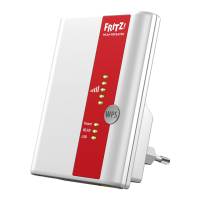
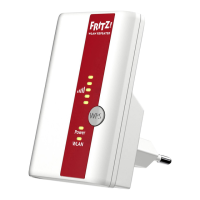
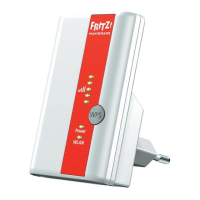
1. Press the WPS button on the
FRITZ!WLANRepeater until the
“WLAN” LED begins fl ashing.
1
WPS
Power
WLAN
Push for approx.
6 seconds
Initiating WPS on the FRITZ!WLAN Repeater
1
2
3
98





 To Next Page