2. Within two minutes, press the button on your wireless access point station to
start the WPS quick connection.
On AVM FRITZ!Boxes this button is
labelled WLAN, WPS or WLAN/WPS.
Consult the documentation of your
FRITZ!Box or other wireless access
point.
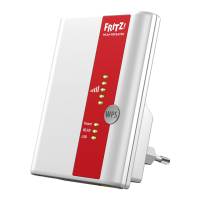
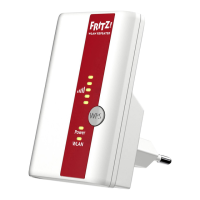
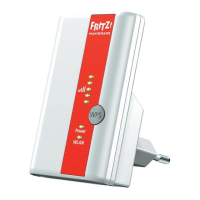
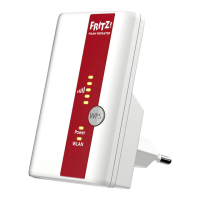
3. The FRITZ!WLANRepeater and your
wireless access point now establish a secure wireless connection with each
other automatically.
The wireless connection has been established successfully when all LEDs on
the FRITZ!WLAN Repeater stop fl ashing and remain lit.
This concludes the WPS quick connection. Now you can adjust the
FRITZ!WLANRepeater settings in a user interface. For more information, continue
reading from page13.
Establishing a Connection Using the Online Wizard
The Online Wizard guides you through the fi rst setup of the FRITZ!WLANRepeater.
Requirements
A wireless access point with
• a visible wireless LAN radio network
(SSID)
• a disabled MAC fi lter
If you set up a MAC fi lter, switch it
off to establish the fi rst connection.
A computer with Internet access,
Windows8.1 /8 /7 or Vista.
A FRITZ!Box satisfi es the requirements for
a wireless access point upon delivery.
Establishing a Connection
1. Start a web browser.
2. Enter
en.avm.de/service/
fritzwlan/fritzwlan-repeater-310/
confi guration/
in the address fi eld.
3. Load the wizard for your
FRITZ!WLANRepeater on your
computer.
4. Start the Wizard and follow the
instructions.
You can adjust the repeater settings in
a user interface. For more information,
continue reading from page13.
Confi rming WPS on a FRITZ!Box
2
Festnetz
Internet
WLAN
INFO
Power/DSL
Push for approx.
6 seconds
10
11





 To Next Page