Installation in Windows7 / WindowsVista
Administrator rights are required for installation! Please install the current Microsoft
Service Packs using Microsoft Windows Update and use a USB2.0 port for optimum
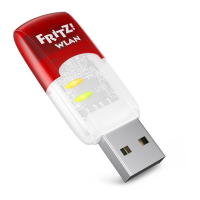
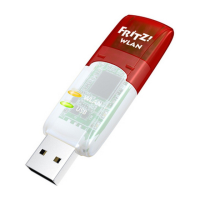
performance of your FRITZ!WLANUSB StickN.
If you are using a FRITZ!Box with a USB port, fi rst use Stick&Surf to transmit the
WLAN security settings from your FRITZ!Box to your computer.
Perform the following steps to install the FRITZ!WLANUSB StickN:
1. Switch on the WLAN device you wish to connect to.
2. Switch on your computer.
3. Insert the FRITZ!WLANUSB StickN into the USB port on your computer.
Windows detects the FRITZ!WLANUSB StickN automatically. This process may take some
time.
4. In the dialog for running the “AVM FRITZ!WLANUSB StickN” CD, click the “Install or Run
‘AVM FRITZ!WLANUSB StickN’” entry.
5. Confi rm any queries from Windows during installation by clicking “Yes” or “Continue”.
The drivers and the control software for the FRITZ!WLANUSB StickN are installed auto-
matically.
A progress bar indicates the progress and the conclusion of the installation. Then follow
the instructions in the section “Establishing a WLAN Connection”.
Installation in WindowsXP
Administrator rights are required for installation! Please install the current Microsoft
Service Packs using Microsoft Windows Update and use a USB2.0 port for optimum
performance of your FRITZ!WLANUSB StickN.
If you are using a FRITZ!Box with a USB port, fi rst use Stick&Surf to transmit the
WLAN security settings from your FRITZ!Box to your computer.
Perform the following steps to install the FRITZ!WLANUSB StickN:
1. Switch on the WLAN device you wish to connect to.
2. Switch on your computer.
3. Insert the FRITZ!WLANUSB StickN into the USB port on your computer.
Windows detects the FRITZ!WLANUSB StickN automatically. This process may take some
time.
4. The drivers and the control software for the FRITZ!WLANUSB StickN are installed auto-
matically.
If you are prompted to do so, insert the FRITZ!WLANUSB StickN CD and follow the
instructions on the screen.
If an additional Windows dialog asks if you want to install software not digitally signed
by Microsoft, click the “Continue Anyway” button.
A progress bar indicates the progress and the conclusion of the installation. Then follow
the instructions in the section “Establishing a WLAN Connection”.



 To Next Page
 Loading...