10
Accessing What You’ve Recorded
It’s easy to spread the fun and entertainment around. After you’ve recorded
on your Multi-Room DVR, simply:
• Choose DVR from the Menu.
• Select a program using the arrow keys.
• Press OK.
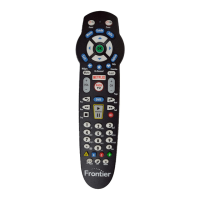
You’ll be able to use your normal DVR playback controls (Pause, Rewind, Fast
Forward) on your remote. When you’re done watching a recorded program,
just press the button.
Multi-Room DVR Parental Controls
Parental Controls for remote set-top boxes only manage live TV viewing.
Parental Controls for watching recorded programs on remote set-top boxes
are set up on the DVR by creating a PIN. A PIN must be set up for each set-
top box.
Good to Remember
• Program recordings cannot be set from remote set-top boxes, only from
the DVR.
• You cannot delete content from the DVR while another set-top box is
accessing that content.
Quick Tip #1
How to reboot your router.
• Press power button or unplug the power cord to your router.
• Plug it back into the electrical outlet and wait 30 seconds.
• Always reboot your router first since it might be all that is
required to correct the problem.
Quick Tip #2
How to reboot your set-top box.
• Just unplug the power cord from the wall outlet for 30
seconds and plug it back in.
• If you still have the problem, disconnect the power
cord from your router and wait a few minutes before
reconnecting it.
Quick Tip #3
Where do I go for on-screen TV help?
• For on-screen help, look at the TV Help Videos—just press
Menu on the remote and scroll down to Help. Also check
out Channel 131 to see what’s new!


 To Next Page