EasyManua.ls Logo

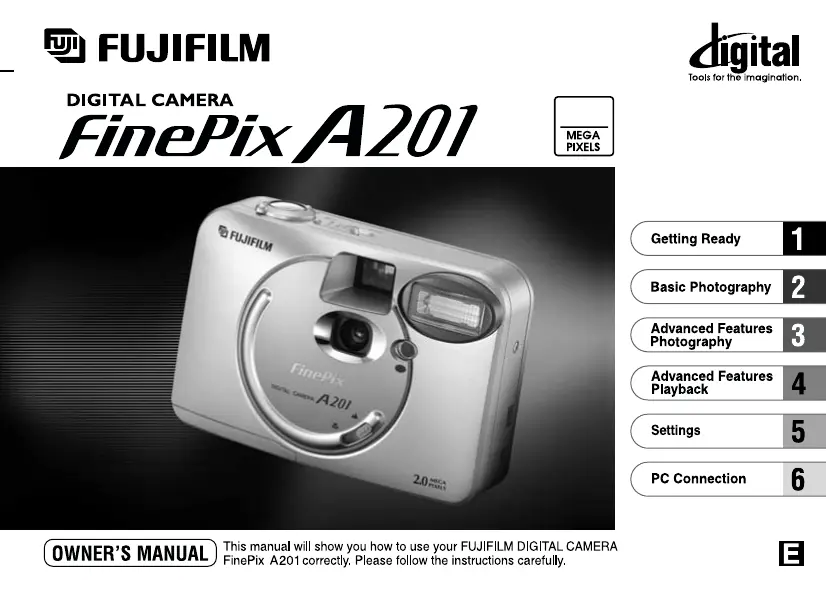
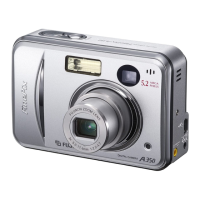
FujiFilm FinePix A201 - User Manual

FujiFilm FinePix A201
44 pages
Print Icon
To Next Page IconTo Next Page
Loading...
BL00095-200
(
1
)
2.0

Table of Contents

Other manuals for FujiFilm FinePix A201

Questions and Answers

  • J
    Joseph PayneJul 29, 2025
    What to do if my FujiFilm FinePix A201 Digital Camera no longer works correctly?
    • A
      Angela ChandlerJul 29, 2025
      If your FujiFilm Digital Camera no longer works correctly, it may have encountered an unforeseen problem. Try removing the battery briefly, then reload it and try again.
  • D
    Dylan GravesAug 3, 2025
    How to fix a blurred image on FujiFilm Digital Camera?
    • N
      nvazquezAug 3, 2025
      If your FujiFilm Digital Camera is producing blurry images, a dirty lens could be the culprit, so try cleaning it. Also, ensure you're using the correct macro setting for your shot. If photographing a distant subject, cancel Macro mode. If taking a close-up, set the camera to Macro mode.
  • D
    Dan WaltersAug 8, 2025
    Why can't I use the flash on my FujiFilm Digital Camera?
    • M
      Mark TurnerAug 8, 2025
      If your FujiFilm Digital Camera's flash isn't working, there might be a few reasons. First, check if the flash is set to Suppressed Flash mode and switch it to Auto, Red-Eye Reduction, or Forced Flash mode. Also, make sure you wait for the flash to fully charge before pressing the shutter button. Lastly, a dead battery can prevent the flash from working, so try loading a new battery.
  • M
    Matthew ClarkAug 13, 2025
    What to do if nothing happens when using the Mode switch on FujiFilm FinePix A201 Digital Camera?
    • J
      Jeffery DyerAug 13, 2025
      If nothing happens when you use the Mode switch on your FujiFilm Digital Camera, it could be due to a camera malfunction. Try briefly removing the batteries or disconnecting the AC power adapter, then reload or reconnect and try again. It could also be caused by exhausted batteries, so try purchasing new batteries.
  • J
    jennifer26Aug 18, 2025
    Why does ERASE ALL function not erase all the frames on my FujiFilm Digital Camera?
    • Z
      zmoranAug 18, 2025
      If the ERASE ALL function doesn't erase all frames on your FujiFilm Digital Camera, it's likely because some frames are protected. Unprotect them using the camera on which the protection was initially applied. Alternatively, DPOF settings might be specified for some frames. Cancel these settings and try again.
  • T
    Tina ClarkAug 23, 2025
    What to do if shot image appears on the FujiFilm FinePix A201's LCD monitor when connected to PC?
    • C
      Catherine DudleyAug 23, 2025
      If, when connecting your FujiFilm Digital Camera to a PC, the shot image appears on the camera's LCD monitor, ensure the USB cable is correctly connected to both the PC and the camera. Also, verify that the PC is switched on.

Summary

Getting Ready

Preface

Introduction to the camera manual and initial setup guidance.

Selecting the Language

Instructions for choosing the display language for the camera's menus and interface.

Attaching the Strap

Step-by-step guide on how to securely attach the camera strap for safe carrying.

Loading the Batteries

Details on inserting AA alkaline or Ni-MH batteries correctly into the camera.

Loading the SmartMedia

Procedure for inserting the SmartMedia card into the camera's memory slot.

Removing the SmartMedia

Instructions for safely removing the SmartMedia card from the camera.

Switching On and Off

How to power the camera on and off using the power switch, including status indicators.

Setting the Date and Time

Guide to setting the camera's internal date and time for accurate image metadata.

Using the Optional AC Power Adapter

Instructions for connecting and using the AC power adapter for continuous power.

Basic Photography

Taking Pictures (Auto Mode)

How to use the camera's automatic mode for taking still images.

Viewfinder Lamp Display

Explanation of the status and meaning of the viewfinder lamp colors and blinking.

Number of Available Shots

Information on how to check the remaining number of shots based on SmartMedia and quality settings.

Framing Guideline Function

How to display framing guidelines on the LCD for better composition and alignment.

Macro (Close-up) Photography

Guidance on using the camera for close-up photography, including effective range.

Digital Zoom

How to use the digital zoom feature for magnifying subjects during shooting.

Viewing Your Images (Playback)

Instructions on how to navigate and view images stored on the SmartMedia card.

Advanced Features Photography

Photography Mode Specifications

Overview of photography modes, accessible settings, factory defaults, and shared settings.

Selecting Shooting Modes (Auto;Manual)

How to switch between AUTO and MANUAL photography modes for different shooting control.

Flash Modes

Explanation of various flash modes including Auto, Red-Eye Reduction, Forced, Suppressed, and Slow Synchro.

Self-Timer Photography

How to use the self-timer function for taking pictures with a delay.

Exposure Compensation (EV)

How to adjust exposure compensation to control image brightness in different lighting conditions.

White Balance

Guide to selecting appropriate white balance settings for accurate color reproduction under various light sources.

Advanced Features Playback

Playing Back Movies

Instructions on how to play back movie files recorded by the camera.

Erasing and Formatting Media

Procedures for erasing single files, all files, or formatting the SmartMedia card.

DPOF Print Options

How to specify print settings using the Digital Print Order Format (DPOF).

Settings

Settings Overview

Summary of available settings and options within the camera's menu system.

Using the Option Menu

Guide to navigating and using the SET-UP and OPTION menus for camera configuration.

File Size and Quality Settings

How to adjust image file size and quality (compression ratio) for storage and printing.

LCD Monitor Brightness

Instructions for adjusting the brightness of the camera's LCD monitor.

Power Save Function

Configuration and operation of the power saving and auto power-off features.

PC Connection

PC Connection Overview

Introduction to connecting the camera to a PC for image transfer and other functions.

Connecting in DSC (Mass Storage) Mode

Step-by-step guide for connecting the camera as a mass storage device for file transfer.

Connecting in PC-CAM Mode

Instructions for using the camera in PC-CAM mode for video conferencing or webcam functionality.

Disconnecting from PC

Important procedures for safely disconnecting the camera from a computer.

FujiFilm FinePix A201 Specifications

General IconGeneral
BrandFujiFilm
ModelFinePix A201
CategoryDigital Camera
LanguageEnglish

Related product manuals