EasyManua.ls Logo

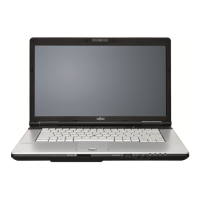
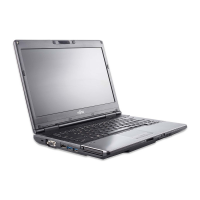
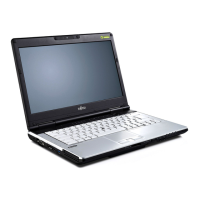
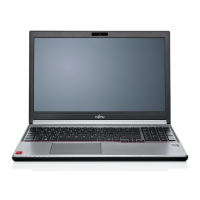
Fujitsu LIFEBOOK E754 - User Manual

Fujitsu LIFEBOOK E754
95 pages
Print Icon
To Next Page IconTo Next Page
Loading...
System
Operating Manual
FUJITSU LIFEBOOK E734
FUJITSU LIFEBOOK E744
FUJITSU LIFEBOOK E754

Table of Contents

Other manuals for Fujitsu LIFEBOOK E754

Questions and Answers

  • D
    Diana LopezAug 12, 2025
    Why is my Fujitsu LIFEBOOK E754 external monitor blank?
    • S
      Sonya RiveraAug 13, 2025
      If your Fujitsu laptop's external monitor remains blank, consider the following: * Ensure the monitor is switched on. * Power saving mode might be activated. Press any key to continue. * The brightness might be set too low. Adjust the brightness. * The screen output could be set to the laptop's LCD screen. Use the appropriate key combination to switch the output. * The power or data cables might be improperly connected. Turn off both the monitor and laptop, check the cable connections, and then turn them back on.
  • M
    Miranda AdamsAug 16, 2025
    Why is my Fujitsu Laptop external monitor image unstable?
    • S
      Stephanie MillerAug 17, 2025
      If the external monitor is blank or the image is unstable when connected to your Fujitsu laptop, the wrong external monitor may have been selected, or the wrong screen resolution has been set for the application program. Terminate the application program in Windows by pressing Alt + F4. If the fault persists after closing the program, use the key combination for switching the screen output to switch over to the notebook’s LCD screen. Change the following setting: Set the screen resolution as described in the documentation for your operating system and select monitor 1 or 2 as described in the documentation for your operating system.
  • S
    Shaun PopeAug 20, 2025
    Why does my Fujitsu Laptop keyboard type numerals instead of letters?
    • S
      Stephanie JonesAug 20, 2025
      If, when entering characters on the keyboard of your Fujitsu laptop, only numerals are written, the virtual numeric keypad of your device is activated. Press the Num key.
  • G
    Gregg MitchellAug 23, 2025
    What to do if my Fujitsu LIFEBOOK E754 Laptop suddenly stops working?
    • M
      Mitchell KingAug 25, 2025
      If your Fujitsu laptop stops working, here are a few things to check: * It might be in energy-saving mode. Try exiting this mode. * An application may have caused the issue. Close the application or restart the laptop by restarting the operating system or switching it off and on again. * The battery could be dead. In this case, charge the battery, insert a charged one, or connect the mains adapter.
  • K
    Kayla PerryAug 27, 2025
    Why is my Fujitsu Laptop beeping?
    • B
      Brenda TerryAug 27, 2025
      If your Fujitsu laptop is beeping every few seconds, it means the battery is almost flat. Charge the battery as soon as possible.
  • M
    Mackenzie WalkerAug 31, 2025
    Why won't my Fujitsu LIFEBOOK E754 print?
    • Z
      Zachary SmithAug 31, 2025
      If your Fujitsu laptop's printer isn't printing, check these items: * Ensure the printer is switched on and ready. * Verify the data cable connecting the laptop to the printer is properly connected. * Check if the correct printer driver is loaded.
  • J
    James CareySep 8, 2025
    What to do if SmartCard reader is not recognised on Fujitsu Laptop?
    • L
      Linda AllenSep 8, 2025
      If the SmartCard reader on your Fujitsu laptop isn't recognizing your card, make sure you have inserted your SmartCard into the SmartCard reader with the chip facing upwards and check whether the SmartCard you are using is supported. Your SmartCard must comply with the ISO standard 7816-1, -2, -3 and -4.

Summary

Fujitsu Contact Information

Service and Support

Information on contacting Fujitsu for technical assistance and support services.

Fujitsu Shopping Online

Details on how to access the Fujitsu online store for purchasing products and accessories.

Maintaining Latest Configuration

Guidance on keeping system drivers and software up-to-date using the Fujitsu Software Download Manager.

Limited Warranty

Information regarding the warranty coverage provided for your Fujitsu LIFEBOOK notebook.

Notational Conventions

Warning Symbols and Icons

Explanation of symbols used to highlight important safety and operational information in the manual.

Text Formatting and References

Defines the meaning of different fonts and text formatting used for instructions, data, and cross-references.

Ports and Controls Overview

Front Panel Ports

Identifies and describes the ports and controls on the front panel of Fujitsu LIFEBOOK E734, E744, and E754 models.

Left Side Panel Ports

Details the ports and connectors found on the left side of the notebook.

Right Side Panel Ports

Illustrates and describes the ports and controls on the right side of the notebook.

Rear Panel Ports

Shows and explains the ports located on the rear of the notebook.

Bottom Panel Components

Identifies components and access points on the underside of the notebook.

Important Notes and Safety Guidelines

General Safety Information

Essential safety information that must be followed when operating the notebook to prevent injury or damage.

Wireless Device Safety Precautions

Specific safety precautions for using wireless features like WLAN and Bluetooth in various environments.

Energy Saving and Efficiency Tips

Tips and benefits of using power management features to conserve energy and reduce environmental impact.

Notebook Travel and Handling Guidelines

Important considerations and advice for safely transporting, using, and cleaning the notebook while traveling.

First-Time Device Setup

Unpacking and Initial Inspection

Steps for safely unpacking the notebook and inspecting it for any shipping damage.

Location Selection and Power Connection

Recommendations for choosing a suitable environment and connecting the AC adapter.

Initial Power On and Bonus Apps Installation

Guidance on performing the first power-on and installing optional software applications.

Working with Your Notebook

Status Indicators and LEDs

Explanation of the various LED indicators that show the notebook's operational status, battery, and connectivity.

Powering the Notebook On and Off

Procedures for correctly switching the notebook on and shutting it down to prevent data loss.

Keyboard Functions and Layout

Overview of the notebook's keyboard layout, including special keys, virtual numeric keypad, and key combinations.

Touchpad Navigation and Interaction

Instructions on using the touchpad for navigation and interaction, including moving pointer, selecting, executing, and dragging.

LCD Screen Features and Adjustments

Information about the notebook's LCD display, resolution, pixel standards, and background lighting adjustments.

Webcam Usage and Capabilities

Information about the integrated webcam, its usage, and status indicator.

Rechargeable Battery Management

Guidelines for charging, maintaining, storing, and removing/installing the notebook's rechargeable battery.

Modular Bay Devices

Description of optional devices that can be installed in the notebook's modular bay.

Optical Drive Operations

Information about the optical drive, handling disks, indicators, and manual removal procedures.

Dust Filter Maintenance

Instructions for cleaning and replacing the notebook's dust filter for optimal cooling.

Power Management Features

Guide to utilizing the notebook's power-saving modes to extend battery life and reduce energy consumption.

SD Card Reader Usage

Information on using the integrated SD card reader, including supported formats and insertion/removal.

Speakers and Microphones

Information on the placement and use of built-in speakers and microphones, and external audio connections.

SIM Card Usage for Mobile Network

Details about the SIM card slot, its location, and usage for mobile network access.

Wireless Communication Features

Information about the notebook's wireless communication capabilities (WLAN, Bluetooth, UMTS/LTE) and their operation.

4 G Activation for Mobile Broadband

Steps for activating 4G mobile broadband service with specific carriers.

Wireless WAN Connectivity

Information on purchasing and using Wireless WAN accessories for mobile internet access.

Ethernet and LAN Connection

Instructions for connecting the notebook to a local area network using the Ethernet port.

Port Replicator Functionality

Overview of the optional Port Replicator and its benefits for connecting peripherals.

Connecting and Disconnecting from Port Replicator

Step-by-step guide to docking and undocking the notebook with the Port Replicator.

Security Functions

Fingerprint Sensor Setup

Steps to set up and use the fingerprint sensor for enhanced system security.

Notebook Security Lock Usage

Instructions on how to attach and use a Kensington Lock Cable to prevent notebook theft.

BIOS Password Protection

Guidance on setting up supervisor and user passwords within the BIOS Setup for data security.

Trusted Platform Module (TPM)

Information on activating and disabling the Trusted Platform Module for hardware-based security.

SmartCard Reader Operations

Overview of the integrated SmartCard reader and instructions for inserting a SmartCard.

Connecting External Devices

General Connection Procedures

General steps for connecting and disconnecting external devices to and from the notebook.

External Monitor Connection Options

Guide to connecting external monitors using VGA, DisplayPort, or DVI-D ports.

HDMI Port Usage

Information on using the HDMI port for connecting external audio-visual devices.

USB Device Connectivity

Instructions for connecting various USB devices, including speed specifications and proper removal.

External Audio Device Connections

Instructions for connecting external microphones and headphones/speakers.

Component Servicing and Replacement

Component Handling and Safety Precautions

General safety precautions and guidelines for handling internal notebook components, including ESD.

Preparing for Component Removal

Essential steps to take before removing or changing any internal hardware components.

Memory Module Service Procedures

Detailed instructions for removing and installing RAM modules.

Hard Disk Drive Service

Procedure for removing and installing the notebook's hard disk drive.

Finishing Component Replacement Steps

Final steps to prepare the notebook for operation after component replacement, including battery reinstallation.

BIOS Setup Utility Settings

Accessing the BIOS Setup Utility

How to access the BIOS Setup Utility upon system startup.

Navigating and Operating BIOS Setup

Guide to navigating and using the BIOS Setup Utility interface.

Exiting BIOS Setup Utility Options

Options for saving changes, discarding changes, or loading defaults before exiting BIOS Setup.

Troubleshooting and Tips

General Problem Solving Strategies

General advice and steps to take when encountering issues with the notebook.

Factory Image Recovery Procedure

Information on how to restore the notebook to its original factory settings.

Display and Input Device Issues

Troubleshooting steps for date/time errors, keyboard input problems, and blank or unreadable LCD screens.

External Monitor Connectivity Problems

Troubleshooting steps for when an external monitor remains blank or displays an unstable image.

Notebook Startup and Operation Failures

Troubleshooting guide for when the notebook fails to start, stops working, or has printing problems.

Connectivity and SmartCard Issues

Solutions for wireless connection problems, acoustic warnings, and SmartCard reader or PIN issues.

BIOS Error Messages and Resolutions

List of common error messages encountered during BIOS setup or system startup and their resolutions.

Technical Data and Specifications

LIFEBOOK Model Specifications

Technical specifications for Fujitsu LIFEBOOK models (E734, E744, E754), including ambient conditions, dimensions, and memory.

Battery and AC Adapter Specifications

Detailed electrical specifications for the notebook's rechargeable batteries and AC adapters.

Manufacturers Notes and Compliance

Product Disposal and Recycling Information

Information and guidelines for the proper disposal and recycling of the notebook and its components.

Regulatory Compliance Statements

Statements of compliance with regulatory standards, including FCC, DOC, and interference information.

Environmental and Energy Efficiency

Information on ENERGY STAR compliance, sleep mode, and energy-saving benefits.

Fujitsu LIFEBOOK E754 Specifications

General IconGeneral
Tcase- °C
Bus typeDMI2
Tjunction100 °C
Processor cache3 MB
Processor cores2
Processor modeli5-4310M
System bus rate5 GT/s
Processor familyIntel® Core™ i5
Processor seriesIntel Core i5-4300 Mobile series
Processor socketSocket G3
Processor threads4
Processor codenameHaswell
Number of QPI links-
Processor frequency2.7 GHz
Processor cache typeSmart Cache
Configurable TDP-down- W
Processor lithography22 nm
Processor manufacturerIntel
Processor front side bus- MHz
PCI Express slots version3.0
Processor boost frequency3.4 GHz
Processor operating modes64-bit
ECC supported by processorNo
PCI Express configurations1x16, 2x8, 1x8+2x4
Thermal Design Power (TDP)37 W
Maximum number of PCI Express lanes16
Discrete graphics card modelNot available
On-board graphics card modelIntel® HD Graphics 4600
Graphics card Open GL supportYes
On-board graphics card familyIntel® HD Graphics
Maximum on-board graphics card memory2 GB
On-board graphics card OpenGL version4.3
On-board graphics card base frequency400 MHz
On-board graphics card DirectX version11.2/12
On-board graphics card dynamic frequency (max)1250 MHz
Processor ARK ID80373
Processor package size37.5 x 37.5 x 4.7 mm
CPU configuration (max)1
Graphics & IMC lithography- nm
Supported instruction setsAVX 2.0, SSE4.1, SSE4.2
Form factorClamshell
Product typeLaptop
Product colorSilver
Memory slots2x SO-DIMM
Internal memory8 GB
Memory clock speed1600 MHz
Internal memory typeDDR3L-SDRAM
Maximum internal memory16 GB
Memory layout (slots x size)2 x 4 GB
HDD size2.5 \
HDD speed7200 RPM
HDD interfaceSATA
Storage mediaHDD
Optical drive typeDVD Super Multi
Total storage capacity500 GB
Compatible memory cardsSD, SDHC, SDXC
Display surfaceMatt
Display diagonal15.6 \
Display brightness300 cd/m²
Native aspect ratio16:9
Contrast ratio (typical)700:1
Front camera resolution (numeric)2 MP
Wi-Fi standardsWi-Fi 5 (802.11ac)
Bluetooth version4.0
Charging port typeDC-in jack
USB 2.0 ports quantityUSB 2.0 ports have a data transmission speed of 480 Mbps, and are backwards compatible with USB 1.1 ports. You can connect all kinds of peripheral devices to them.
Thunderbolt ports quantity0
USB 3.2 Gen 1 (3.1 Gen 1) Type-A ports quantity3
Pointing deviceTouchpad
Recovery operating systemWindows 10 Pro
Operating system installedWindows 7 Professional
Battery capacity6700 mAh
Battery life (max)12 h
Number of battery cells6
Operating temperature (T-T)5 - 35 °C
Operating relative humidity (H-H)20 - 85 %
Sustainability certificatesRoHS, EPEAT Gold, ENERGY STAR
Cable lock slot typeKensington
Password protection typeBIOS, HDD, Supervisor, User
AC adapter frequency50 - 60 Hz
AC adapter input voltage100 - 240 V
AC adapter output voltage19 V
Weight and Dimensions IconWeight and Dimensions
Depth250 mm
Width374 mm
Weight2100 g
Height (rear)27 mm
Height (front)20 mm

Related product manuals