Downloaded from Projector.com
SCENICVIEW XP70
14 - English A26361-K954-Z100-1-5E19, edition 5
Adjusting picture definition and picture size
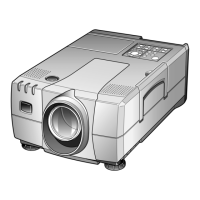
With the lens you can adjust the picture definition and picture size within certain limits.
1
2
► Turn the focus ring (1) to adjust the picture sharpness.
► Turn the zoom ring (2) to adjust the picture size.
Correcting trapezoid distortion
With the and buttons you can correct for keystone distortion within certain limits. Keystoning
occurs if the projector is not positioned at a right angle to the projection screen but projects from a
higher or lower position. This function is also accessible via the OSD menu (see section "Changing
the OSD settings").
► Press and hold the
or button until the projected picture no longer looks distorted.
Other settings
During operation you can
● adjust the volume with the "Volume" button on the projector's operator panel or on the remote
control
● switch between the signal sources with the "Source/Select" button on the projector's operator
panel or with the "Computer" and "Video" buttons on the remote control
Changing the OSD settings
You can use the buttons on the control panels of the projector and the remote control to set the
functions via an integrated OSD menu (On-Screen-display).
i
The OSD menu is available in eight languages (default setting: English). How to change
the language for the OSD menu is described in the "Language menu" section. Most of the
examples show the English OSD menu.


 To Next Page