This initial installation process takes from a
few
seconds up
to
a
minute
or
so.
If
the
dongle
is
inserted
into
a
new
port
,
the process
is
repeated.
I
Application
sof
tware - getting started with SDRSharp
The control
of
the
FCD+
and
the
demodulation
can
be performed
from
a single program
if
that
program supports
the
FCD+
directly,
for
example
SDRSharp
now
supports
the
FCD+
fully. Alternatively,
if
your
SOR
software doesn't support
the
FCD+
directly, you
can
use the
FCD+
in
conjunction
with
its frequency control program
(FCHid2
.exe).
This documentation covers
SDRSharp
build 1000 which includes full
FCD+
support.
You
can download
it
from
http://sdrsharp.com/downloads/sdr-stable.zip
Unzip the program
into
an
appropriate directory, and run the
SDRSharp
executable.
It
may be convenient
to
create
desktop icon shortcuts at this
point
if
desired.
It
is
important
that
the
FCD+
is
already inserted before running
SDRSharp.
Once the
FCD+
is
inserted, run the
SDRSharp
application.
Once
SDRSharp
is
running,
from
the
drop
down at
the
top
of
the
program, select FUNcube Dongle Pro+.
The first
time
you run SDRSharp, it's also wise
to
check some
of
its settings.
Press
the Configure
button
just
to
the
right
of
the
drop
down. In particular, check
that
the
frequency correction
is
set
to
0.0ppm (the
default
is
120.0ppm).
The
controller
configuration
window
can
be
closed at this
point
.
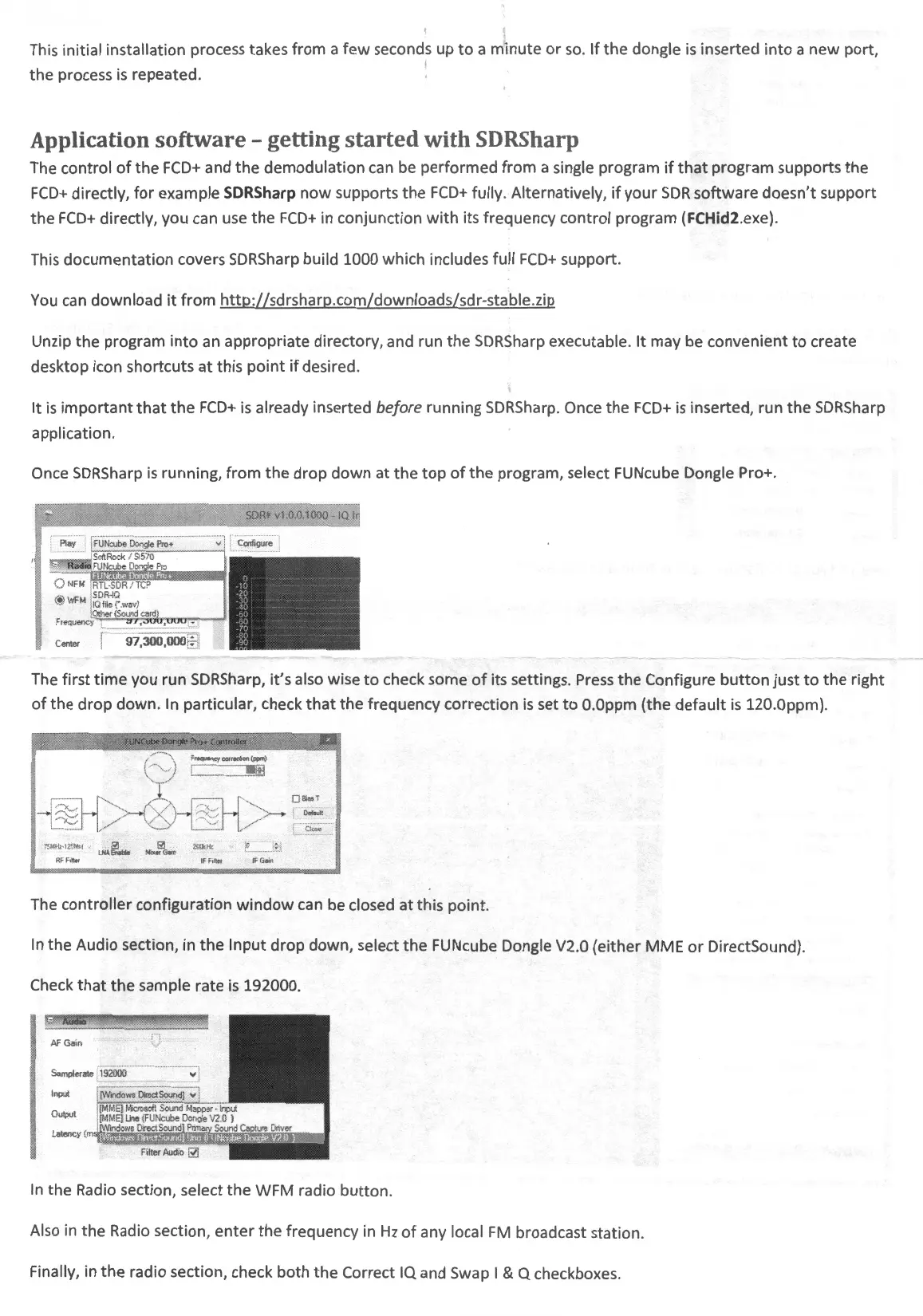
In
the Audio section, in
the
Input
drop down, select the FUNcube Dongle V2.0 (either
MME
or
DirectSound).
Check
that
the sample rate
is
192000.
AF
Gain
{)
Samplera
te
[i
ii~mo
··
·
·······
·······
·
··
··
···
······
~
Input
Output
latency (
Fil
t
er
Audio
~
In
the Radio section, select the WFM radio
button
.
Also
in
the Radio section,
enter
the
frequency
in
Hz
of
any local
FM
broadcast station.
Finally,
in
the
radio section, check both
the
Correct
IQ
and Swap I & Q checkboxes.


 To Next Page
 Loading...