If you want to access your system from any location with
internet, you will need to configure your NVR for remote-
viewing. Follow the steps below to configure your system
for remote viewing:
Connect your mobile device to the same WiFi network
that your NVR is connected to.
Download and install the “Funlux” app from Google
TM TM
Play or the App Store (compatibility: iOS 7.0+ or
TM
Android 4.0+). Launch the app and sign up for a free
Funlux account. All of your devices will be bound to this
account.
Remote Viewing
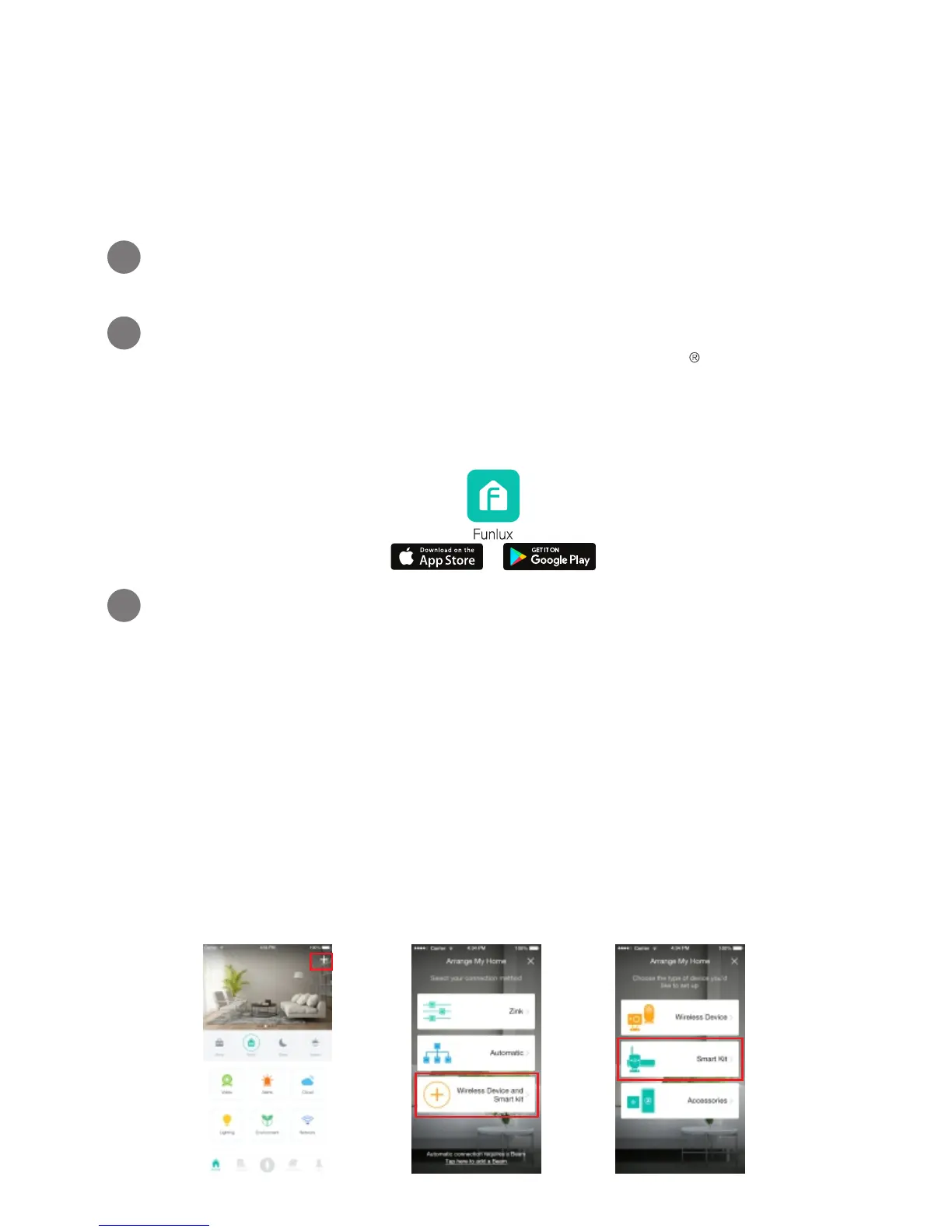
Log into your Funlux account within 15 minutes of
powering on your NVR. The NVR and cameras will be
automatically added onto your account. If not, tap the [+]
Add Device icon on the upper right corner of the Home
Screen. Select the “Wireless Device and Smart Kit”
connection method and select the “Smart Kit” option. The
app will automatically search for NVRs that are
connected to the same network as your mobile device.
Add your NVR and press “Finish” when prompted. You
will not need to configure any cameras.
1
2
5
3


 To Next Page