Viewing Options
All of your Funlux devices will be bound to your Funlux
user account. You can access your camera and other
TM
devices by using the Funlux app with any Android or
®
iOS device. Just download the Funlux app from Google
TM TM
Play or the App Store .
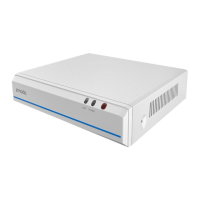
View your NVR kit locally by connecting your NVR to a
monitor using the built-in HDMI or VGA port.
You can also access your devices from any web browser
with our web app. Visit and log in with your user.funlux.com
Funlux user account information.
5
Troubleshooting
The NVR doesn’t recognize the correct cameras.
Your NVR may be recognizing other cameras on your
network. Please manually delete all cameras by going to
the “Add Device” menu from your NVR’s interface. Select
the “Search and Add All Devices Automatically” option,
and wait 3-5 minutes for the NVR to add the camera. If
this fails, you can also disable the automatic search and
add your camera manually.
I can't access the NVR remotely.
Please make sure your internet is working, and check that
your NVR is properly connected to the router.
The app doesn’t find my NVR during setup.
Make sure that your NVR is properly connected and
powered on, and reconnect your phone to your WiFi
network. You may need to exit the setup and try again.
6
8


 To Next Page