EasyManua.ls Logo

Furrion Vision S - User Manual

Furrion Vision S
108 pages
Print Icon
To Next Page IconTo Next Page
Loading...
VISION S CAMERA SYSTEM
SYSTÈME DE CAMÉRA VISION S
SISTEMA DE CÁMARA VISION S
MODEL/MODÈLE/MODELO: FOS07TASR / FOS07TASF / FOS07TAED / FOS-
07TAPT / FOS05TASR / FOS05TASF/FOS05TAED / FOS05TAPT / FOS43TASR /
FOS43TASF / FCN48TASK / FCN48TASF/FCE48TASL / FCE48TASH / FOS43T-
DDC / FOS05TAEN / FSO07TAEN / FOS05TAEM/FOS07TAEM / FOS05TASM /
FOS07TASM / FOS43TASM / FOS07TAPM
USER MANUAL
MANUEL DE L’UTILISATEUR
MANUAL DE USUARIO
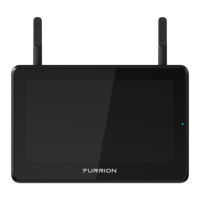
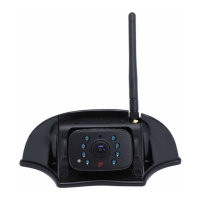
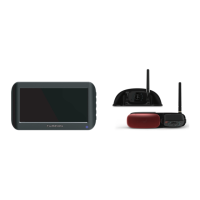
Product picture is for reference only.
L'image du produit n'est qu'une référence.
La imagen del producto es solo de referencia.

Other manuals for Furrion Vision S

Questions and Answers

  • J
    James MarshallSep 3, 2025
    Why is the night vision poor on my Furrion Digital Camera?
    • S
      solomonjohnSep 4, 2025
      If the night vision on your Furrion Digital Camera is poor or not working, it might be because: * The light sensor on the camera could be dirty or blocked. * The camera unit may be too close to the rear lights. Ensure it is installed at least 2 inches away.
  • C
    Charles CookSep 18, 2025
    What to do if images are too dark / bright on Furrion Digital Camera monitor?
    • S
      Scott NicholsSep 18, 2025
      If the images on your Furrion Digital Camera monitor are too dark or bright, adjust the brightness and contrast settings. Note that images may appear too bright when the camera lens is facing a direct light source, which is not a malfunction.
  • S
    Stanley ThompsonSep 16, 2025
    Why is the night vision poor or not working on my Furrion Vision S Digital Camera?
    • R
      Rhonda StevensSep 16, 2025
      If the night vision on your Furrion Digital Camera is poor or not functioning, clean the light sensor or remove any obstructions. If the ambient light is too strong, the night vision may not engage, which is normal. Also, make sure the camera is at least 2 inches away from marker lights.
  • M
    Monique RussoSep 14, 2025
    How to fix blurry images on Furrion Vision S monitor?
    • W
      whitelisaSep 14, 2025
      If the images on your Furrion Digital Camera monitor are blurry: * Remove the protective film from the camera lens. * Clean the camera lens with a soft, clean cloth if it's dirty. * If adverse weather conditions like fog, rain, dust, or mud are present, clean the lens immediately after driving to a safe place.
  • K
    Kelly FuentesSep 12, 2025
    How to improve night vision on Furrion Automobile Accessories camera?
    • A
      Adriana GreerSep 12, 2025
      If the night vision on your Furrion Automobile Accessories camera is poor or not functioning, the light sensor on the camera may be dirty or obstructed. Ensure the camera unit is installed at least 2 inches away from rear lights.
  • M
    mary38Sep 12, 2025
    Why Furrion Automobile Accessories monitor blue LED is not lit and there is no picture?
    • P
      peter48Sep 12, 2025
      If your Furrion Automobile Accessories monitor's blue LED is not lit and there is no picture, it could be due to the camera not receiving power. Make sure the tow vehicle is running, the 7-way connector is connected, and the circuit the camera is connected to has power.
  • J
    Jason MoranSep 9, 2025
    What to do if Furrion Automobile Accessories camera and monitor won’t pair?
    • L
      Larry WilsonSep 9, 2025
      If your Furrion Automobile Accessories camera and monitor are not pairing, verify that the camera is receiving power. Also, ensure you hold the camera pairing button for 2 seconds.
  • W
    Wayne GomezSep 7, 2025
    How to fix Furrion Automobile Accessories monitor if it won’t turn on?
    • C
      Cindy AndersonSep 7, 2025
      If your Furrion Automobile Accessories monitor isn't turning on (no blue LED), try the following: 1. Ensure the power cable is properly connected. 2. Verify the cigarette lighter provides a 12-24V DC output. 3. Check the fuse in the cigarette socket adapter.
  • C
    Christina PadillaSep 5, 2025
    What to do if Furrion Automobile Accessories signal is weak?
    • B
      Benjamin FischerSep 5, 2025
      If you are experiencing a weak signal with your Furrion Automobile Accessories, here are a few things to check: * Make sure the camera antenna is properly fitted and secured vertically. * Reduce the distance between the camera and monitor. * Remove any large, dense objects that might be blocking the signal. * Turn off any nearby electrical appliances that could be causing interference. * Be aware that overhead power lines may also interfere with the signal. * Try unpairing and pairing the devices again.
  • A
    Ashley BowmanAug 20, 2025
    Why does my Furrion Digital Camera have an intermittent/weak signal?
    • A
      Ashlee WongAug 21, 2025
      If the Furrion Digital Camera is showing an intermittent or weak signal, here are some things you can try: * Check that the camera antenna is properly fitted and secured vertically. * Reduce the distance between the camera and the monitor. * Move any large, dense objects that might be blocking the signal. * Turn off any nearby electrical appliances that could be causing interference. * Be aware that interference from overhead power lines may affect the signal. * Try unpairing and then pairing the devices again.

Summary

Important Safety Instructions

General Safety and Electrical Precautions

Covers essential safety guidelines for system usage and electrical connections.

Installation, Usage, and Care Guidelines

Provides crucial advice for proper installation, daily use, and maintenance.

FCC and IC Compliance Statements

Details regulatory compliance information for the device in different regions.

RF Exposure Information

Explains RF exposure requirements and safe operating distances.

Maintenance

Care and Cleaning Procedures

Outlines methods for cleaning and maintaining the monitor to ensure longevity.

Product Overview

Vision S Product Range Listing

Lists available Furrion Vision S wireless monitor and camera products.

Monitor Specifications

Presents detailed technical specifications for the Vision S family monitors.

Camera and Bracket Specifications

Provides detailed technical specifications for Vision S cameras and brackets.

Install and Use Monitor

4.3 Monitor Overview and Installation

Details the 4.3-inch monitor's features, controls, and mounting instructions.

Camera Pairing and System Activation

Guides on pairing cameras with the monitor and activating the observation system.

Monitor Settings Configuration

Covers mirror, volume, picture, and auto-off settings for optimal monitor performance.

5;7 Monitor Operation and Display Modes

Explains the operation, touchscreen controls, and multi-camera display options for 5"/7" monitors.

Install Cameras

Doorway Security;Rear Camera Installation

Provides instructions for mounting and wiring doorway and rear security cameras.

Side Camera and Marker Light Installation

Details the process for installing side cameras with integrated marker lights.

Troubleshooting

Monitor Power and Pairing Issues

Solves problems related to monitor power, wireless camera pairing, and signal strength.

Image Quality and Night Vision Troubleshooting

Addresses issues with blurry images, brightness, and poor night vision performance.

Furrion Vision S Specifications

General IconGeneral
BrandFurrion
ModelVision S
CategoryDigital Camera
LanguageEnglish

Videos

How to Troubleshoot No Signal on Furrion Vision S Monitor

Related product manuals