EasyManua.ls Logo

Furrion VISION S+ - User Manual

Furrion VISION S+
80 pages
Print Icon
To Next Page IconTo Next Page
Loading...
VISION S+ CAMERA SYSTEM
SYSTÈME + DE CAMÉRAS VISION S
SISTEMA DE CÁMARA VISION S+
MODEL/MODÈLE/MODELO: FOSHTAEM, FOSHTAEN,
FOSHTAPM, FOSHTASF, FOSHTASM, FOSHTAEM,
FOSHTAEN, FOSHTASF, FOSHTASM,FCEFDTASH,
FCNFDTASF
USER MANUAL
MANUEL DE LUTILISATEUR
MANUAL DE USUARIO

Questions and Answers

  • S
    Sarah BoyleJul 28, 2025
    Why won't my Furrion Digital Camera wireless camera and monitor pair?
    • H
      Henry Miller DDSJul 28, 2025
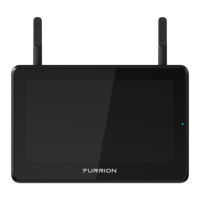
      The Furrion monitor/rearview mirror is designed to pair only with Furrion cameras; pairing with other manufacturers' products isn't supported. Also, ensure the camera is getting power, checking the fuse on the power line (it should provide an additional 1A fusing current). Make sure all bare cable ends are properly isolated to prevent short circuits. Finally, ensure you hold the camera pairing button for 2 seconds.
  • B
    Brian LiAug 1, 2025
    What to do if my Furrion Digital Camera monitor won’t turn on (no blue LED)?
    • J
      Jasmine OdonnellAug 1, 2025
      First, check that the power cable is securely connected. Then, verify that the power supply has a 5-24V DC output. Next, inspect all fuses and breakers, including those in the cigarette power adapter and fuse box. Finally, try powering the unit off and on again to reset it.
  • C
    collinslaurenAug 6, 2025
    Why does my Furrion Digital Camera show an intermittent/weak signal?
    • S
      Stephanie VasquezAug 6, 2025
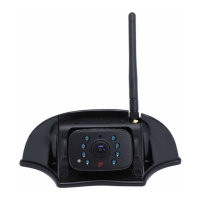
      Check that the camera antenna is correctly fitted and secured in a vertical position. Large, dense objects might be blocking the signal, so try moving them. Electrical appliances may also cause interference; try turning them off while using the system. Overhead power lines can also interfere. You can also try unpairing and pairing the devices again.
  • R
    Rebecca MccormickAug 10, 2025
    How to fix blurry images on Furrion Digital Camera monitor?
    • N
      Nancy BarronAug 10, 2025
      Start by removing the protective film from the camera lens after installation. If the lens is dirty, gently wipe it with a soft, clean cloth. If adverse weather conditions, like heavy fog or rain, are blocking the view, clean the camera lens as soon as it's safe to do so.
  • A
    aosborneAug 13, 2025
    What to do if images are too dark or bright on Furrion Digital Camera monitor?
    • T
      timothylambertAug 14, 2025
      Adjust the brightness and contrast settings on your monitor. If the camera lens is pointed directly at a light source, the image might be too bright; this isn't a malfunction.
  • W
    Whitney CowanAug 18, 2025
    Why is the night vision poor or not working on my Furrion Digital Camera?
    • A
      agallagherAug 18, 2025
      The light sensor on the camera might be dirty or obstructed; clean the sensor or remove any obstacles. If the ambient light is too strong, the night vision may not engage, which is not a malfunction. Also, make sure the camera is at least 2 inches away from marker lights.
  • J
    John RossAug 22, 2025
    What causes Furrion Digital Camera monitor's blue LED to be off with no picture?
    • J
      James WaltonAug 23, 2025
      This can happen if the camera isn't receiving power. Ensure the tow vehicle is running and that the 7-way connector is properly connected.

Summary

IMPORTANT SAFETY INSTRUCTIONS

Generic Safety Guidelines

General safety precautions for operating and installing the system to ensure user safety.

Electrical Safety Precautions

Guidelines for handling high voltage and power sources during installation to prevent electrical shock.

Installation Procedures

Steps and advice for proper and safe installation of the camera system components.

INSTALLATION AND CONNECTION

Monitor Installation and Setup

Instructions for mounting the 5"/7" monitor and inserting a Micro-SD card for operation.

Camera Mounting and Wiring

Detailed instructions for mounting cameras, connecting power, and securing components.

Camera to Bracket Attachment

Instructions for reattaching cameras to marker light brackets and checking pairing status before final fixing.

SYSTEM SETUP

Camera Pairing Process

A step-by-step guide on how to successfully pair the wireless cameras with the Furrion Vision S+ monitor.

Verifying Camera Pairing Status

Procedures to confirm if cameras are paired and connected, including interpreting status icons.

TROUBLESHOOTING

Monitor Power and Pairing Issues

Solutions for common problems like the monitor not turning on or cameras failing to pair with the monitor.

Furrion VISION S+ Specifications

General IconGeneral
BrandFurrion
ModelVISION S+
CategoryDigital Camera
LanguageEnglish

Related product manuals