e 13
G-SAFE Product Guide
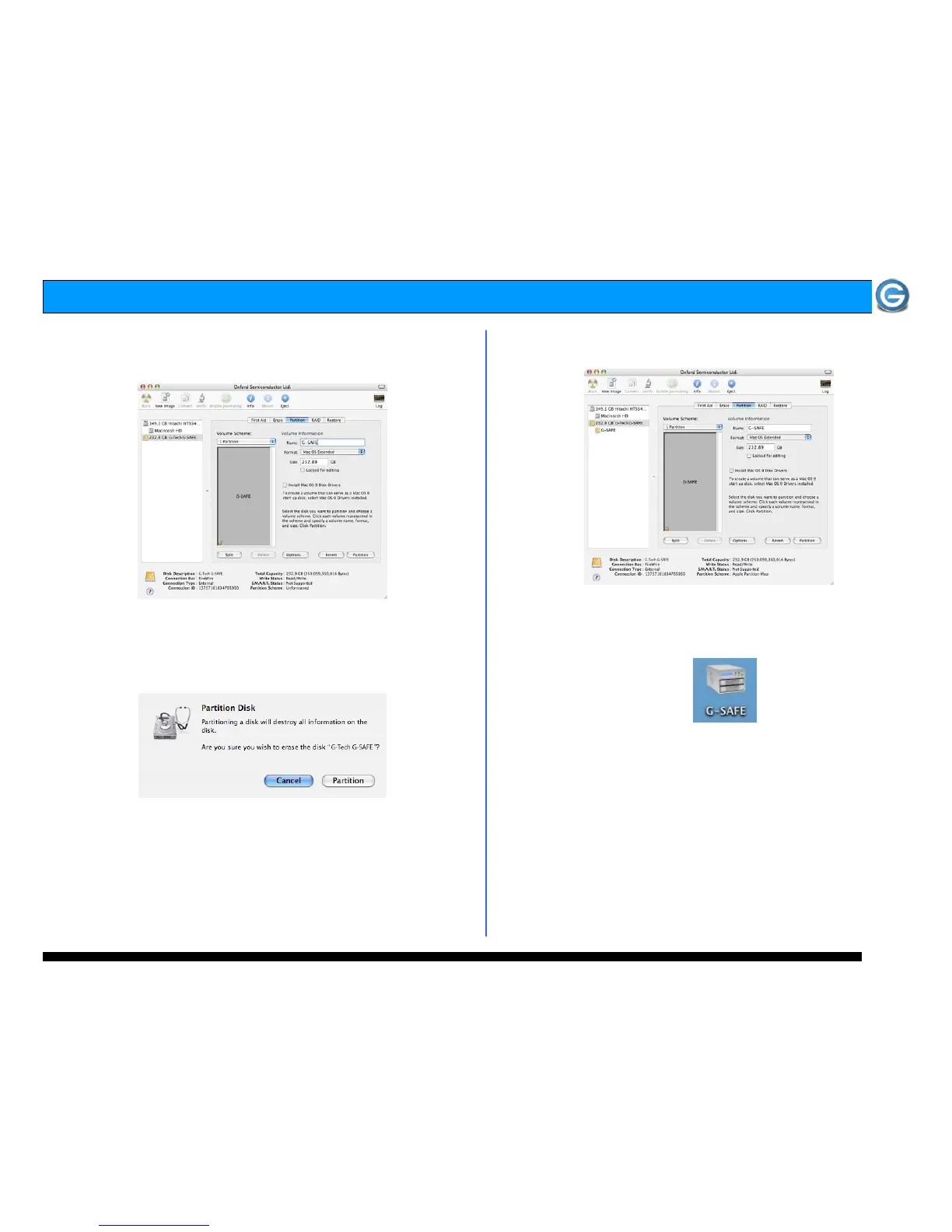
4. Set the Volume Scheme: to 1 Partition. Enter a Volume
Name: under Volume Information (in this example G-SAFE)
and set Format: to Mac OS Extended as shown below.
Note: Alternatively, G-SAFE can be set up in multiple volumes by selecting
the desired number of partitions from the Volume Scheme pull-down menu.
5. Click on the <Partition> button. The dialog box shown
below will appear. Click on the <Partition> button to continue.
6. When partitioning is complete, G-SAFE will be displayed in
the left-hand panel as shown below.
7. Exit the Apple Disk Utility.
8. G-SAFE is now mounted on the desktop as shown below.
G-SAFE is now ready to safeguard your data!












 To Next Page