8. Configure the site
Configure the site using the SMB Configuration App. Configure Areas, Inputs, Outputs,
Doors, then click PUBLISH to download the configuration changes to the controller.
For configuration instructions, refer to the Help Centre for Installers.
9. Test the site
Test Mode allows technicians to install, configure, and test an SMB site without alarming
others by setting off sirens or other devices activated in response to an alarm. Test mode
also prevents Site Managers, guards, and monitoring services from responding to alarms
generated while the system is being tested.
1. Click Enable Test Mode from the Site Actions
2. Test Mode can only be enabled for a period – set the time for Test Mode to expire
3. If Guarding or Monitoring is enabled, a warning will display advising the Technician to
inform the Monitoring station or Guarding company.
4. Test buttons will appear next to the Outputs. Alarm Relays are bypassed, Technicians can
‘chirp’ test outputs from this screen.
5. Click the Test button next to each Output
6. Once testing is complete click Disable Test Mode to disable it immediately, or it will
automatically disable at the set expiry time.
Note: Once a site is activated, Test mode can only be entered when Installer Mode is enabled.
10. Initialise tampers
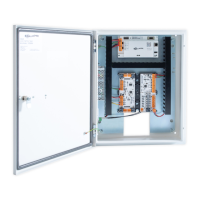
The front optical tamper detector will sense when the cabinet door has been opened. The rear
optical tamper detector will sense when the cabinet is removed from its mounting surface.
When you have finished wiring the devices and no longer need to access the cabinet:
1. Close and lock the cabinet door using the key provided.
2. Within the SMB Configuration App, click the controller at the top of the hardware tree.
3. Within the site's controller lightbox, select Restart.


 To Next Page
 Loading...