EasyManua.ls Logo

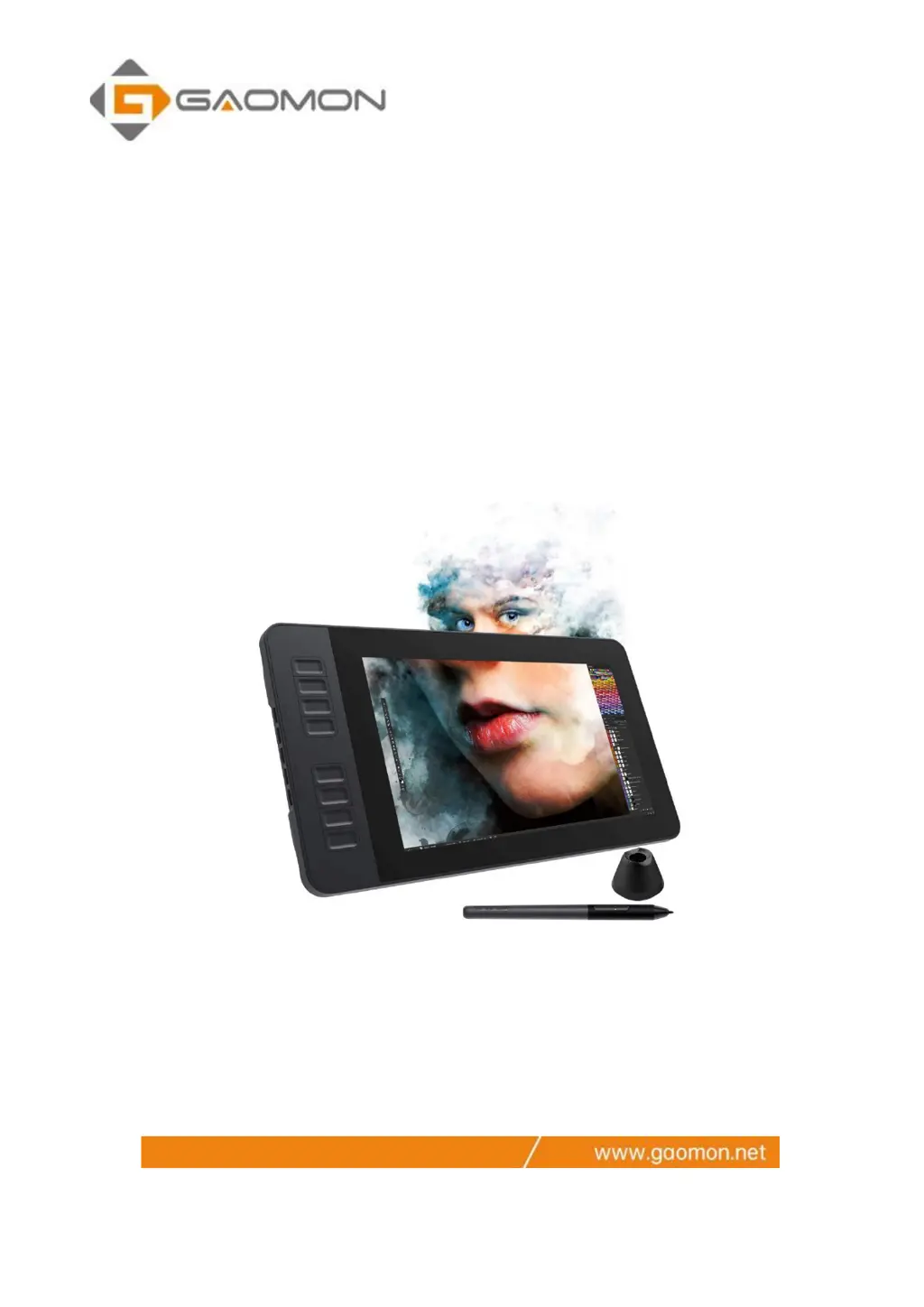
GAOMON PD1161 - User Manual

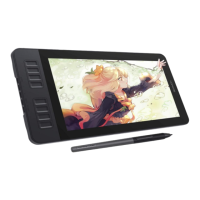
GAOMON PD1161
33 pages
Print Icon
To Next Page IconTo Next Page
Loading...
1
PD1161
Pen Display
FAQ

Table of Contents

Other manuals for GAOMON PD1161

Questions and Answers

  • D
    davilacristinaAug 13, 2025
    What to do if my GAOMON PD1161 shows no signal and a black screen?
    • M
      Marissa RiveraAug 14, 2025
      If your GAOMON Monitor displays 'No signal,' is saving power, or the screen is all black, ensure the 3-in-2 cables are securely connected. If you're using a desktop, plug the HDMI cable into the graphics card, not the motherboard. For Windows, press 'Windows+p' and select 'Duplicate' or 'Extend'. If your computer lacks an HDMI port, use an HDMI adapter (DVI/VGA/Display Port/Type-C/Thunderbolt are recommended over USB).
  • B
    Barbara BradshawAug 17, 2025
    What to do if my GAOMON Monitor displays nothing at all?
    • T
      Travis DennisAug 17, 2025
      If your GAOMON Monitor displays nothing and the indicator light is off, ensure the power cord is well connected. If it is, try a different power socket.
  • M
    Michelle SilvaAug 21, 2025
    Why does my GAOMON PD1161 only show the wallpaper and taskbar?
    • H
      Heather ThomasAug 21, 2025
      If your GAOMON Monitor only displays the wallpaper and taskbar, it's likely in extended mode, which is normal. If you prefer, switch to Duplicate/Mirror mode: on Windows, press Windows+p and choose Duplicate; on Mac, go to System Preferences, Displays, Arrangement, and check 'Mirror Displays'. If using Extended mode, ensure the pen display is set as the Work Area in the GAOMON Driver, usually 'Display 2'.
  • W
    William GoodwinAug 25, 2025
    How to fix a GAOMON Monitor when the power indicator doesn't flash?
    • C
      Carrie BellAug 26, 2025
      If the power indicator on your GAOMON Monitor isn't flashing, ensure the power is turned on. Also, check the power socket and cable to make sure they are working correctly.
  • S
    Shane BuchananAug 28, 2025
    How to resolve blurred images on my GAOMON Monitor?
    • M
      Michael CaseAug 29, 2025
      If the images on your GAOMON Monitor appear blurred, set the display resolution to 1920 x 1080.
  • A
    Andrew FreySep 1, 2025
    Why is my GAOMON Monitor lacking colors?
    • J
      Jessica GoldenSep 2, 2025
      If your GAOMON Monitor is showing a lack of colors, check the pins of the signal wire to ensure they are not bent or fractured.
  • J
    Jodi SantosSep 5, 2025
    Why do images jitter on my GAOMON PD1161?
    • O
      ocherrySep 5, 2025
      If images on your GAOMON Monitor jitter or ripple, it's likely due to electronic interference from nearby electrical equipment.
  • K
    Kyle CampbellSep 9, 2025
    Why is there chromatic aberration on my GAOMON Monitor?
    • J
      johndavidSep 9, 2025
      Minor chromatic aberration is a normal phenomenon on the GAOMON Monitor because regional color temperatures vary.

Summary

Warranty, Compatibility & Specifications

OS Compatibility

Lists supported operating systems (Windows 7+, macOS 10.12+) and unsupported OS.

Product Specifications and Features

Provides detailed technical specifications and key features of the PD1161 pen display.

Setup Guide for Windows and Mac

Setting up on Windows OS

Step-by-step installation guide for the GAOMON driver on Windows systems.

Setting up on Mac OS

Instructions for downloading and installing the GAOMON driver on macOS.

Connecting the PD1161 Pen Display

Explains the physical connection process using HDMI, USB, and power cables.

Display Troubleshooting

No Signal-Saving Power Error

Troubleshooting steps for resolving "No Signal" issues related to HDMI connection.

Blank Screen with No Indicator Light

Solutions for a completely black screen, focusing on power connection checks.

Pen and Cursor Issues

No Device Detected and Pen Not Working

Fixes for the GAOMON driver showing "No Device Detected" and the pen being unresponsive.

Cursor Movement Mismatch

Solutions for cursor moving on the monitor but not the tablet, checking work area settings.

Frequently Asked Questions (FAQs)

Customizing Express Key Functions

How to assign custom shortcuts to the tablet's express keys via the GAOMON driver.

GAOMON PD1161 Specifications

General IconGeneral
Display Size11.6 inches
Panel TypeIPS
Color Gamut72% NTSC
Pen Pressure Levels8192
PortsHDMI, USB
Display Area256.32 x 144.18 mm
Report Rate266 PPS
Viewing Angle178°
Response Time25ms
Contrast Ratio1000:1
Brightness220 cd/m²
Pen TechnologyBattery-free Electromagnetic Resonance
Weight866g
Resolution1920 x 1080

Related product manuals