EasyManua.ls Logo

GAOMON PD1560 - User Manual

GAOMON PD1560
24 pages
Print Icon
To Next Page IconTo Next Page
Loading...

Questions and Answers

  • A
    andersonjasonAug 16, 2025
    What to do if my GAOMON PD1560 shows 'No signal' and a black screen?
    • J
      Juan MedinaAug 16, 2025
      If your GAOMON Monitor displays 'No signal,' is saving power, or the screen is all black, ensure the 3-in-2 cables are securely connected. If you're using a desktop computer, plug the HDMI cable into the graphics card on the tower, not the motherboard. Windows users should press 'Windows+p' and select 'Duplicate' or 'Extend'. If your computer lacks an HDMI port, use an HDMI adapter, such as DVI/ VGA/ Display Port/ Type-C/ Thunderbolt, etc to HDMI adapters. Avoid using USB to HDMI adapters or USB hubs.
  • P
    paulmooreAug 19, 2025
    Why is my GAOMON PD1560 pen not working and has no pressure?
    • C
      Christopher MeltonAug 19, 2025
      If the pen doesn’t work or there's no pressure in the graphics software of your GAOMON Monitor, and it only happens in art programs, try uninstalling and reinstalling the driver. Windows users should 'run as administrator' during driver installation. If the pen doesn't work at all, try re-inserting the USB cable, using different USB ports, or testing with another computer.
  • M
    Mr. Timothy GuzmanAug 22, 2025
    Why does my GAOMON PD1560 Monitor only display the wallpaper and task bar?
    • J
      Jason PerezAug 22, 2025
      If your GAOMON Monitor only displays the wallpaper and taskbar, it's likely in extended mode. If you're unfamiliar with this mode, use Duplicate/Mirror mode instead. If you prefer Extended mode, ensure you select the pen display as the Work Area in the GAOMON Driver.
  • L
    Lisa WarrenAug 26, 2025
    What to do if my GAOMON PD1560 displays nothing and has no indicator light?
    • S
      Steve BakerAug 26, 2025
      If nothing displays on your GAOMON Monitor and there's no indicator light, ensure the power cord is properly connected. Try using a different power socket as well.
  • S
    Stephanie ParrishAug 28, 2025
    How to fix a GAOMON PD1560 Monitor when the power indicator does not flash?
    • K
      Karen WrightAug 28, 2025
      If the power indicator on your GAOMON Monitor doesn't flash, ensure that the power is turned on. Also, check the socket and power cable to make sure they are properly connected.
  • T
    Thomas ChapmanAug 31, 2025
    Why is the cursor movement abnormal on my GAOMON PD1560?
    • V
      Vincent JohnsonAug 31, 2025
      If the cursor movement on your GAOMON Monitor is abnormal, try re-inserting the USB cable or restarting your computer.
  • J
    James MurphySep 3, 2025
    How to fix blurred images on a GAOMON PD1560?
    • R
      Ricky MosesSep 3, 2025
      If the images on your GAOMON Monitor are blurred, set the display resolution to 1920 x 1080.
  • T
    Travis HowardSep 6, 2025
    Why doesn't the side button of my GAOMON Monitor pen work?
    • K
      Kirk RussellSep 6, 2025
      If the side button of the pen for your GAOMON Monitor doesn’t work, make sure the pen nib isn't touching the glass surface and is within 10 mm of the surface when pressing the button.
  • A
    Alexander HernandezSep 9, 2025
    What causes a lack of colors on my GAOMON PD1560 Monitor?
    • J
      Jesus PhillipsSep 9, 2025
      If your GAOMON Monitor is showing a lack of colors, check the pins of the signal wire to ensure they are not bent or fractured.
  • P
    Patricia AbbottSep 12, 2025
    Why do images jitter or ripple on my GAOMON PD1560?
    • L
      Lisa JohnsonSep 12, 2025
      The jitter or ripple images on your GAOMON Monitor is likely due to nearby electric equipment causing electronic interference.

Summary

Precautions

Product Overview

Product Introduction

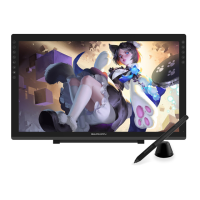
Provides an introduction to the GAOMON PD1560 graphics display.

Product and Accessories

Details the components included with the graphics pen display.

OSD Setting

OSD Button Functions

Explains the functions of the AUTO, -, +, MENU, and POWER buttons on the OSD.

Function Setting

Device Connection Prompt

Explains status messages for device connection, indicating recognition or lack thereof.

Working Area Setting

Allows users to map the tablet's active area to the screen area for cursor control.

Express Keys Function Setting

Pen Buttons Function Setting

Pressure Sensitivity Setting

Pen Pressure Testing

Calibration

Enable the Windows Ink Feature

Mouse Mode

Customize Express Keys and Pressure Curve

Data Export and Import

Specifications

Trouble Shooting

Possible Breakdowns Related to DISPLAY

Lists abnormal phenomena related to the display and their possible solutions.

Possible Breakdowns Related to FUNCTIONS

Lists abnormal phenomena related to pen functions and their possible solutions.

Contact Us for After-sales Service

GAOMON PD1560 Specifications

General IconGeneral
Display Size15.6 inches
Color Gamut72% NTSC
Pen Pressure Sensitivity8192 levels
Viewing Angle178°
Contrast Ratio1000:1
Response Time25 ms
Display Area344.16 x 193.59 mm
Aspect Ratio16:9
Pen TechnologyBattery-Free Electromagnetic Resonance
ConnectivityHDMI, USB
Power Consumption12W
Resolution1920 x 1080
Express Keys10
Signal InterfaceHDMI
OS SupportWindows 7/8/10, macOS 10.12 or later
Display Colors16.7M
Brightness250 cd/m²

Related product manuals