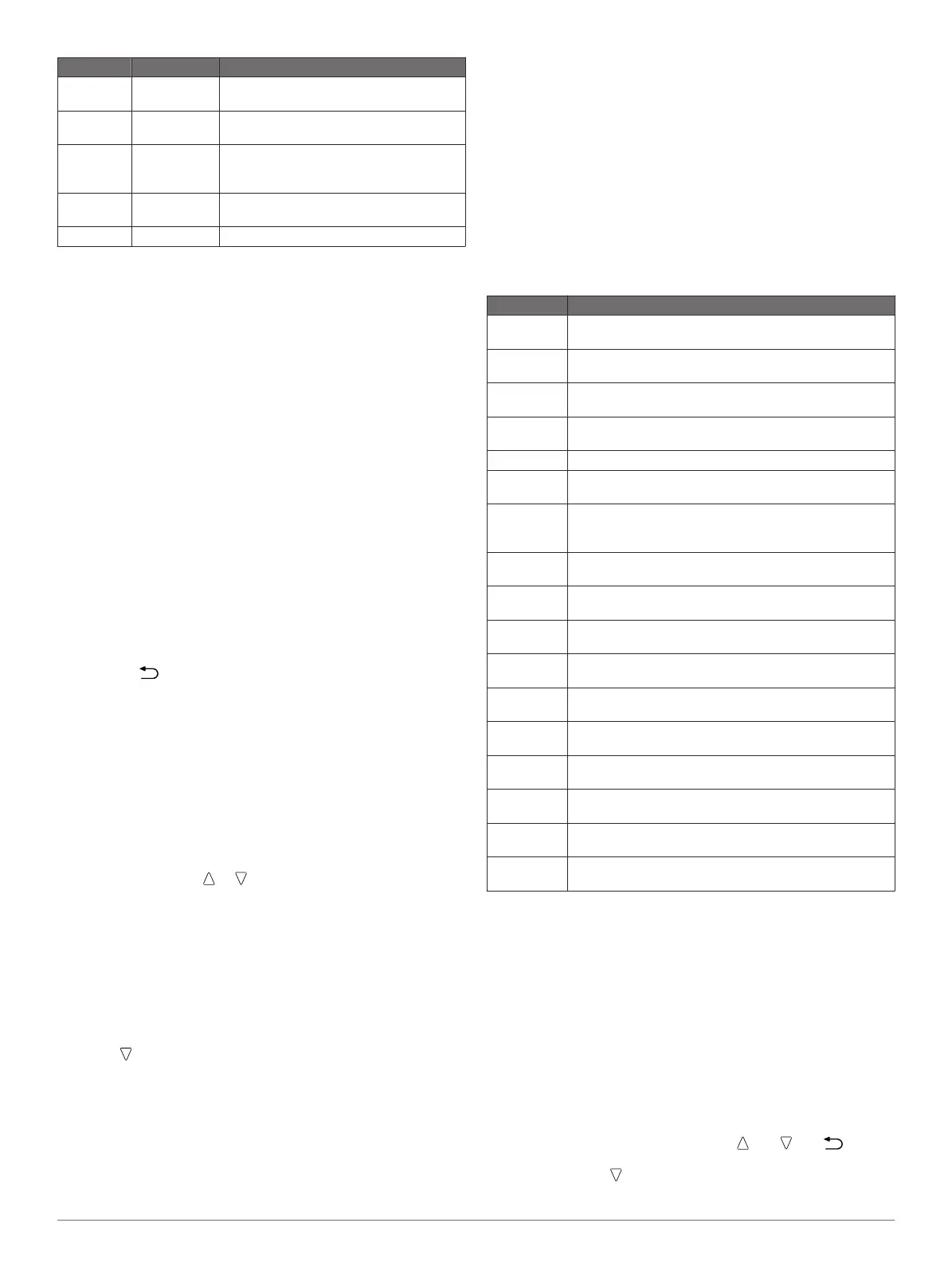
Alert Name Alert Type Description
Speed Range You can set minimum and maximum
speed values.
Pace Range You can set minimum and maximum pace
values.
Heart Rate Range You can set minimum and maximum heart
rate values or select zone changes. See
page 12 and page 17.
Cadence Range You can set minimum and maximum
cadence values.
Battery Event You can set a low battery power alert.
Setting a Proximity Alarm
Proximity alarms alert you when you are within a specified
range of a particular location.
1
Select the action key.
2
Select Alerts > Proximity > Edit > Create New.
3
Select a location.
4
Enter a radius.
5
Select Done.
Calculating the Size of an Area
Before you can calculate the size of an area, you must acquire
satellites.
1
Select the action key.
2
Select GPS Tools > Area Calc..
3
Walk around the perimeter of the area.
4
When you are finished, select the action key to calculate the
area.
5
Select an option:
• Select Save Track, enter a name, and select Done.
• Select Change Units to convert the area to a different
unit.
• Select to exit without saving.
Viewing the Almanacs
You can view almanac information for the sun and moon, and
hunting and fishing.
1
Select the action key.
2
Select an option:
• To view the sunrise, sunset, moonrise, and moonset
information, select GPS Tools > Sun & Moon.
• To view the predicted best times for hunting and fishing,
select GPS Tools > Hunt & Fish.
3
If necessary, select or to view a different day.
Viewing Satellite Information
The satellite page shows your current location, GPS accuracy,
satellite locations, and signal strength.
1
Select the action key.
2
Select Start GPS.
3
Select the action key.
4
Select GPS Tools > Satellite.
5
Select to view additional information.
Simulating a Location
When you are planning routes or activities in a different area,
you can turn off GPS and simulate a different location.
1
Select the action key.
2
Select Setup > System > GPS Mode > Demo Mode.
3
Select a location.
4
Select Go > Move to Location.
Customizing Your Device
Setup Overview
The Setup menu contains many ways to customize your device.
Garmin recommends that you familiarize yourself with the
settings for each feature. If you customize your settings before
your activity, you will spend less time adjusting the watch during
your activity. To open the Setup menu, select the action key,
and select Setup.
NOTE: All changes you make are saved to the active profile
(page 3).
Setup Item Available Settings and Information
System You can customize GPS settings, arrow keys, and the
device language (page 10).
Data Pages You can customize data pages and data fields
(page 10).
Sensors You can customize the compass (page 10) and
altimeter (page 10) settings.
ANT Sensor You can set up wireless accessories such as the heart
rate monitor or tempe™ (page 12).
Tones You can customize the tones and vibrations (page 10).
Display You can adjust the backlight and screen contrast
(page 10).
Reset You can clear the trip data, sensor plots (page 15),
waypoints, or track log, or you can reset all of your
settings (page 15).
Map You can customize the map orientation and how items
appear on the map (page 10).
Tracks You can customize the track recording settings
(page 10).
Time You can customize the appearance of the time page
(page 11).
Units You can change the units of measure for data such as
distance, elevation, and temperature (page 11).
Pos. Format You can change how your position data appears
(page 11).
Profiles You can change the active profile and edit your profiles
(page 3).
Fitness You can turn on Auto Lap, customize your fitness user
profile, and edit your heart rate zones (page 11).
Geocaches You can customize how your geocaches are listed and
activate chirp (page 11).
Menu You can customize the items that appear in the main
menu (page 9).
About You can view information about the device and software
(page 14).
Customizing the Main Menu
You can add, delete, or move items in the main menu.
1
Select the action key.
2
Select Setup > Menu.
3
Select a menu item.
4
Select an option:
• Select Move Up or Move Down to change the location of
the item in the list.
• Select Remove to delete an item from the list.
• Select Insert to add an item to the list.
Customizing the Arrow Keys
You can customize the hold function of and and for
your activity. For example, if the hiking profile is active, you can
customize the hold function to start and stop the timer.
1
Select the action key.
Customizing Your Device 9



 To Next Page