EasyManua.ls Logo

Garmin DASH CAM 47W - User Manual

Garmin DASH CAM 47W
30 pages
Print Icon
To Next Page IconTo Next Page
Loading...
GARMIN DASH CAM
47/57/67W
Owner’s Manual

Table of Contents

Question and Answer IconNeed help?

Do you have a question about the Garmin DASH CAM 47W and is the answer not in the manual?

Summary

Getting Started with Your Garmin Dash Cam

Device Overview and Initial Setup

Explains device layout, memory card installation, and basic operations.

Memory Card Management

Guides on formatting and safely removing the memory card.

Dash Cam Recording Features

Core Recording Functions

Details saving videos, event detection, audio control, and taking photos.

Travelapse and Parking Guard

Information on Travelapse recording and the Parking Guard feature.

Viewing and Managing Recorded Media

Accessing Videos and Photos

How to view saved videos, photos, unsaved footage, and parked videos.

File Management and Transfer

Saving unsaved footage, deleting media, and transferring files to a computer.

Driver Awareness Features

Collision and Lane Departure Warnings

Explains Forward Collision and Lane Departure Warning systems.

Other Alerts and Voice Control

Details Go Alert, Red Light/Speed Cameras, and Voice Control functionality.

Smartphone Integration and Connectivity

Pairing and Wi-Fi Connection

Guides on pairing with the app, connecting to Wi-Fi, and using the live view.

App-Based Media Management

Viewing, deleting media, and multi-factor authentication via the app.

Vault Storage and Video Editing

Vault Online Storage

Information on managing online storage, subscriptions, sharing, and removing videos.

Editing and Exporting Videos

How to trim video length and export footage to the Vault or smartphone.

Advanced Configurations

Multiple Camera Network Setup

Creating composite picture-in-picture videos from multiple cameras.

Garmin Drive App Settings

Camera settings, Wi-Fi connections, and renaming the camera via the app.

Device Settings and Information

Camera and Driver Assistance Settings

Configuration for camera resolution, exposure, and driver assistance features.

System Settings and Device Info

System settings, device setup, cleaning, updates, and specifications.

Device Operations and Support

Updates, Restarting, and Specifications

Information on software updates, restarting the device, and technical specifications.

Device Installation

Step-by-step instructions for installing the dash cam device in the vehicle.

Power Accessories and Wiring

Information on Time Switch, Status LED, and Parking Mode Cable installation.

Troubleshooting Common Issues

Camera and Memory Card Problems

Solutions for camera warmth, memory card errors, and degradation.

Video Quality Problems

Troubleshooting steps for blurry or choppy video recordings.

Summary

Getting Started with Your Garmin Dash Cam

Device Overview and Initial Setup

Explains device layout, memory card installation, and basic operations.

Memory Card Management

Guides on formatting and safely removing the memory card.

Dash Cam Recording Features

Core Recording Functions

Details saving videos, event detection, audio control, and taking photos.

Travelapse and Parking Guard

Information on Travelapse recording and the Parking Guard feature.

Viewing and Managing Recorded Media

Accessing Videos and Photos

How to view saved videos, photos, unsaved footage, and parked videos.

File Management and Transfer

Saving unsaved footage, deleting media, and transferring files to a computer.

Driver Awareness Features

Collision and Lane Departure Warnings

Explains Forward Collision and Lane Departure Warning systems.

Other Alerts and Voice Control

Details Go Alert, Red Light/Speed Cameras, and Voice Control functionality.

Smartphone Integration and Connectivity

Pairing and Wi-Fi Connection

Guides on pairing with the app, connecting to Wi-Fi, and using the live view.

App-Based Media Management

Viewing, deleting media, and multi-factor authentication via the app.

Vault Storage and Video Editing

Vault Online Storage

Information on managing online storage, subscriptions, sharing, and removing videos.

Editing and Exporting Videos

How to trim video length and export footage to the Vault or smartphone.

Advanced Configurations

Multiple Camera Network Setup

Creating composite picture-in-picture videos from multiple cameras.

Garmin Drive App Settings

Camera settings, Wi-Fi connections, and renaming the camera via the app.

Device Settings and Information

Camera and Driver Assistance Settings

Configuration for camera resolution, exposure, and driver assistance features.

System Settings and Device Info

System settings, device setup, cleaning, updates, and specifications.

Device Operations and Support

Updates, Restarting, and Specifications

Information on software updates, restarting the device, and technical specifications.

Device Installation

Step-by-step instructions for installing the dash cam device in the vehicle.

Power Accessories and Wiring

Information on Time Switch, Status LED, and Parking Mode Cable installation.

Troubleshooting Common Issues

Camera and Memory Card Problems

Solutions for camera warmth, memory card errors, and degradation.

Video Quality Problems

Troubleshooting steps for blurry or choppy video recordings.

Overview

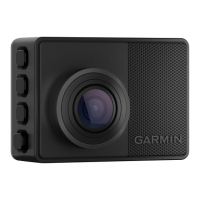
The Garmin Dash Cam 47/57/67W is a compact in-vehicle recording device designed to enhance driving safety and provide evidence in case of incidents. It functions primarily as a dash camera, continuously recording video footage while the vehicle is in operation. Beyond basic recording, the device integrates several advanced driver awareness features and offers seamless connectivity with a smartphone for enhanced control and data management.

Function Description

The core function of the Garmin Dash Cam is to record video footage of your journeys. Upon powering on, the device automatically begins recording to a memory card, capturing a continuous loop of video. This footage is crucial for documenting events on the road, such as accidents or other incidents. The camera is equipped with a sensor that detects potential incidents, automatically saving video segments 15 seconds before and after the detected event, ensuring critical moments are preserved. Users can also manually save video recordings at any time by pressing a dedicated button.

In addition to standard video recording, the device offers a "Travelapse" feature, which captures a fast-motion video of your trip, allowing for a condensed and shareable summary of your travels. Audio recording is also an integrated feature, capturing sound within the vehicle, which can be toggled on or off as needed. The device can also take still photos from the viewfinder, saving both a photo and a video clip to the memory card.

For vehicle security when parked, the "Parking Guard" feature automatically records video when an incident is detected while the vehicle is turned off. When connected to a Wi-Fi network, the camera can send notifications to your smartphone about these parked incidents. This feature can be configured to run on the camera's internal battery or an external power source, with adjustable monitoring times and the option to record before an incident is detected.

The Garmin Dash Cam also incorporates several driver awareness features and alerts designed to promote safer driving. These include a "Forward Collision Warning System" (FCWS) that alerts you if you are following too closely to the vehicle ahead, a "Lane Departure Warning System" (LDWS) that warns if you unintentionally drift out of your lane, and a "Go Alert" that notifies you when stopped traffic ahead begins to move. Furthermore, the device can alert you to upcoming red light and speed cameras, providing timely warnings to help you adhere to traffic laws.

Usage Features

The Garmin Dash Cam is designed for user-friendly operation, both through its on-device interface and its integration with the Garmin Drive smartphone app.

On-Device Operation:

  • Power Control: The device can be turned on manually by pressing the power button, or it will automatically power on when connected to an ignition-switched vehicle power outlet. Similarly, it can be turned off manually by holding the power button for 3 seconds, or it will automatically power off when the vehicle is turned off.
  • Navigation: The device features buttons for scrolling through menus and pages, and for selecting options.
  • Main Menu: The main menu provides access to various functions including the Gallery (for viewing videos and photos), Travelapse (to start/stop fast-motion recording), Voice Control (to enable/disable voice commands), Parking Guard (to manage parked recording settings), Garmin Drive App (for smartphone pairing), and Settings (for camera and system configurations).
  • Voice Control: A key feature is voice control, allowing users to issue commands like "OK, Garmin, Save Video," "OK, Garmin, Take a Picture," or "OK, Garmin, Start Travelapse" without taking their hands off the wheel. The wake word can be customized if multiple Garmin devices with voice control are present.
  • Camera Placement: The device's placement on the windshield (left, center, or right) and the vehicle height (tall or normal) can be configured to optimize the performance of driver assistance features.

Garmin Drive App Integration:

  • Smartphone Pairing: The camera pairs with your smartphone via the Garmin Drive app, enabling a wide range of advanced functionalities.
  • Video and Photo Management: Through the app, users can view, edit, and save recorded videos and photos directly on their smartphone. This includes accessing saved footage, parked videos, photos, Travelapse videos, and unsaved temporary footage.
  • Vault Storage: The app facilitates uploading, managing, and sharing dash camera footage on a secure, online storage drive called the Vault. Videos are automatically uploaded to the Vault when the camera is connected to a Wi-Fi network. Users can purchase subscriptions to extend storage time in the Vault.
  • Live View Camera Feed: When connected to a Wi-Fi network and a constant power source, the app allows users to view a live video feed from the camera remotely, providing real-time monitoring of their vehicle.
  • Multiple Camera Network: For vehicles with multiple Garmin Dash Cams (e.g., front and rear), the app enables the creation of a multi-camera network. This allows for simultaneous recordings and the ability to create composite picture-in-picture videos from footage recorded by different cameras.
  • Camera Settings: The Garmin Drive app provides comprehensive control over camera settings, including video resolution, incident detection sensitivity, audio recording, data overlay, Travelapse activation, exposure value, alert volume, units and time, language, voice commands, wake word, unsaved video management, parking guard settings, and device information. Users can also rename cameras within a multi-camera setup.
  • Software Updates: The app notifies users when software updates or safety camera database updates are available and facilitates their installation on the device.

Maintenance Features

Maintaining the Garmin Dash Cam involves a few simple steps to ensure optimal performance and longevity.

  • Memory Card Management: The device uses a microSD memory card for storing video footage. It is crucial to install a compatible memory card and format it regularly (at least every 6 months) to extend its useful life and maintain performance. Formatting the card deletes all videos, photos, and data, so important recordings should be transferred first. The device will alert you if the memory card degrades or needs replacement.
  • Memory Card Replacement: If a memory card error persists after formatting, the card may need to be replaced. Using high-quality memory cards with a Class 10 or higher speed rating and higher storage capacity can improve performance and lifespan.
  • Cleaning the Camera Lens: To ensure clear video recordings, the camera lens should be cleaned regularly. This involves wiping the lens with a non-scratch lens cloth, optionally dampened with isopropyl alcohol, and allowing it to air dry. It is important to avoid chemical cleaners and solvents that could damage plastic components.
  • Software Updates: Keeping the device's software up to date is essential for optimal functionality and access to the latest features. Updates can be performed via the Garmin Drive app or by connecting the device to a computer with Garmin Express software.
  • Troubleshooting: The manual provides guidance for common issues such as the camera feeling warm during operation (which is normal), blurry video recordings (suggesting lens or windshield cleaning), or choppy/incomplete video recordings (often related to memory card performance or wireless interference).
  • Resetting the Device: If the device stops functioning, it can be restarted by holding the power key for 12 seconds. A factory reset option is also available through the settings menu to restore default values and unpair from the Garmin Drive app, without deleting recorded media.

Garmin DASH CAM 47W Specifications

General IconGeneral
Video Resolution1440p
Field of View140 degrees
Screen Size2.0 inches
GPSYes
Wi-FiYes
Voice ControlYes
Frame Rate30 fps
StoragemicroSD card
ConnectivityUSB

Related product manuals