Fitness Goals
Knowing your heart rate zones can help you measure and
improve your fitness by understanding and applying these
principles.
• Your heart rate is a good measure of exercise intensity.
• Training in certain heart rate zones can help you improve
cardiovascular capacity and strength.
• Knowing your heart rate zones can prevent you from
overtraining and can decrease your risk of injury.
If you know your maximum heart rate, you can use the table
(Heart Rate Zone Calculations, page 14) to determine the best
heart rate zone for your fitness objectives.
If you do not know your maximum heart rate, use one of the
calculators available on the Internet. Some gyms and health
centers can provide a test that measures maximum heart rate.
The default maximum heart rate is 220 minus your age.
Setting Your Power Zones
The values for the zones are default values and may not match
your personal abilities. You can manually adjust your zones on
the device or using Garmin Connect. If you know your functional
threshold power (FTP) value, you can enter it and allow the
software to calculate your power zones automatically.
1
Select > Training Zones > Power Zones.
2
Enter your FTP value.
3
Select Based On:.
4
Select an option:
• Select watts to view and edit the zones in watts.
• Select % FTP to view and edit the zones as a percentage
of your functional threshold power.
Bluetooth Settings
Select > Bluetooth.
Enable: Enables Bluetooth wireless technology.
NOTE: Other Bluetooth settings appear only when Bluetooth
wireless technology is enabled.
Friendly Name: Allows you to enter a friendly name that
identifies your devices with Bluetooth wireless technology.
Pair Smartphone: Connects your device with a compatible
Bluetooth enabled smartphone. This setting allows you to use
Bluetooth connected features, including LiveTrack and
activity uploads to Garmin Connect.
Pair Bluetooth Smart: Connects your device with a compatible
smartphone using Bluetooth Smart wireless technology. This
setting allows you to use call and text features.
NOTE: This setting appears only after the device is paired
with a compatible smartphone equipped with Bluetooth Smart
wireless technology.
Call and Text Alerts: Allows you to enable phone notifications
from your compatible smartphone.
Missed Calls and Texts: Displays missed phone notifications
from your compatible smartphone.
Wi‑Fi Settings
Select > Wi-Fi.
Wi-Fi: Enables Wi‑Fi wireless technology.
NOTE: Other Wi‑Fi settings appear only when Wi‑Fi is
enabled.
Auto Upload: Allows you to upload activities automatically over
a known wireless network.
Add Network: Connects your device to a wireless network.
Updating Your Activity Settings
1
Select > Activity Settings.
2
Select an option:
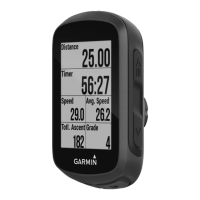
• Select Data Screens to customize the data screens and
data fields (Customizing the Data Screens, page 10).
• Select Map to customize the map settings (Map Settings,
page 10).
• Select Routing to customize your route settings (Route
Settings, page 11).
• Select Alerts to customize your training alerts (Alerts,
page 11).
• Select Auto Features > Auto Lap to set how laps are
triggered (Auto Lap
®
, page 11).
• Select Auto Features > Auto Pause to change when the
timer automatically pauses (Using Auto Pause,
page 11).
• Select Auto Features > Auto Sleep to automatically enter
sleep mode after five minutes of inactivity (Using Auto
Sleep, page 11).
• Select Auto Features > Auto Scroll to customize the
display of the training data pages when the timer is
running (Using Auto Scroll, page 11).
• Select Start Notice to customize the start notice mode
(Changing the Start Notice, page 12).
All changes are saved to the activity settings.
Customizing the Data Screens
1
Select > Activity Settings.
2
Select Data Screens.
3
Select a data screen.
4
If necessary, enable the data screen.
5
Select the number of data fields to appear on the screen.
6
Select .
7
Select a data field to change it.
8
Select .
Map Settings
Select > Activity Settings > Map.
Orientation: Sets how the map is shown on the page.
Auto Zoom: Automatically selects a zoom level for the map.
When Off is selected, you must zoom in or out manually.
Guide Text: Sets when the turn-by-turn navigation prompts are
shown (requires routable maps).
Map Visibility: Allows you to set advanced map features.
Map Information: Enables or disables the maps currently
loaded on the device.
Changing the Map Orientation
1
From the home screen, select > Activity Settings > Map
> Orientation.
2
Select an option:
• Select North Up to show north at the top of the page.
• Select Track Up to show your current direction of travel at
the top of the page.
• Select 3D Mode to show an automotive perspective with
the direction of travel at the top.
Advanced Map Settings
Select > Activity Settings > Map > Map Visibility.
Map Visibility Mode: Auto and High Contrast have preset
values. You can choose Custom to set each value.
Zoom Levels: Sets map items to draw or appear at or below the
selected zoom level.
Text Size: Sets the text size for map items.
Detail: Sets the amount of detail shown on the map. Showing
more detail may cause the map to redraw more slowly.
10 Customizing Your Device


 To Next Page