5
If necessary, tap the screen to view the timer overlay.
6
Select to stop the timer.
7
Select End Ride > Save Ride.
Acquiring Satellite Signals
The device may need a clear view of the sky to acquire satellite
signals. The time and date are set automatically based on the
GPS position.
1
Go outdoors to an open area.
The front of the device should be oriented toward the sky.
2
Wait while the device locates satellites.
It may take 30–60 seconds to locate satellite signals.
Courses
You can send a course from your Garmin Connect account to
your device. After it is saved to your device, you can navigate
the course on your device. You can also create and save a
custom course directly on your device.
You can follow a saved course simply because it is a good
route. For example, you can save and follow a bike-friendly
commute to work.
Following a Course From the Web
Before you can download a course from Garmin Connect, you
must have a Garmin Connect account (Garmin Connect,
page 6).
1
Connect the device to your computer using the USB cable.
2
Go to www.garminconnect.com.
3
Create a new course, or select an existing course.
4
Select Send to Device.
5
Disconnect the device, and turn it on.
6
Select Courses > Saved Courses.
7
Select the course.
8
Select Ride.
Creating and Riding a Course
1
Select Courses > Course Creator > Add First Location.
2
Select an option:
• To select your current location on the map, select Current
Location.
NOTE: If the device cannot acquire satellite signals for
your current location, the device prompts you to use the
last known location or to select the location on the map.
• To select a saved location, select Saved > Locations,
and select a location.
• To select a location for which you recently searched,
select Recent Finds, and select a location.
• To select a location on the map, select Use Map, and
select a location.
• To browse for and select a point of interest, select POI
Categories, select a category, and select a nearby point
of interest.
• To select a city, select Cities, and select a nearby city.
• To select an address, select Addresses, and follow the
on-screen instructions.
• To select an intersection, select Intersections, and follow
the on-screen instructions.
• To use known coordinates for a location, select
Coordinates, and enter the coordinates.
3
Select Use.
4
Select Add Next Location.
5
Repeat steps 2 through 4 until you have selected all locations
for the course.
6
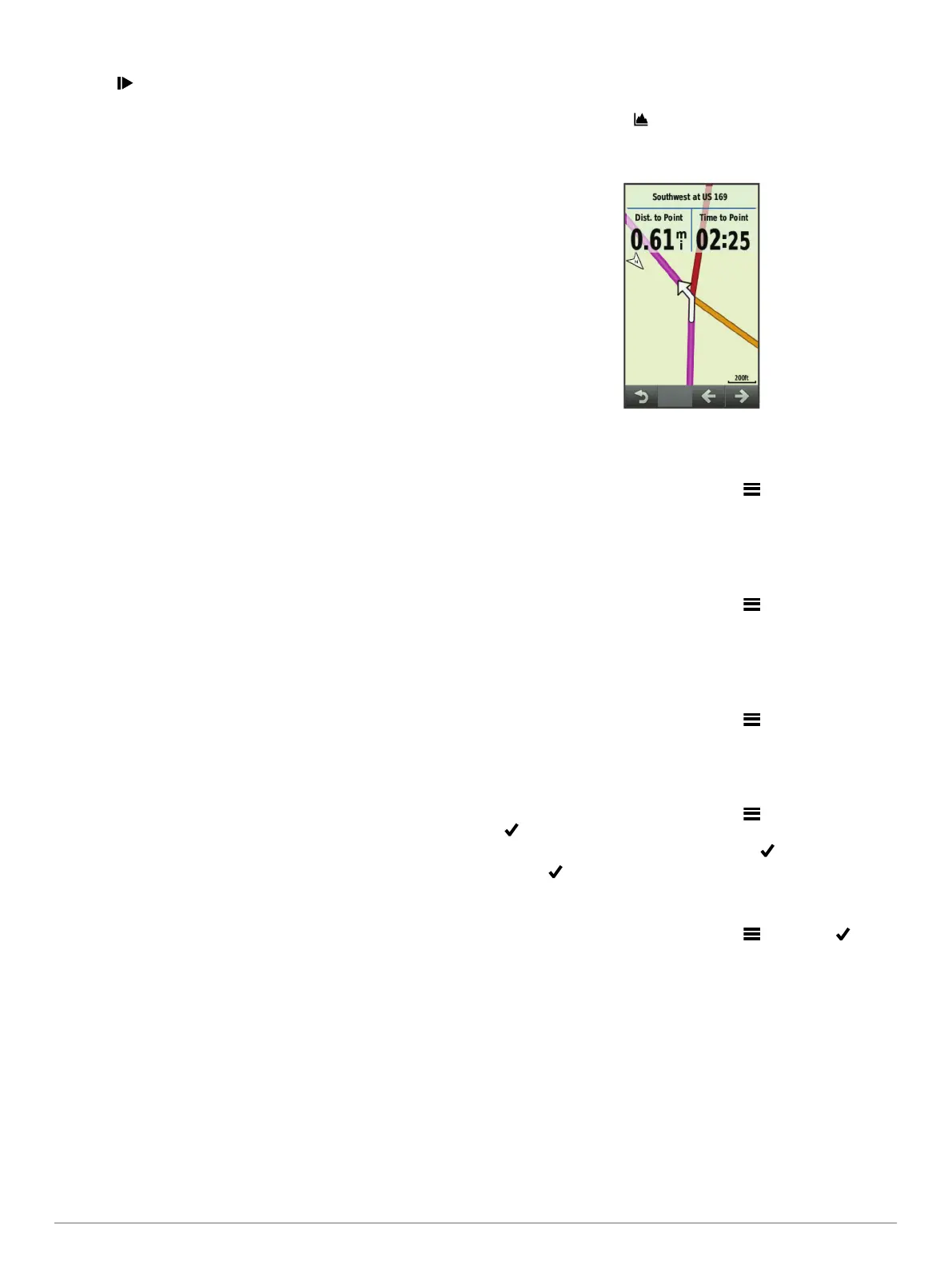
Select View Map.
The device calculates your route, and a map of the course
appears.
TIP: You can select to view an elevation plot of the course.
7
Select Ride.
8
Follow the on-screen instructions to your destination.
Calculating a Loop-to-Start Course
Before you can calculate a loop-to-start course, you must create
a course with only one location.
Select Courses > Course Creator > > Loop to Start.
The device calculates a route that loops back to the start
location, and a map of the course appears.
Calculating an Out-and-Back Course
Before you can calculate an out-and-back course, you must
create a course with two or more locations.
Select Courses > Course Creator > > Out and Back.
The device calculates a route that leads you out to and back
from the end location, and a map of the course appears.
Reversing the Course Direction
Before you can reverse the direction of a course, you must
create and calculate a course with at least one location.
Select Courses > Course Creator > > Reverse
Direction.
The device reverses the direction of navigation, and a map of
the course appears.
Saving a Course from Course Creator
1
Select Courses > Course Creator > > Save as Course >
.
2
Enter a name for the course, and select .
3
Select .
The course appears in the list.
Deleting All Locations from a Course
Select Courses > Course Creator > > Delete > .
Course Creator Settings
Select Courses > Course Creator > Settings.
Routing Mode: Sets the transportation method to optimize your
route.
Calculation Method: Sets the method used to calculate your
route.
Lock on Road: Locks the position icon, which represents your
position on the map, onto the nearest road.
Avoidance Setup: Sets the road types to avoid while
navigating.
Creating and Riding a Round-Trip Course
The device can create a round-trip course based on a specified
distance, starting location, and direction of navigation.
Navigation 3


 To Next Page