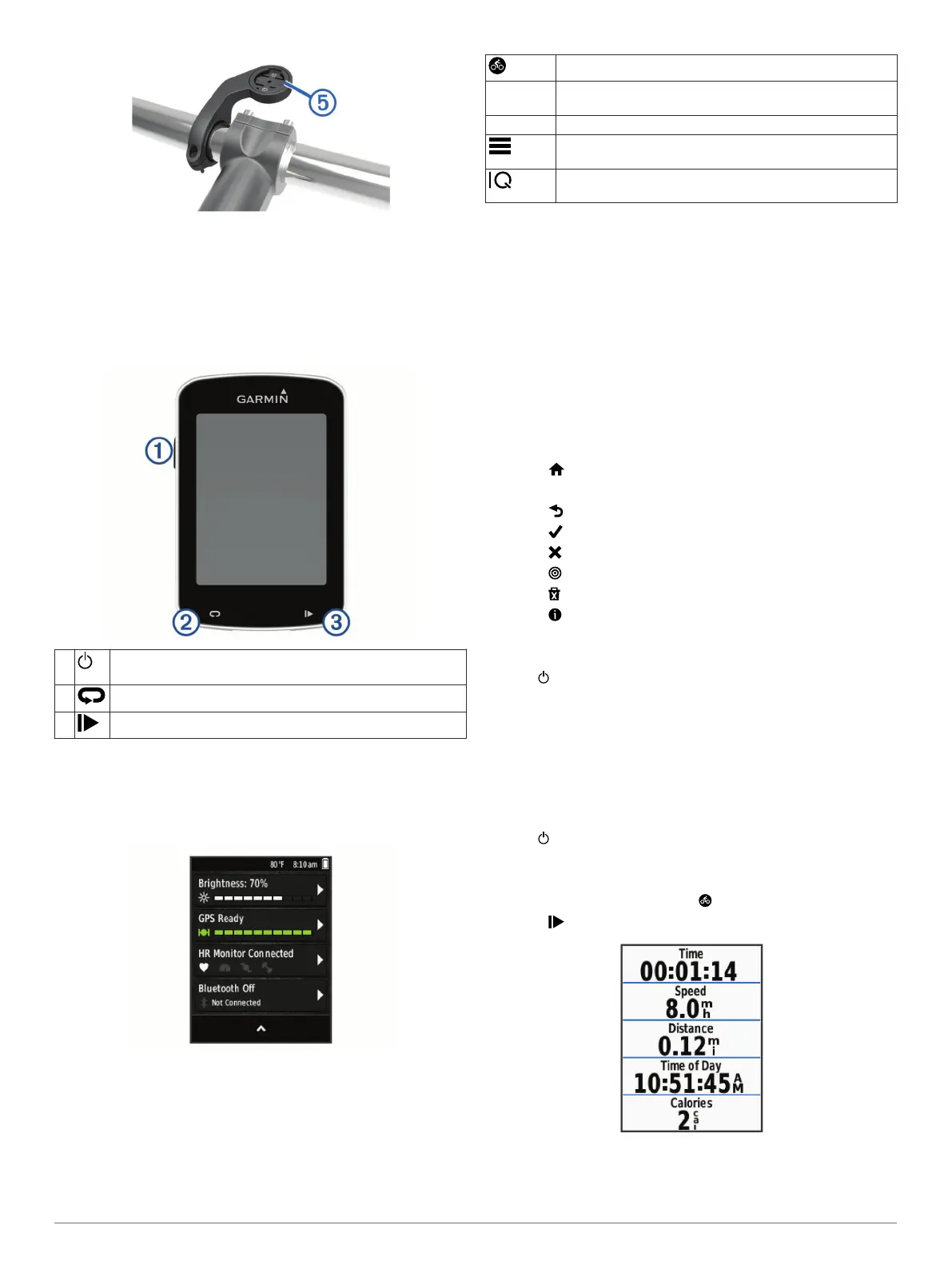
8
Press down slightly and turn the Edge device clockwise until
it locks into place.
Releasing the Edge
1
Turn the Edge clockwise to unlock the device.
2
Lift the Edge off the mount.
Keys
À
Select to enter sleep mode and wake the device.
Hold to turn the device on and off and lock the touchscreen.
Á
Select to mark a new lap.
Â
Select to start and stop the timer.
Viewing the Connections Screen
The connections screen displays the status of the GPS, ANT+
®
sensors, and wireless connections.
From the home screen or a data screen, swipe down from
the top of the screen.
The connections screen appears. A flashing icon means the
device is searching.
Home Screen Overview
The home screen gives you quick access to all the features of
the Edge device.
Select to go for a ride.
Where To? Select to mark a location, search for locations, and create
or navigate a course.
Courses Select to create a new course or access a saved course.
Select to access your history, training options, personal
records, contacts, and settings.
Select to access your Connect IQ
™
apps, widgets, and
data fields.
Using the Backlight
You can tap the touchscreen to turn on the backlight.
NOTE: You can adjust the backlight timeout (Display Settings,
page 10).
1
From the home screen or a data screen, swipe down from
the top of the screen.
2
Select Brightness, and use the arrows to manually adjust
the brightness.
Using the Touchscreen
• When the timer is running, tap the screen to view the timer
overlay.
The timer overlay allows you to return to the home screen
during a ride.
• Select to return to the home screen.
• Swipe or select the arrows to scroll.
• Select to return to the previous page.
• Select to save your changes and close the page.
• Select to close the page and return to the previous page.
• Select to search near a location.
• Select to delete an item.
• Select for more information.
Locking the Touchscreen
You can lock the screen to prevent inadvertent screen touches.
1
Hold .
2
Select Lock Screen.
Navigation
Going for a Ride
If you are using an ANT+ sensor or accessory, it can be paired
and activated during initial setup.
1
Hold to turn on the device.
2
Go outside, and wait while the device locates satellites.
The satellite bars turn green when the device is ready.
3
From the home screen, select .
4
Select to start the timer.
NOTE: History is recorded only while the timer is running.
5
Swipe left or right to view additional data screens.
2 Navigation





 To Next Page