Introduction
WARNING
See the Important Safety and Product Information guide in the
product box for product warnings and other important
information.
Device Views
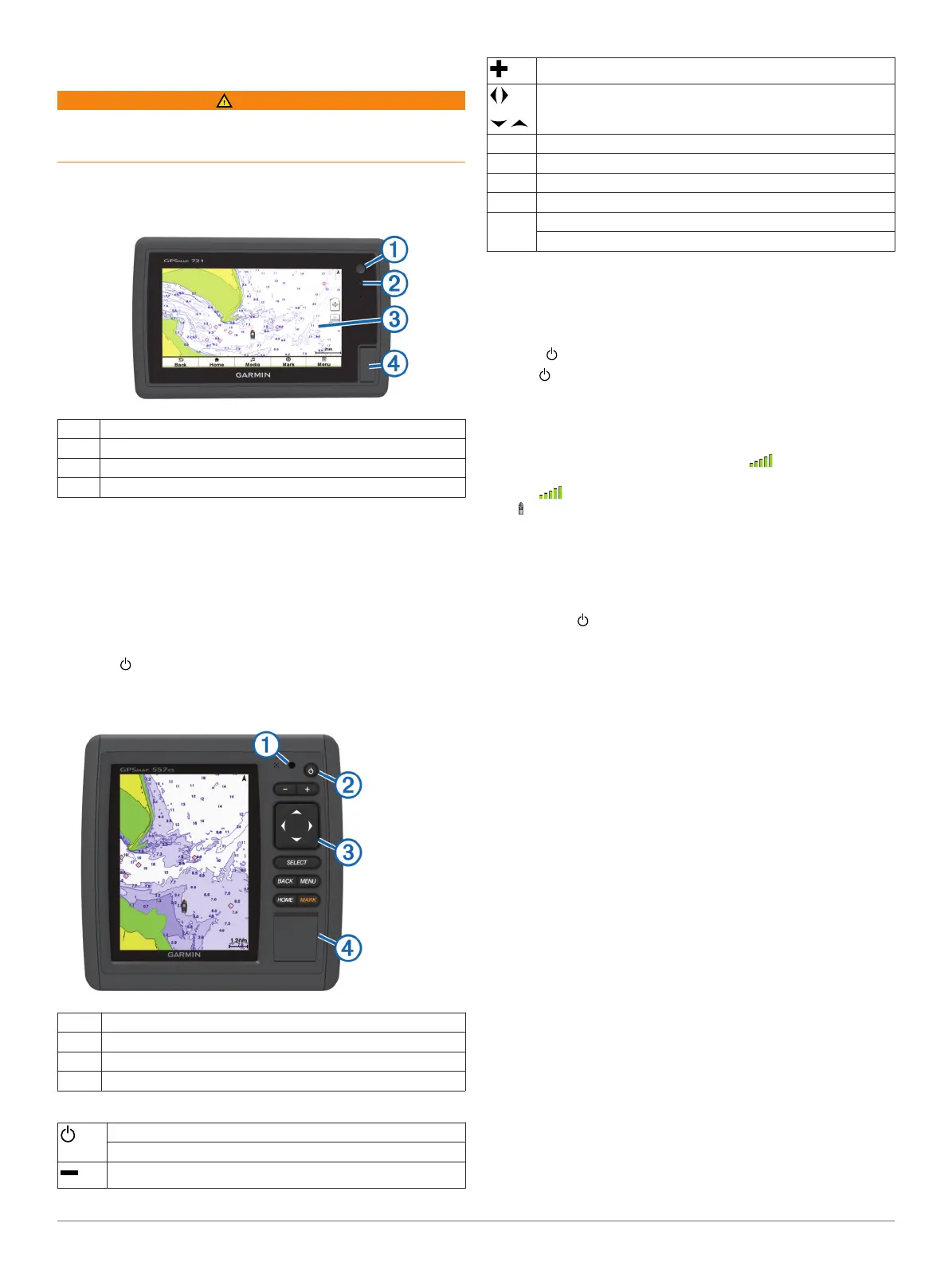
echoMAP 70 Series and GPSMAP 700 Series
À
Power key
Á
Automatic backlight sensor
Â
Touchscreen
Ã
microSD™ memory card slot
Using the Touchscreen
• Tap the screen to select an item.
• Drag or swipe your finger across the screen to pan or scroll.
• Pinch two fingers together to zoom out.
• Spread two fingers apart to zoom in.
Locking the Touchscreen
You can lock the touchscreen to prevent inadvertent screen
touches.
1
Select .
2
Select Lock Touchscreen.
echoMAP 50 Series and GPSMAP 500 Series
À
Automatic backlight sensor
Á
Power key
Â
Device keys
Ã
microSD memory card slot
Device Keys
Turns on and off the device when held.
Adjusts the backlight and color mode.
Zooms out of a chart or view.
Zooms in to a chart or view.
Scrolls, highlights options, and moves the cursor.
Select Acknowledges messages and selects options.
Back Returns to the previous screen.
Mark Saves the present location as a waypoint.
Home Returns to the Home screen.
Menu Opens a menu of options for the page, when applicable.
Closes a menu, when applicable.
Tips and Shortcuts
• Select Home from any screen to return to the Home screen.
• Select Menu from any main screen to access additional
settings about that screen.
• Press to adjust the backlight and lock the touchscreen.
• Hold to turn the chartplotter on or off.
GPS Satellite Signals
When you turn on the chartplotter, the GPS receiver must
collect satellite data and establish the current location. When
the chartplotter acquires satellite signals, appears at the top
of the Home screen. When the chartplotter loses satellite
signals, disappears and a flashing question mark appears
over on the chart.
For more information about GPS, go to www.garmin.com
/aboutGPS.
Adjusting the Backlight
1
Select Settings > System > Display > Backlight.
TIP: Press from any screen to access the backlight
settings.
2
Select an option:
• Adjust the backlight level.
• Select Enable Auto Backlight or Auto.
Adjusting the Color Mode
1
Select Settings > System > Display > Color Mode.
2
Select an option.
Customizing the Home Screen
You can add items to and rearrange items on the Home screen.
1
From the Home screen, select Menu.
2
Select an option:
• To rearrange an item, select Rearrange, select the item
to move, and select the new location for it.
• To add an item to the Home screen, select Add, and
select the new item to add.
• To remove an item you have added to the Home screen,
select Remove, and select the item to remove.
Inserting Memory Cards
You can use optional memory cards in the chartplotter. Map
cards allow you to view high-resolution satellite imagery and
aerial reference photos of ports, harbors, marinas, and other
points of interest. You can use blank memory cards to transfer
data such as waypoints, routes, and tracks to another
compatible Garmin chartplotter or a computer.
1
Open the access door
À
on the front of the chartplotter.
Introduction 1



 To Next Page