• “Data Use”: Shows amount of messages sent and tracking points made since the device was last
turned on. Usually not very useful
• “Compass”: Provides orientation, elevation, trip distance, and speed data
• “SOS”: DO NOT SELECT THIS FEATURE UNLESS YOU HAVE AN EMERGENCY AND
REQUIRE RESCUE. If you do accidentally press this item, you will have 5 seconds to cancel
the rescue request before Garmin begins deploying resources to send help
• “Contacts”: Lists all contacts in the device, and offers the chance to add more
• “Location”: Gives current location’s latitude and longitude, as well as speed, course, elevation,
and accuracy of readings. Also provides option to share location
• “History”: Lists each recorded day’s points
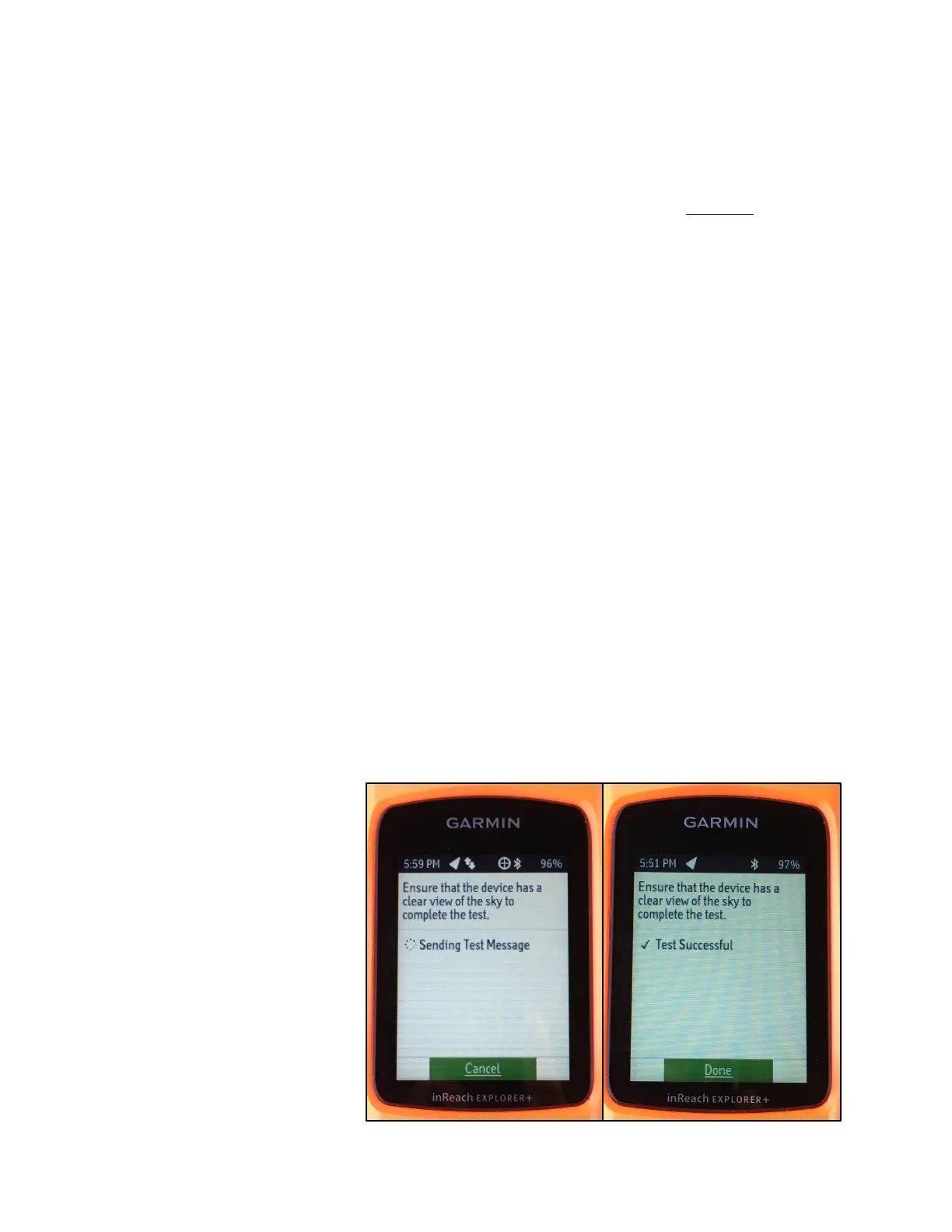
• “Test”: Sends a test message. You should use this feature every time you turn on the device
• “Settings”: Lists settings for the device, including but not limited to display, messages, and
sounds
---
HOW TO
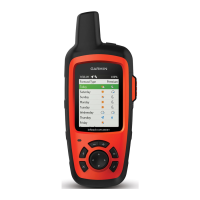
*Note: In these instructions, the word “navigate” indicates that you should use the cursor key to move
the selection you want. On prompt screens and the main menu, the selected item shows up in green.
The word “select” indicates that you should press the select key.
To turn on:
1. Press and hold the power key until you see a green LED light and the screen turns on
2. You will see a prompt telling you that the device needs an active subscription to work (Stanford
has one), as well as a warning to always test your device prior to traveling
3. Press the left cursor key to move the green rectangle from “Cancel” to “Turn On,” then press the
select key
To unlock:
1. Press any key to bring up the lock screen
2. Press the left cursor key to move the green rectangle from “Cancel” to “Unlock,” then press the
select key
To test device:
1. Navigate to “Test” on the
main menu, then press
the select key
2. You will see instructions
telling you to make sure
the device has a clear
view of the sky.
Performing the test
under tents or canopies is
fine, but sometimes cars
will block your signal.
Standing inside or under
a building will almost
always block your signal
3. Press the select key to
begin the test. It will take




 To Next Page