Route and Guidance Preferences
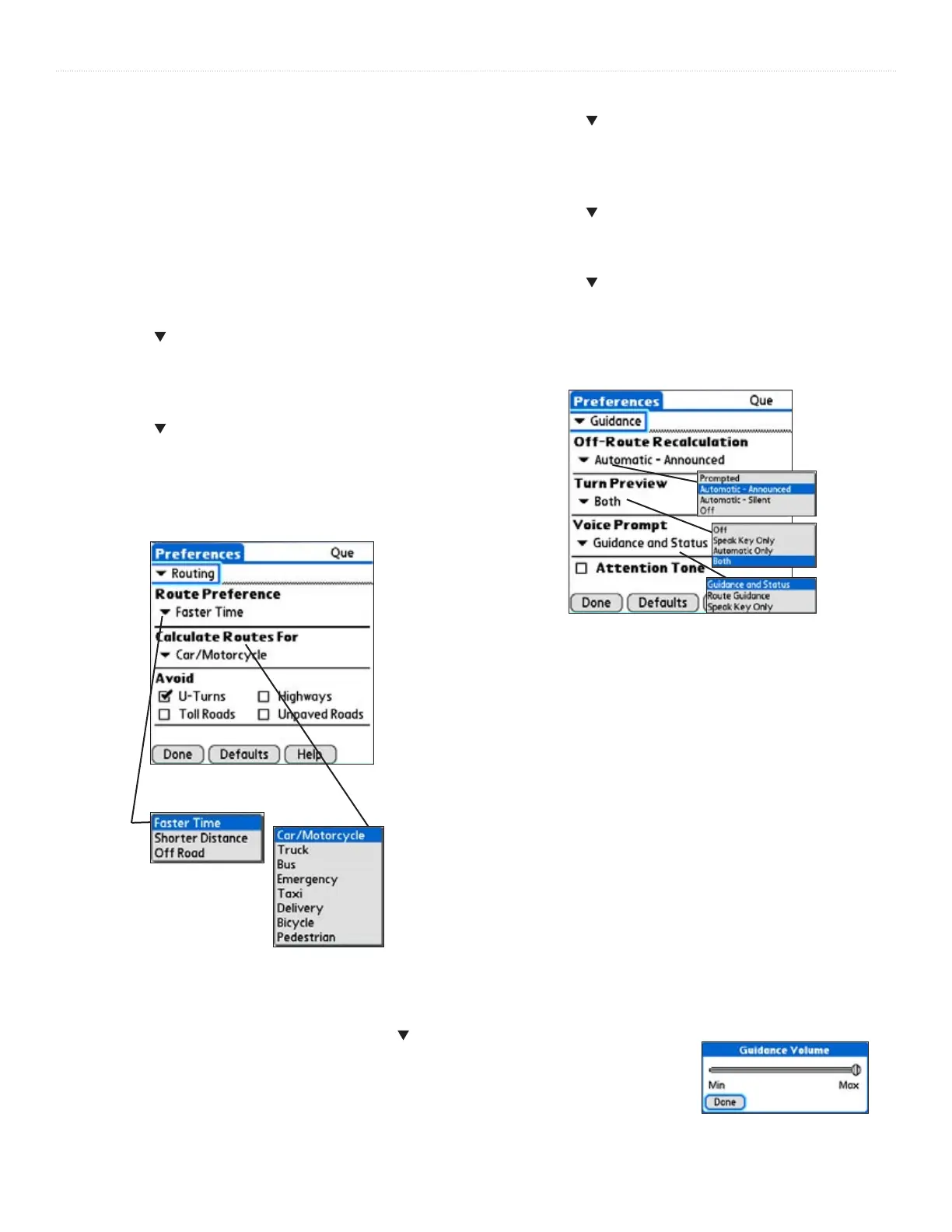
You can control the way routes are calculated and how the route
guidance prompts are given. When you set preferences for an
individual route, all other routes reflect those preferences.
To set routing preferences:
1. Tap the
QueRoute icon to display the ‘QueRoutes’
dialog box.
2. Tap the
Route Preferences icon to display Route
Preferences.
3. Tap the
icon beneath the ‘’ option to display and
select from three options. The ‘Off Road’ option
generates a straight line to your destination, not
following roads.
4. Tap the
icon beneath the ‘Calculate Routes
For’ option to display and select from a list of
transportation options.
5. Tap the box next to the ‘Avoid’ options to toggle a
check mark and activate that option.
To set guidance preferences:
1. Tap the QueRoute icon to display the ‘QueRoutes’
dialog box.
2. Tap the
Route Preferences icon. Tap the icon
preceding ‘Routing’ to display the list of other
options. Select ‘Guidance’.
3. Tap the
icon beneath the ‘Off-Route
Recalculation’ option to display and select from four
options for recalculation notification. Tap
Help for
definitions.
4. Tap the
icon beneath the ‘Turn Preview‘ option
to display and select from a list of methods for turn
notification. Tap
Help for definitions.
5. Tap the
icon beneath ‘Voice Prompt’ to select
voice guidance. Tap
Help for definitions.
6. Toggle the ‘Attention Tone’ box for audible
notification of route changes
. Tap Help for
definitions.
Using Routing Voice Prompts
Once you have created a route to a destination you can begin
navigation. In addition to a graphic in the QueMap application
and “pop-up” turn displays you will be given voice prompts
prior to turns and points on your route. While navigating a
route, you may need to adjust the volume to compensate for
road noise, etc.
To adjust voice prompt volume:
1. Select the Volume
menu item from any Que
application.
2. Adjust the Guidance volume slider to a level
appropriate for overcoming environmental noise.
3. Tap
Done when completed.
To listen to a turn voice prompt or GPS status message at any
time, hold the left or right Arrow key on the PDA when on the
main page of any Que application.
Volume Adjustment Page
Routing Preferences
Guidance Preferences
17Que for Palm OS - Applications Guide
OVERVIEW >



 To Next Page