3Que for Palm OS - Applications Guide
OVERVIEW >
Using the Hard Buttons to access Garmin
Que applications
Before using the Que applications to navigate, you may want
to assign one or more of the Que applications to launch from a
hard button.
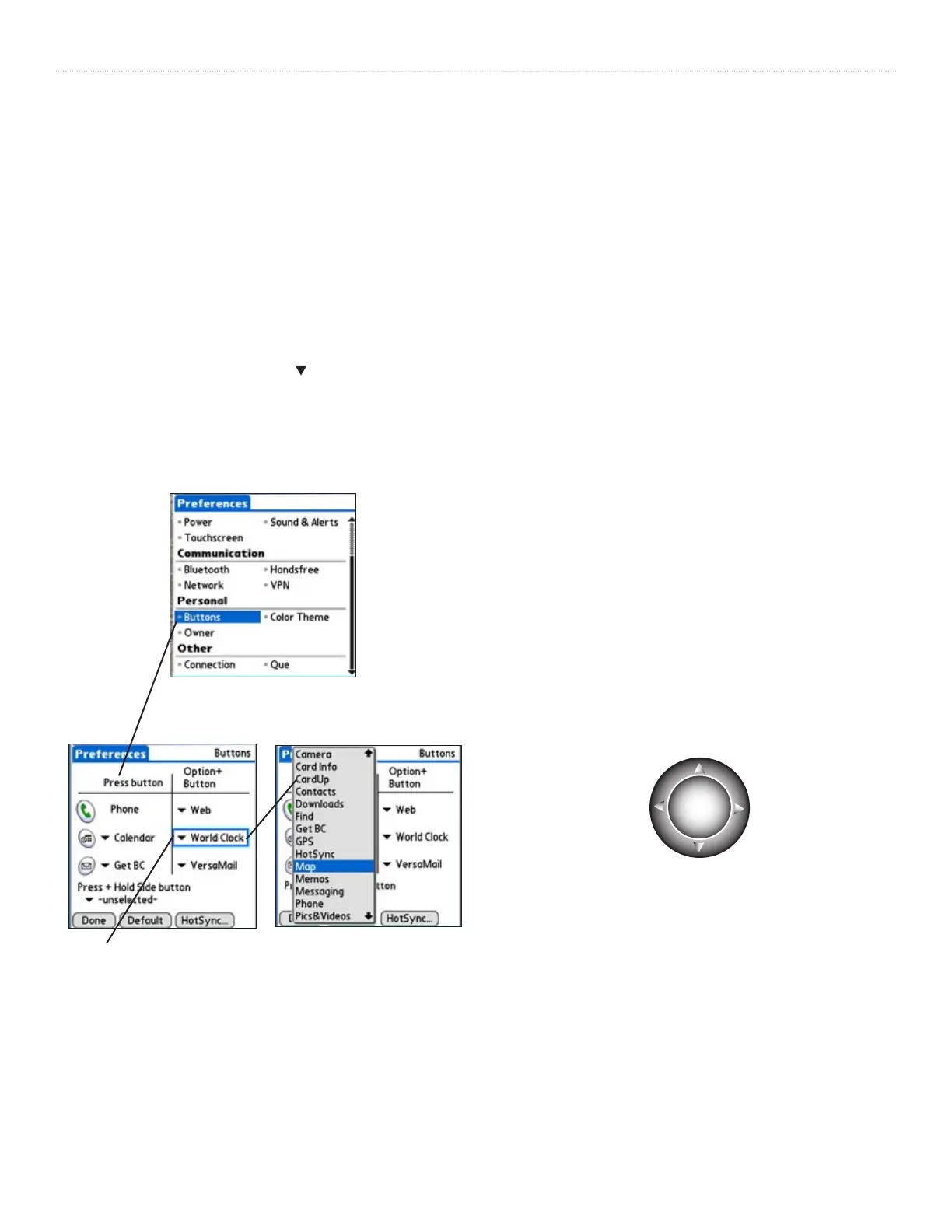
To assign a Que application to a hard button:
1. From the Applications Launcher screen, tap the Prefs
icon to display the Preferences Menu.
2. Select Buttons to display the Buttons Options Menu.
3. Select a button position with a
and tap to display the
pick list of assignment options.
4. Tap the desired function from the pick list to assign it to
the button selected in step 3.
Note that the button descriptions and options available may
vary from PDA to PDA. Mobile phones with Palm OS offer a
different array of buttons than most PDAs and those that can be
reassigned are different as well.
Using the Arrow Button to access Garmin
Que features
Many PDAs have a four or five position button used for
scrolling lists, etc. For our purposes we will refer to this button
as the Arrow button. You can use this button to operate many
of the Garmin Que navigation features with a Que application
active.
To change the Map Scale on the Map Page:
With the Map Page displayed, press the Top or Bottom
of the Arrow Button to increase or decrease the map
scale. Hold the button down to quickly change the scale.
Observe the map scale in the lower right
corner of the map to determine the desired scale.
To scroll any list:
With an entry on the list highlighted, press the Top or
Bottom of the Arrow Button.
To cycle through the Que Applications:
Press the Left or Right Arrow Button.
To listen to spoken navigation instructions or
status messages:
Press and hold the Left or Right Arrow Button.
Preferences - Button Options
Button Assignments
Buttons Pick List
(Graphic representation, may not exactly
resemble the button on your device.)
Up
Right
Down
Left
The Arrow Button



 To Next Page