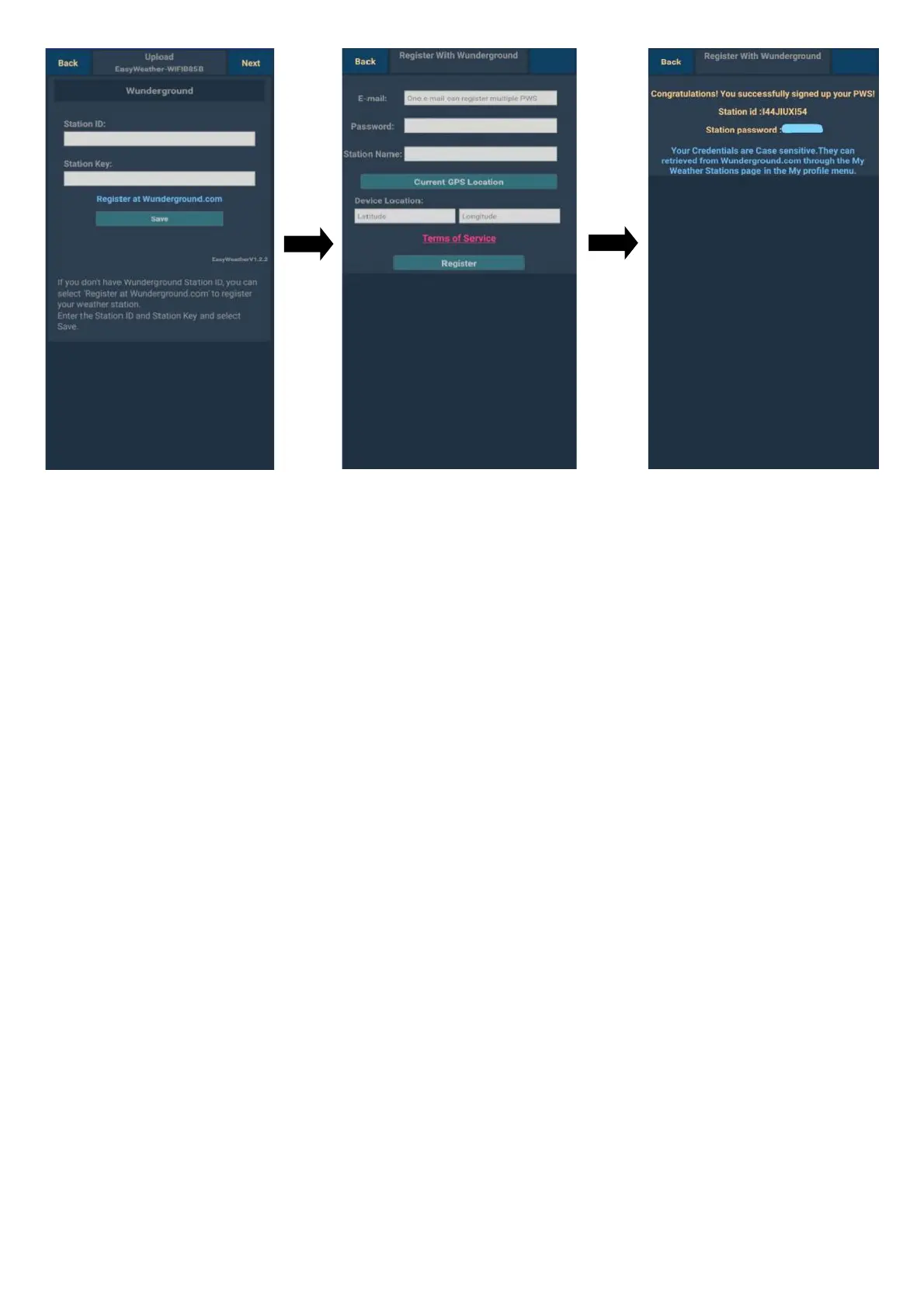
If you already have a
Weather Underground
account, enter the ID
number in the “Station ID”
box and the password
received from the Weather
Underground server in the
“Station Key” box. Click on
SAVE to save and then on
Next.
If you do not have an
account, click at Register
at Wunderground.com,
and the following screen
will appear (see on the
right).
Registration to the
Weather Underground
server
1. Enter your e-mail
2. Enter the password for
logging to your profile
3. Enter any name of the
weather station
4. Enter the location of the
weather station using
latitude and longitude,
OR click the Current
GPS Location button if
the weather station is
located where the mobile
device is currently located
5. Click on Register
Upon successful
registration, you will receive
a “Station ID” and a
password for the device,
which will also be sent to
the specified e-mail
address.
Click on Back to return to
the main screen.
Click OK to confirm the
automatic entering of the
identification number and
password. If you want to
setup more servers, click
on Next, otherwise click on
Back.
Weathercloud
To connect to the Weathercloud server, enter the “Weathercloud ID” and “Weathercloud Key”
assigned by this service, for registration see the following sub-chapters. Click on Save and then on
Next. If you do not want to link the weather station with the Weathercloud account, click on Next
without entering the login data.
WeatherObservationWebsite (WOW)
To connect to the WeatherObservationsWebsite server, enter the “Station ID” and “Authentication
Key” assigned by this service, for registration see the following sub-chapters. Click on Save and
then on Next. If you do not want to link the weather station with the WeatherObservationsWebsite
account, click on Next without entering the login data.


 To Next Page
 Loading...