INSTALLATION OF DEVICE HOLDER ATTACHMENT
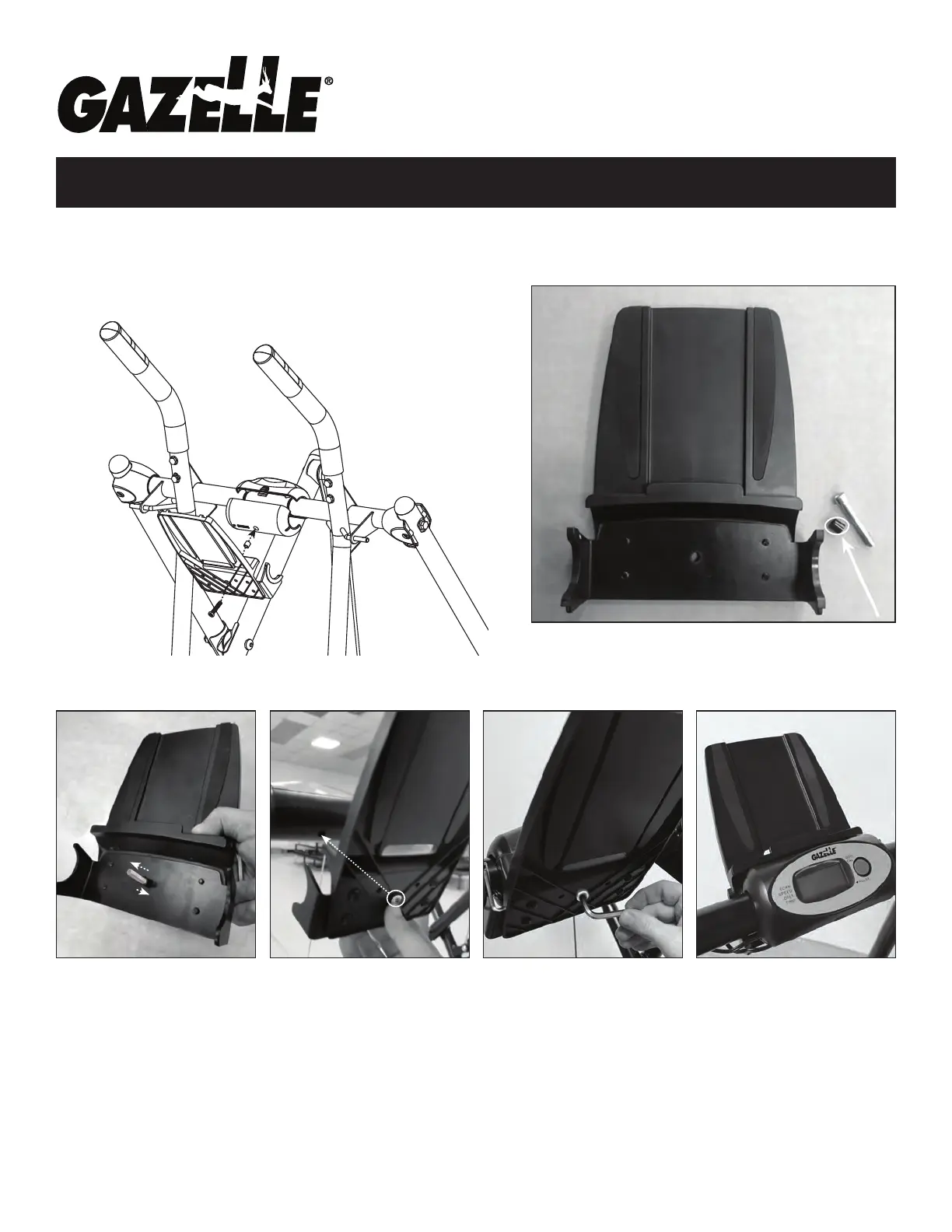
1 device holder attachment
1 loose screw & 1 metal sleeve (see arrow)
1. Pass the screw through the back
of the device holder & place the
metal sleeve onto the screw.
2.
Align the inserted screw of
the device holder with the
screw hole on the back of the
tness computer. If the tness
computer was previously
installed, you will need to
replace the tness computer’s
M6 screw with the larger loose
screw that comes with the
device holder attachment.
3. Once screw & hole are
aligned, use the provided allen
wrench to lock device holder
attachment into place on the
back of the tness computer.
© 2022, 2017 Gazelle Home, LLC. Gazelle
®
is a registered trademark. All rights reserved.
No part of this document may be reproduced or utilized in any form, by any means electronic, mechanical or otherwise without the express written consent of the copyright holder.
GAZDEVHOL1022
Screw
Sleeve
NOTE: Diagram below represents the installation of the device holder attachment & how it mounts to the back of the tness
computer. Please follow the three simple steps to complete installation. INCLUDES: 1 Device Holder Attachment, 1 Loose Screw
& 1 Metal Sleeve (the loose screw that comes with the device holder attachment replaces the M6 screw that comes with the
tness computer).
You may nd it easier to assemble the device holder
attachment together with the tness computer.
This is what it looks like once
installation is complete.


 To Next Page