EasyManua.ls Logo

GE J1456W - User Manual

GE J1456W
86 pages
Print Icon
To Next Page IconTo Next Page
Loading...
EN
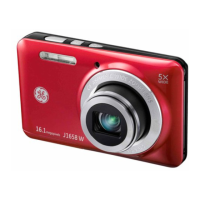
GE Digital Camera
Power Pro Series : J1456W
User Manual
imagination at work
Appendix
Camera Connectivity
Using the Menus
Playback
Camera Function Controls
Basic Operation
Getting Started

Table of Contents

Other manuals for GE J1456W

Questions and Answers

  • N
    Neil ChapmanAug 15, 2025
    Why does my GE J1456W not turn on?
    • J
      Jacqueline MeyerAug 15, 2025
      Your GE Digital Camera might not be turning on because the batteries are depleted. Replace the dead batteries with new ones. Also, ensure that the batteries are inserted correctly.
  • N
    Nicholas HaleyAug 18, 2025
    Why do images from GE Digital Camera not print from the connected printer?
    • J
      jonwestAug 18, 2025
      If images from your GE Digital Camera aren't printing, check the connection between the camera and printer. Ensure you are using a PictBridge compatible printer. Reload paper, remove any jammed paper, and replace the ink cartridge in the printer if needed.
  • N
    Nicholas Gray MDAug 21, 2025
    What to do if my GE J1456W turns off suddenly?
    • J
      josephpittsAug 21, 2025
      If your GE Digital Camera turns off suddenly, it might be because the batteries are depleted. In this case, replace the dead batteries with new ones.
  • S
    Sharon KerrAug 25, 2025
    What to do if my GE Digital Camera images and video files cannot be saved?
    • J
      Jamie McphersonAug 26, 2025
      If your GE Digital Camera isn't saving images and video files, it could be because the SD memory card is full. Replace the SD memory card with a new one, delete unwanted images, or unlock the memory card.
  • E
    Erica FloresAug 28, 2025
    How to fix blurred pictures on my GE J1456W Digital Camera?
    • C
      Connie KirbyAug 28, 2025
      If your GE Digital Camera pictures are blurred, the lens might be dirty. Use a soft cloth to clean the lens. You can also try using the Image Stabilization mode.
  • R
    Rebecca HernandezAug 31, 2025
    What to do if no picture can be taken when pressing the shutter button on GE Digital Camera?
    • R
      robinsandersAug 31, 2025
      If your GE Digital Camera isn't taking pictures when you press the shutter button, the SD memory card might be full. Replace the SD memory card with a new one or format the current SD memory card. Also, delete unwanted images and ensure the SD memory card is not locked. Check that the mode dial is not in Playback mode and ensure there is available space to store the files.
  • E
    Emily LamSep 4, 2025
    Why GE J1456W cannot write to the memory card?
    • M
      Melissa DavisSep 4, 2025
      Your GE Digital Camera might not be able to write to the memory card because the SD memory card has been locked. Remove the SD memory card and unlock it.
  • D
    Dawn GuerraSep 7, 2025
    Why does my GE Digital Camera write to memory card slowly?
    • L
      lvangSep 7, 2025
      If your GE Digital Camera is writing to the memory card slowly, it may be due to using a memory card below Class 4. Use an SDHC card and shoot after formatting the card.
  • M
    Monica LewisSep 12, 2025
    Why GE J1456W has too many movies to process?
    • R
      Robin VazquezSep 12, 2025
      If your GE Digital Camera has too many movies to process, the number of pictures or binders in the SD memory card may exceed the specifications, so the playback of data folder can not be displayed. Delete unwanted files or transfer the files on the SD memory card to other area.

Summary

Introduction and Safety

Getting Started Overview

Highlights main sections of the user manual and initial features.

General Warnings and Compliance

Covers essential warnings, FCC compliance, CE marking, and WEEE disposal information.

Detailed Safety Precautions

Specific precautions for camera, battery, and memory card usage to prevent damage.

Before You Start

Includes preface, copyright notice, and trademarks for the user manual.

Manual Information

Details about the manual's content, symbols, and copyright.

Camera Setup and Basic Operation

Getting Ready

Unpacking the camera, identifying accessories, and camera views.

Powering On and Charging

Steps for charging the camera battery and powering the device on and off.

Battery and Memory Card

Instructions for inserting the battery and SD/SDHC memory card correctly.

Basic Operation

Guide to shooting in Auto Mode and using the camera's zoom function.

Camera Modes and Functions

Understanding Camera Modes

Overview of various shooting modes and their applications.

Key Shooting Features

Covers Flash, Self-Timer, Macro, Advanced Functions, and Scene Modes.

Display and Special Features

Details on LCD displays, Stabilization Mode, Face and Blink Detection.

Menus, Playback, and Connectivity

Using the Menus

Guide to navigating Still, Movie, and Setup menus for camera configuration.

Playback Operations

Instructions for viewing, zooming, and deleting photos and videos.

File Management and Connectivity

Covers file operations, PC connection, and PictBridge printing.

Appendices and Support

Specifications

Technical specifications of the GE Digital Camera.

Error Messages

List of common error messages and their explanations.

Troubleshooting

Solutions for common camera problems and issues.

GE J1456W Specifications

General IconGeneral
BrandGE
ModelJ1456W
CategoryDigital Camera
LanguageEnglish

Related product manuals