Moon Phase
Placement of the Device:
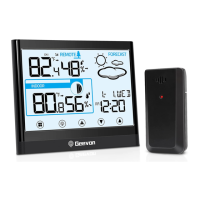
Proper placement of both the display unit and the outdoor sensor
are critical to the accuracy and performance of this product.
Display Unit Placement
Place the display unit in a dry area free of dirt and dust. Display unit
stands up right for tabletop/countertop use.
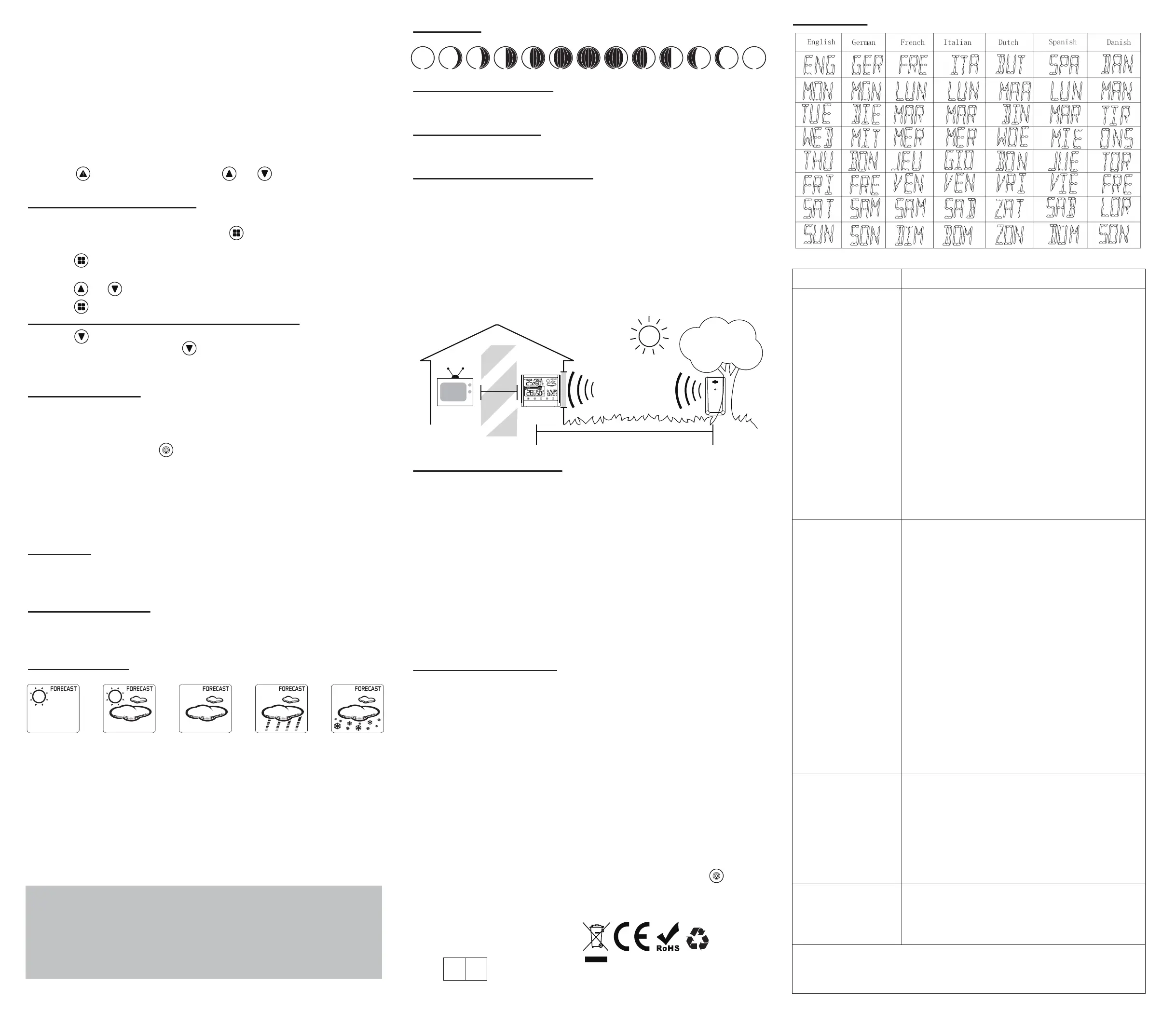
Important Placement Guidelines
a. To ensure accurate temperature measurement, place units out of
direct sunlight and away from any heat sources or vents.
b. Display unit and outdoor sensor must be within 200ft (60m) of
each other.
c. To maximize wireless range, place units away from large metallic
items, thick walls, metal surfaces, or other objects that may limit
wireless communication.
d. To prevent wireless interference, place both units at least 3ft (1 m)
away from electronic devices (TV, computer, microwave, radio, etc.
Outdoor Sensor Placement
a. The sensor must be placed outside to observe outdoor
conditions. It is water resistant and designed for general outdoor
use, however, to prevent damage place the sensor in an area which
is protected from the direct weather elements and direct sunshine.
The best location is 4 to 8 feet above the ground with permanent
shade and plenty of fresh air to circulate around the sensor.
b. Display unit and outdoor sensor must be within 100 feet of each
other.
c. In order to maximize the wireless range, place units away from
large metallic items, thick walls, metal surfaces or other objects that
may limit wireless communications.
d. To prevent wireless interferences, place both units at least 3 feet
away from electronic devices (EX: TV, computer, microwave etc.)
Outdoor Sensor Function:
a. Once the display unit has been set up and the channel
synchronized with the outdoor sensor, the display unit will begin the
registration process. It can take up to 3 minutes to complete the
registration, where the display unit will search for an RF (Radio
Frequency) signal from the outdoor sensor. The outdoor sensor
signal strength will show the connection strength to the outdoor
sensor. If there are no bars or if bars are not showing at its
maximum strength (4 bars) (3) try placing the outdoor sensor or
display unit elsewhere for better connection.
b. If the RF Signal was lost and not reconnected, the outdoor
temperature and humidity level will begin to flash after 1 hour of lost
connection. If no connection was found after 2 hours only a dotted
line ‘ - - - ’ will be displayed in place of the temperature and humidity
level.
c. To manually restart the RF registration, press and hold button
for 3 seconds. The display unit will now search for the RF signal for
the next 3 minutes.
Week Display
2. In temperature alert status, alert temperature icon will twinkle and
temperature will always display.
3. Temperature alarm sound:
a. Two BIs /second
b. Alarm 5s for every minute
c. Not stop alarm until meet stop conditions.
4. Alarm stop conditions:
a. Press any button to stop alarm but temperature and alert icon will
continuously flash.
b. When temperature go back into alert range.
c. Press to enter alert mode, use or to turn off the
temperature alert function.
Setting the Temperature Units:
a. The default temperature unit is Fahrenheit (°F).
b. To switch to Celsius, press and hold button. You will see 12/24
hour mode flashing.
c. Press button 8 more times to scroll through the other settings.
You will see °F flashing.
d. Press or to switch from Fahrenheit to Celsius.
e. Press to confirm your selection and exit.
Checking the MAX/MIN temperature and humidity
a. Press button to check MAX/MIN temperature and humidity.
b. Press and hold 2 seconds button to clear the record of
MAX/MIN temperature and humidity when display shows MAX or
MIN temperature and humidity.
Setting the Channel:
Setting the channel connection between the display unit and outdoor
sensor:
a. To change the channel on the display unit between 1, 2, 3 &1-3
sequential display, press button. The channel setting will display
on the above of the outdoor temperature.
b. To change the channel option on the outdoor sensor open the
battery compartment cover, on the upper left side is a button.
c. ALWAYS MAKE SURE THE CHANNEL CHOSEN ON THE
DISPLAY UNIT MATCHES THE CHANNEL OPTION CHOSEN ON
THE OUTDOOR SENSOR.
Back Light:
When the display unit is powered by battery only the back light will
be off to preserve the battery. Press the SNZ/LIGHT button to turn
the back light on for 10 seconds.
Low Battery Indicator:
If the low battery indicator is displayed on the LCD for either the
outdoor sensor or the display unit, immediately change the batteries
to prevent disruptions in communications of the devices.
Weather Forecast:
a. The unit predicts weather condition of the next 12-24 hours based
on the change of temperature and humidity. Weather change
parameters: (this product is not pressure function, so the weather
forecast is according to the outdoor temperature and humidity
change indicator) now the product change the weather according to
the channel 1 temperature and humidity change, if the channel 1 did
not receive the signal, the weather according to the indoor
temperature and humidity.
The following are icons that will show:
NOTE:
a. The weather forecast is based on outdoor temperature and
humidity change and is about 40-45% correct.
b. The weather forecast can be more accurate only under the
condition of natural ventilation, in indoor conditions, especially in
air-conditioned rooms, there will be not accurate.
Web: www.geevon.com
E-mail:support@geevon.com
Prolinx GmbH MADE IN CHINA
Brehmstr.56,40239 Duessldorf
Germany
EC REP
TV
(200 feet maximum)
(60 meters)
(0.9 m)
3 feet
AT
LEAST
APART
Problem
Possible Solution
Outdoor reading
is flashing or
showing dashes
No outdoor
sensor reception
Inaccurate
temperature
"HH/LL" display
in indoor and/or
outdoor
temperature
Flashing of the outdoor reading is
generally an indication of wireless
interference. This thermometer is
arranged to communicate with three
external sensors. One of these comes
with the unit, the remaining two are
optional.
1. Bring both of the sensor and display
indoors, side by side and remove
batteries from each. Power the
thermometer as described in Getting
started.
2. Set the selector in the outdoor sensor
to the desired transmission channel (1,
2, or 3). Automatic data will be
transmitted.
3. Press the CH button more times to
select the channel set on the external
sensor. Sequentially selects channel 1,
channel 2, channel 3, and sequentially
display for 3 channels.
1. Reload the batteries of both outdoor
sensor and main unit.
Please refer to the SENSOR SETUP
section.
2. Press and hold the CH button to
receive RF signal.
3. Always make sure the channel chosen
on the display unit matches the channel
option chosen on the outdoor sensor.
4. Relocate the main unit and/or the
outdoor sensor. The units must be within
200ft (60m) of each other.
5. Make sure both units are placed at
least 3 ft (1m) away from electronics
that may interfere with the wireless
communication (such as TV, microwave,
computer, radio, etc).
6. Do not use heavy duty or
rechargeable batteries. The outdoor
sensor requires lithium batteries in low
temperature conditions. Cold
temperatures would cause alkaline
batteries work improperly.
7. Do not mix old and new batteries.
1. Make sure both the main unit and
sensor are placed out of direct sunlight
and away from any heat sources or
vents.
2. Do not tamper with the internal
components.
3. Temperature accuracy:
(-40°C ~ -20°C):±4°C
(-20°C~0°C):±2°C
(0°C~50°C):±1°C
If the temperature is higher than the
detection range, HH will display on
screen for indication; if lower than the
detection range, LL will display on
screen for indication.
If your Geevon product does not operate properly after
trying the troubleshooting steps, contact the seller on
your order page or shoot an email to :
support@geevon.com.
Trouble Shooting:
Sunny Partly sunny Cloudy Rainy Snowy


 To Previous Page
 Loading...