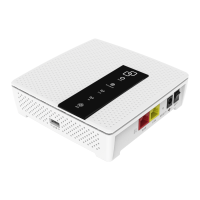
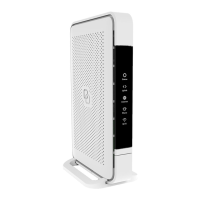
Wireless extender
. Place the Pulse EX as
described on the let.
. Plug the power adapter into an
electrical socket and connect it to
the power pot at the back of
the Pulse EX.
. Flip the ONOFF switch at the
back of the device to turn it on.
. Wait until the Status LED stats
blinking green.
. On the Pulse EX, press and
release the Mode buton once. The
status LED will stat blinking blue.
. On the Genexis router, initiate the
automated pairing (WPS) within
wo minutes according to the
description of your Genexis router.
. The status LED turns solid blue
indicating that pairing of the Pulse
EX with the Genexis router is
successful (the Pulse EX will
automatically reboot ater the
automated pairing (WPS); this may
take up to several minutes).
. Wait until the Status LED stops
blinking and turns solid green.
Your Pulse EX is now setup as a
wireless extender.
Wired extender
. Connect an RJ nework cable
beween a LAN pot of your
Genexis router and the Pulse
EX WAN pot (red connector).
. Plug the power adapter into an
electrical socket and connect it to
the power pot at the back of the
Pulse EX.
. Flip the ONOFF switch at the
back of the device to turn it on.
. Wait until the Status LED stops
blinking and turns solid green (the
Pulse EX will automatically
reboot during the setup; this may
take up to several minutes).
Your Pulse EX is now setup as a
wired extender.
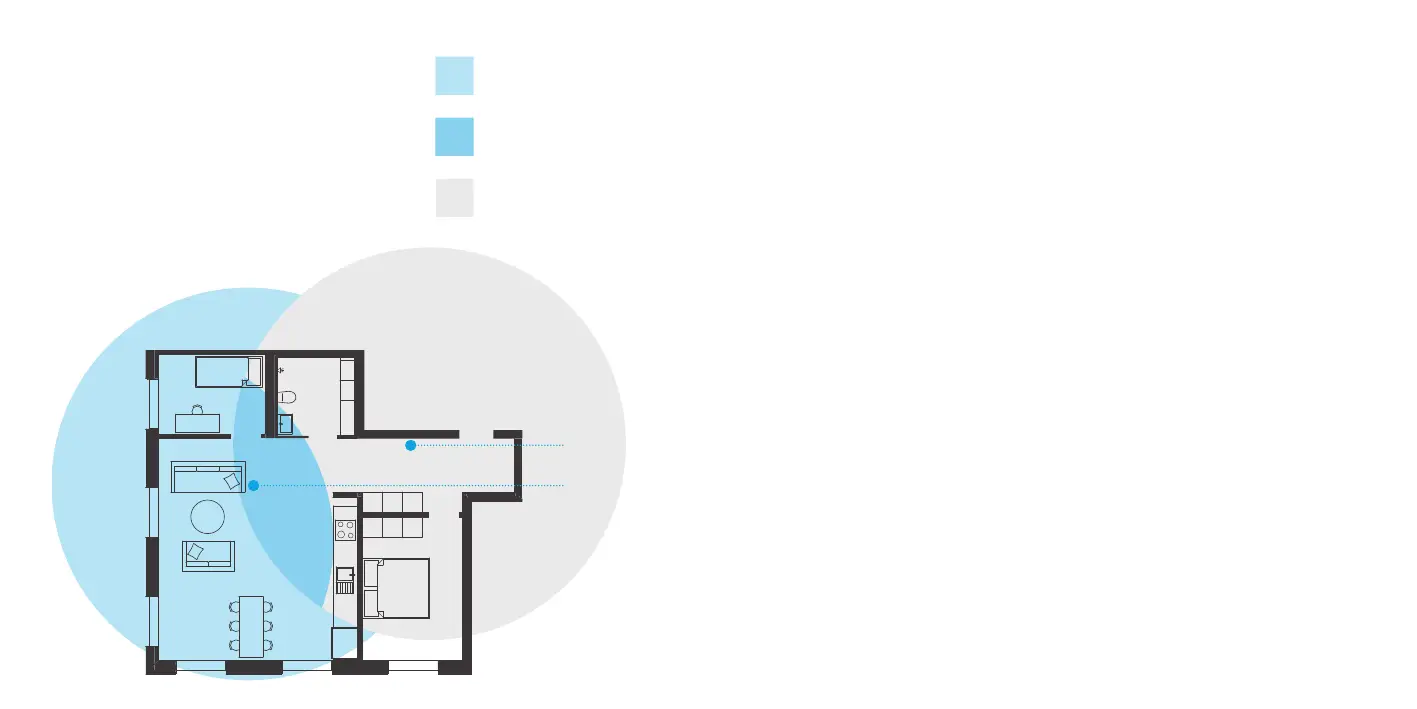
Extender placement
For optimal peformance of the
Pulse EX; place the Pulse EX
halfway in beween your router and
the problem area (as shown below).
Make sure placement is within WiFi
range of your router while providing
an optimal coverage in your house.
Pulse EX
Router
Problem area, improved
by Pulse EX
Area that is good for
placing Pulse EX
Area covered by your
router



 To Next Page