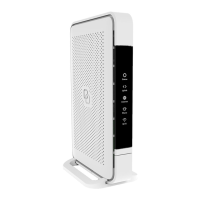
Switching the WiFi ONOFF
The WiFi function of the Pulse EX
can be switched ON or OFF by
means of the Mode buton.
• Switch OFF: On the Pulse EX,
press and hold the Mode buton until
the Status LED turns solid yellow.
• Switch ON: On the Pulse EX,
press and hold the Mode buton until
the Status LED stats blinking green
or turns solid green.
Connecting to the wireless nework
You can connect your personal
device (e.g., mobile phone) to the
Pulse EX via manual pairing. If
automated pairing is prefered, please
check for your speciic device how
this can be initiated. Before pairing,
make sure the Status LED is solid
green. If not, switch the WiFi ON as
described in this installation guide.
Manual pairing
The WiFi nework name and WiFi key
are printed on the labels of the
Pulse EX router.
. Peform a search of available
wireless neworks on your personal
device or scan the QR-code on the
label on the botom of the
Pulse EX.
. Select the WiFi nework name
printed on the label on the botom
of the Pulse EX.
. Enter the WiFi key printed on the
label of the Pulse EX.
Follow the instructions of the router
in case the Pulse EX is in
extender mode.
Wireless extender
. Place the additional Pulse EX
as described on the let.
. Plug the power adapter into an
electrical socket and connect it to
the power pot at the back of
the Pulse EX.
. Flip the ONOFF switch at the
back of the device to turn it on.
. Wait until the Status LED
surrounding the Mode buton
stats blinking green.
. On the Pulse EX, press and
release the Mode buton once. The
status LED will stat blinking blue.
. Press the same Mode buton on
the Pulse EX router within
wo minutes.
. Automated pairing is now stated.
. The Status LED turns solid blue
indicating that pairing of the Pulse
EX extender with the router
is successful (the Pulse EX will
automatically reboot ater the
automated pairing; this may take
up to several minutes).
. Wait until the Status LED stops
blinking and turns solid green.
Your Pulse EX is now setup as a
wireless extender.
Wired extender
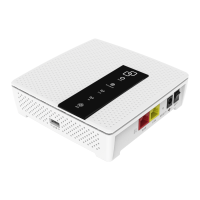
. Connect a nework cable beween
the LAN pot (yellow connector)
of the Pulse EX router and the
WAN pot (red connector) of the
Pulse EX extender.
. Plug the power adapter into an
electrical socket and connect it to
the power pot at the back of the
Pulse EX extender.
. Flip the ONOFF switch at the
back of the device to turn it on.
. Wait until the Status LED stops
blinking and turns solid green
(the Pulse EX extender will
automatically reboot during the
setup; this may take up to
several minutes).
Your Pulse EX is now setup as a
wired extender.


 To Next Page
 Loading...